


Event software training
How to use Tickets?
With Tickets you sell tickets, take free registrations or invite guests personally - all from your event in the event software of eventplanner.net. Your guests get an event page, tickets with a QR code (a square barcode that a phone can scan) and confirmation e-mails. You get a live guest list, sales statistics and a ticket scanner app for the door.
This guide takes you through everything, in the order you will need it: choosing the type of event, the setup, publishing, managing your guests and checking them in at the door. Want to know more about what ticketing in eventplanner.net can do before you start? Have a look at the overview page first.
Where to find it: open your event in the event software and choose Tickets in the event menu. Everything in this guide happens there. The seating plan has its own menu entry as well, Plan / Seating.
First time? The first time you open Tickets, you are asked to accept how eventplanner.net handles your guests' data. You stay responsible for that data (in privacy terms you are the "data controller"), eventplanner.net only stores and processes it for you.
1. First, pick the right type of event
The very first choice is how people get in. There are three types, and the choice shapes everything else:
| RSVP | Free | Paid | |
|---|---|---|---|
| Best for | Private events with a guest list you control: galas, staff parties, weddings, VIP dinners | Open events with free entrance: open houses, community evenings, meetups | Events where visitors buy a ticket: conferences, workshops, parties |
| Who can register | Only the people you invite, each through their own personal link | Anyone (or only people with your link or password) | Anyone (or only people with your link or password) |
| Tickets | Optional: one QR ticket per confirmed guest | Optional: one QR ticket per person | Optional: one QR ticket per person |
| Payment by guests | Free of charge | Free of charge | Online payment, paid out to your own Stripe account |
RSVP stands for "please reply": you invite people and they answer whether they are coming. With Free, people register themselves without paying - see free event registration. With Paid, they buy a ticket online.
Note: paid ticketing is in early access, which means it is only switched on for selected accounts for now. Without access, the option reads Paid - Coming soon! in the settings. Paid ticketing also needs a .PRO membership, and you have to be based in a country where it is available (the EU and EEA countries, the United Kingdom, Switzerland, the United States or Canada).
Choose carefully:
- You can change the type while you are setting up, but changing it resets the settings that belong to the old type. Switching to RSVP removes all your ticket types and zones, switching to Free removes the prices.
- While your event is published, the type cannot be changed. Set the page to Inactive first.
- As soon as there is a single guest or order - even an order that was never paid - the type is locked. It only unlocks again when you delete all guests and orders.
2. Set up your event
Don't have the event in the event software yet? Create it first (a name, a date and the type of event is all it takes):
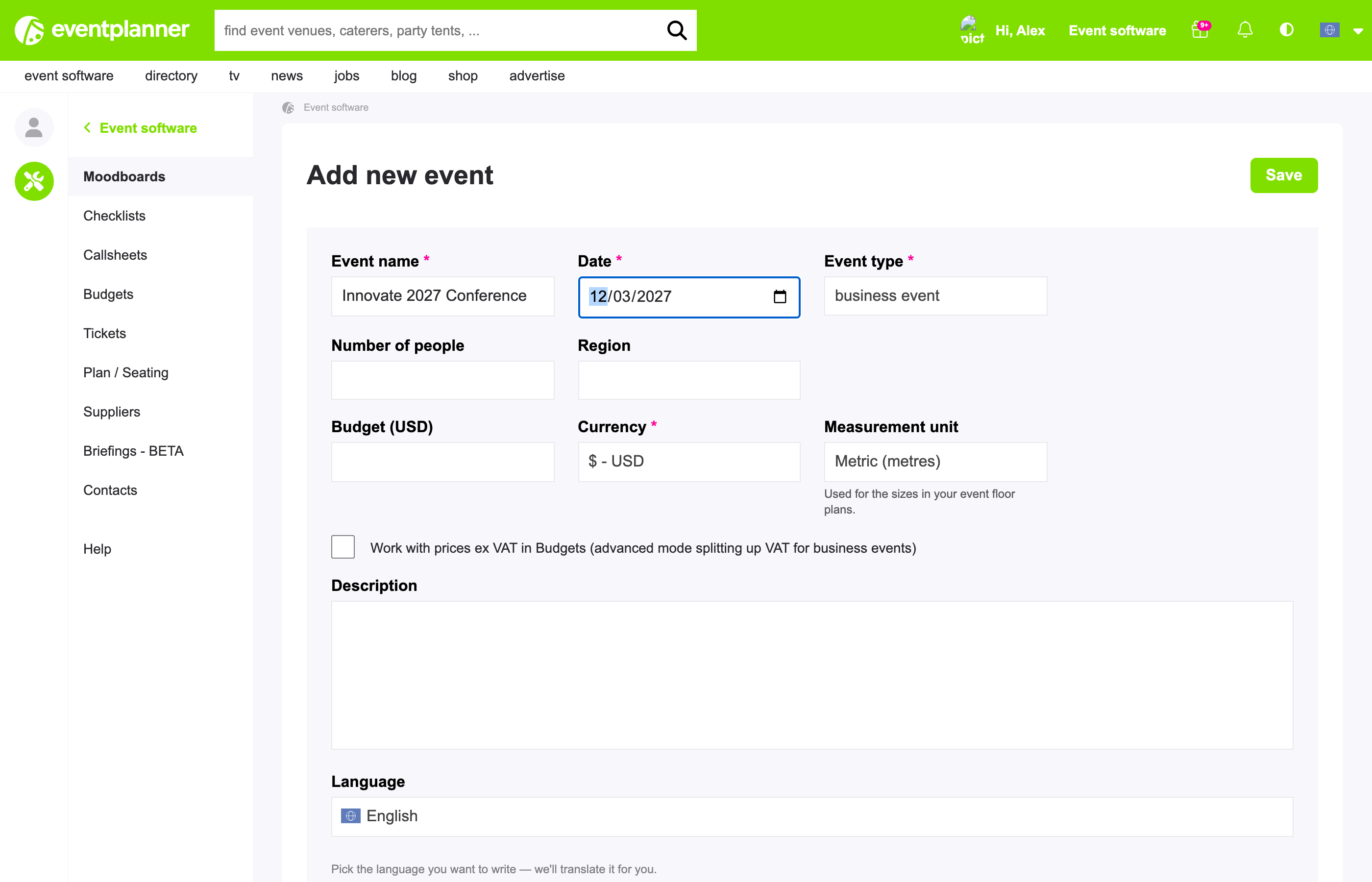
Then open Tickets for your event. You see the settings board: a list of steps, with a check mark for every step that is done. The steps unlock one after the other: the event details open once your organiser profile is saved, and the zones and ticketing steps open once your event details are complete.
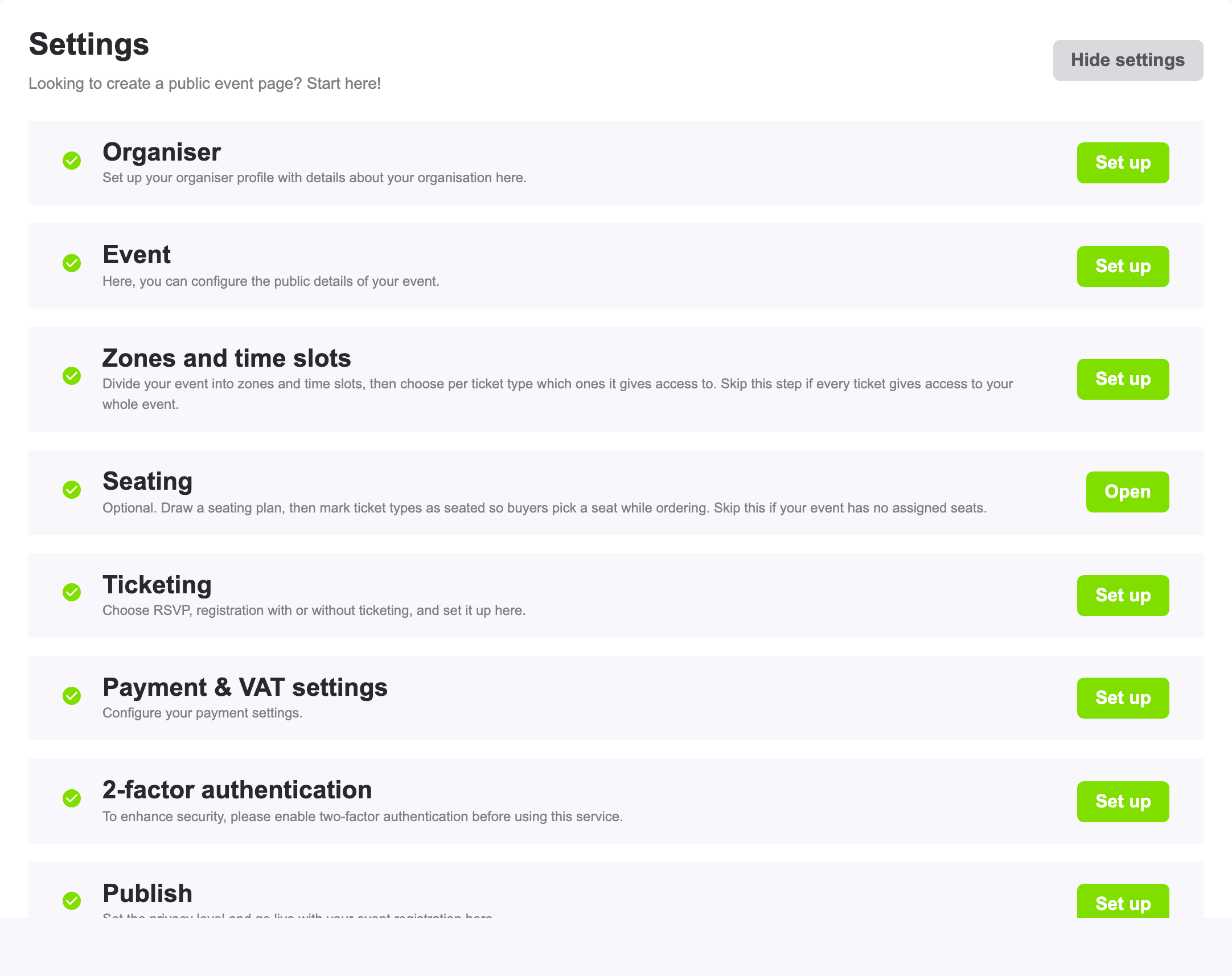
The board has these steps:
- Organiser - who organises the event.
- Event - everything your guests see about the event itself.
- Zones and time slots (optional).
- Seating (optional).
- Ticketing - the type of event, your tickets and how registration works.
- Payment & VAT settings - only for paid events.
- 2-factor authentication - an extra login check, required before you can publish.
- Publish - going live.
Step 1: your organiser profile
This is the "who is organising this?" block on your event page. It is shared by all your events: set it up once and reuse it everywhere. All four fields are required:
- Organiser name - your organisation or brand name.
- Contact email - shown to your guests in every ticketing e-mail, and when a guest replies to one of those e-mails, the reply arrives here. Messages sent through the form on your event page arrive here too.
- Organiser intro text - a short introduction of your organisation.
- Logo - a PNG or JPG image of at least 1024 x 1024 pixels. A square logo looks best.
The e-mails your guests receive (invitation, confirmation, payment and cancellation e-mails) come from your organiser name and end with your logo, your name and your contact e-mail address.
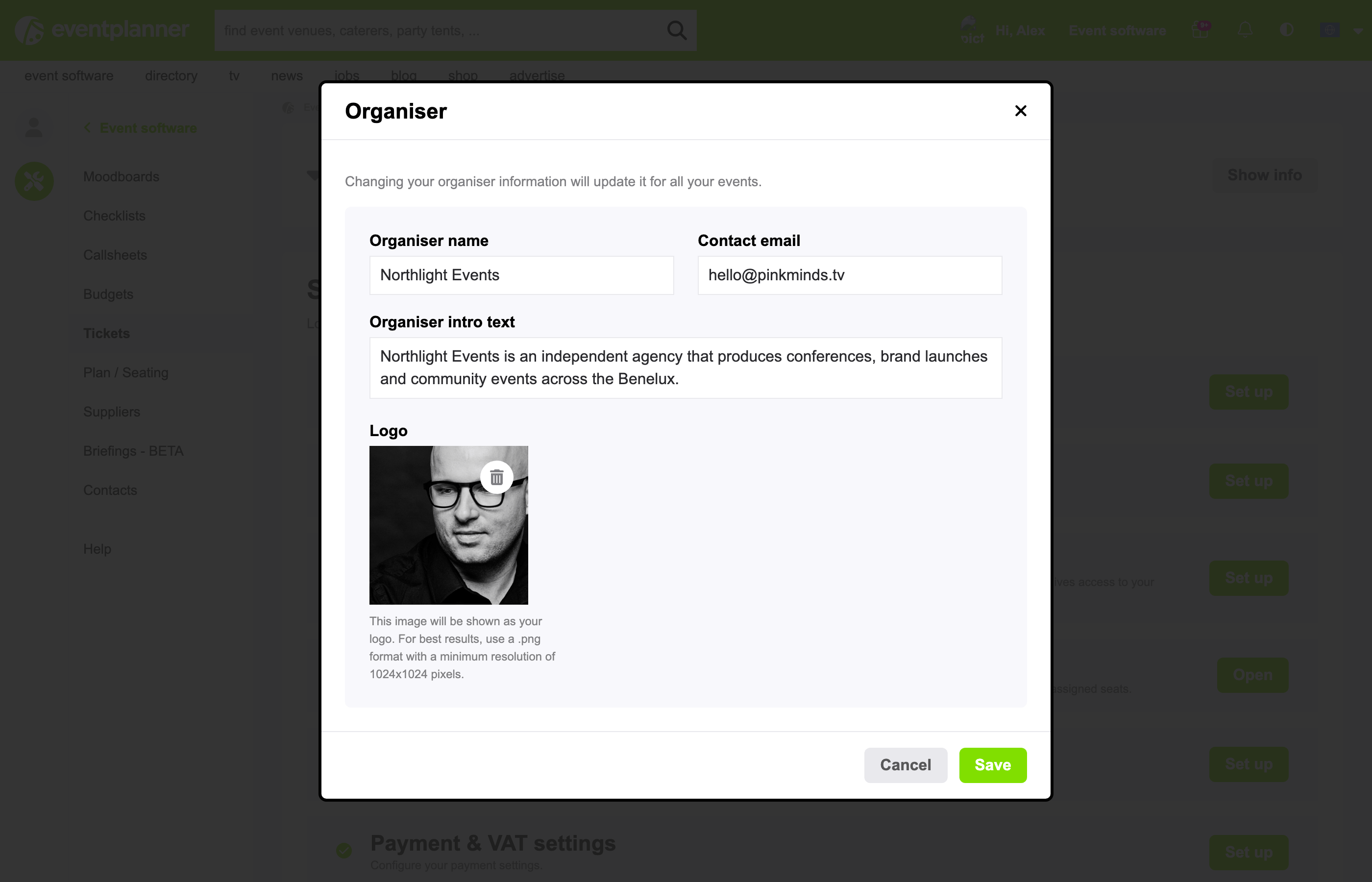
Tip: changing your organiser information updates it for all your events at once. For paid events the organiser name locks once Stripe has verified your business.
Step 2: your event details
Everything the event page shows about the event itself. The form only saves when every required field is filled in correctly:
- Event name, intro text and dates - the start and end date and time, and the time zone (the local clock your times are in), so international guests always see the right time. The dates have to be in the future.
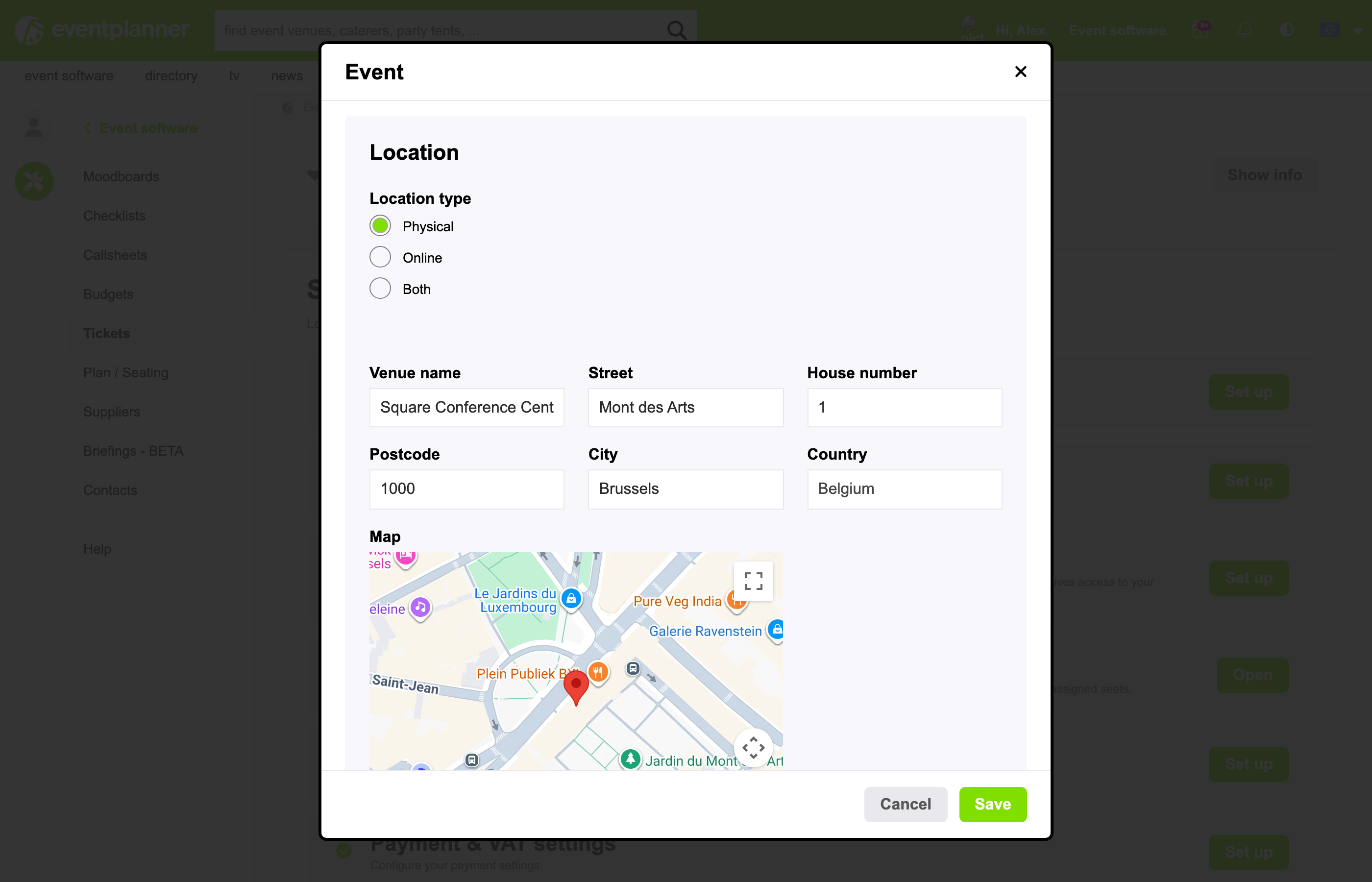
- Location - a physical venue (name and address, shown with a map), an online event (a website address), or both. For a physical venue you can drag the pin on the map if it is not exactly in the right place.
- Cover image and preview image - the cover is the large banner at the top of your event page (at least 2564 x 804 pixels), the preview is the small picture that represents your event in lists (at least 540 x 360 pixels). Both are required, as JPG or PNG.
- About the event - the full description. Take your time here: this is what convinces people to come.
- Refund policy - required for every event, also free ones ("This is a free event, but let us know if you can't make it" is fine). It locks once you publish, because guests registered under that policy.
- Terms of sale - your own sales conditions. Required for paid events, and buyers accept them at checkout. If you fill them in for a free event, registrants have to accept them too. They also lock once you publish.
- Privacy Policy URL and Require consent? - a link to your own privacy policy (required). If your policy needs explicit permission, set "Require consent?" to yes: guests then have to tick a checkbox before they can register. Both lock once the first guest has registered.
- Tags - up to 20 keywords that help people find your event.
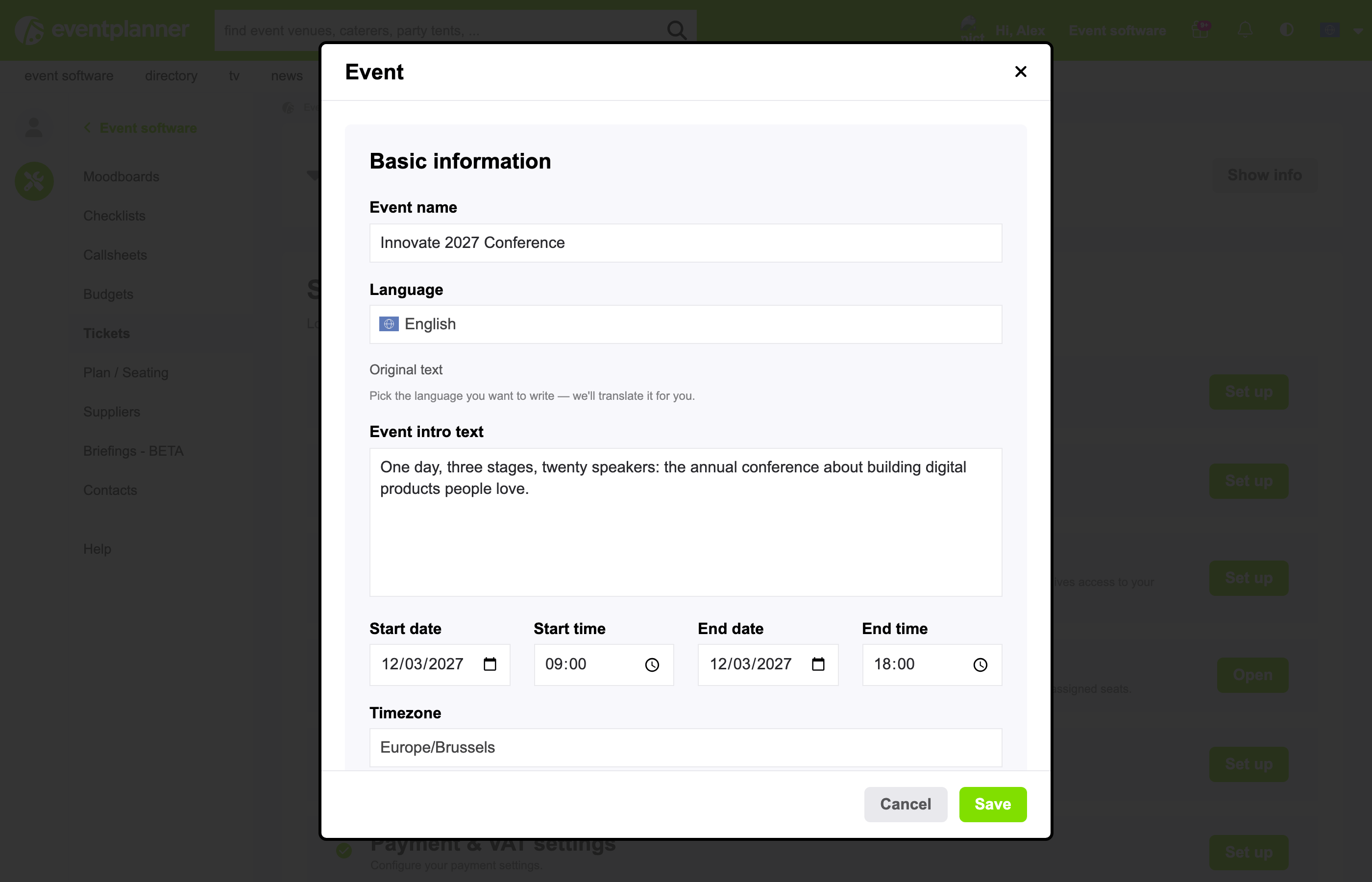
Good to know: the texts your guests read can be translated. Use the language switcher on each text field to add other languages.
Step 3 (optional): zones and time slots
Skip this step if every ticket simply gives access to the whole event.
A zone is a part of your venue that only some tickets give access to: the main hall, a balcony, a VIP deck. A time slot is a period in which a ticket is valid: a morning or an afternoon session. In the window that opens they are called Sections: you add a zone, a time slot, or a zone with a time slot. You then choose per ticket type which sections it gives access to. Use them for:
- VIP areas - a VIP ticket gives access to the VIP zone, a standard ticket does not. The scanner app checks this at the door.
- Timed entry - sell the same space in morning and afternoon blocks.
- Seated zones - on a seating plan, every zone gets its own colour and its own tickets (see step 4).
A zone has a name and an optional colour (used on the seating plan). A time slot has a start and an end date and time.
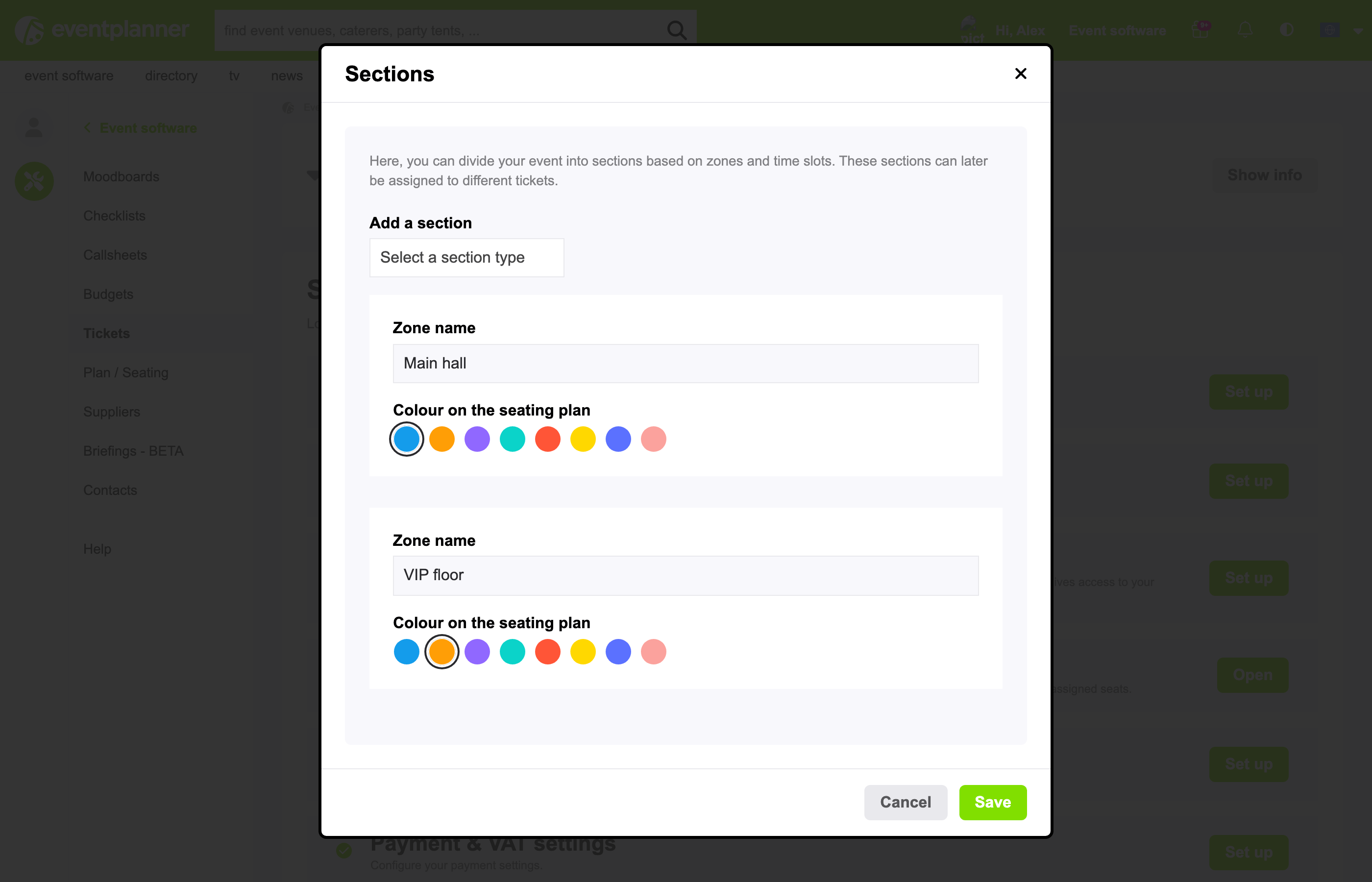
Locks: once you have added a section, every ticket type has to give access to at least one. After your first publication, names and time windows are fixed and no section can be deleted anymore.
Good to know: zones and time slots are for free and paid events. On an RSVP event they have no effect. And seat picking does not work together with time slots: as soon as your event has one time slot, buyers can no longer choose seats.
Step 4 (optional): the seating plan
Available with a .PRO membership, in beta (still being finished - you confirm that you use it at your own risk).
Skip this step if your event has no fixed seats. If it does, the seating plan designer lets you draw your venue to scale: round and long tables, rows of seats, the stage, a dance floor, the bar, walls, doors and more. You can also upload a floor plan of your venue (PNG, JPG or PDF, up to 15 MB) and draw on top of it, use a floor plan the venue published, or copy the plan of an earlier event (while your plan is still empty).
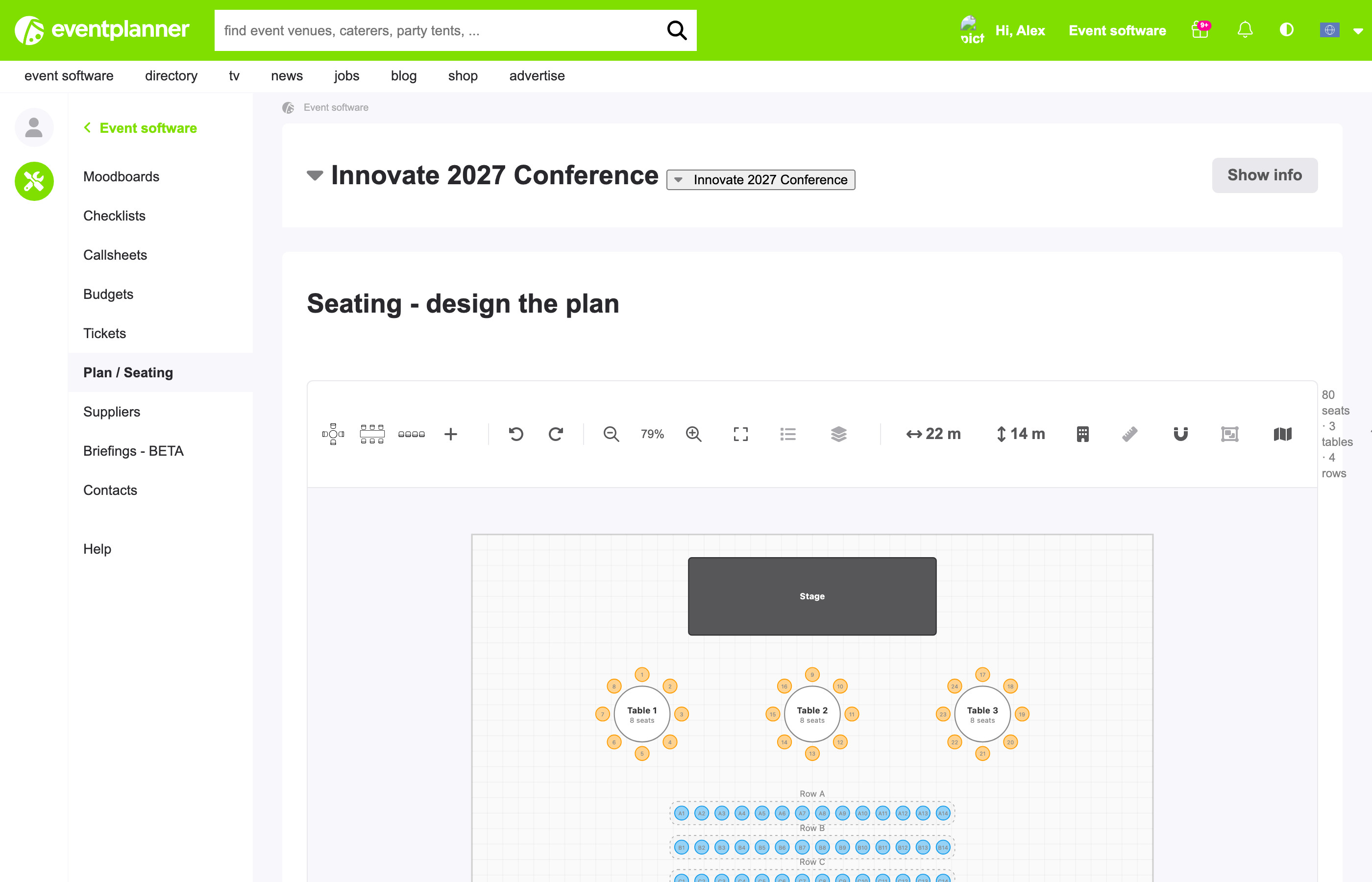
The essentials:
- Tables and rows belong to zones. Select tables and rows on the plan and paint them into one of your zones from step 3. Every zone shows in its own colour. A ticket type only sells seats in the zones it gives access to. Without zones, every seat is open to every seated ticket type.
- Numbering is flexible: row letters, start numbers, odd or even numbering for rows, and your own seat labels.
- Who picks the seat? For free and paid events, the buyer chooses while ordering (good seats are proposed automatically, the buyer can change them). For RSVP events, you place the guests yourself by dragging them onto chairs - also guests who have not answered yet. If they decline, their seats become free again.
- Blocked seats are never sold or given to anyone - use them for technical positions or seats you want to keep free.
- You can download the plan as a PDF, print it, and export the seating list as an Excel file.
Locks: once your event is published, a seat with a booking on it cannot be removed, blocked or moved to another zone. Seats that are in no zone are not sold once your event uses zones - the publish step warns you if you have any.
Good to know: the seating plan has its own access right for your team, separate from the ticketing right. Someone who manages zones needs both.
Step 5: ticketing settings
The heart of the setup. Here you pick the type of event from chapter 1 and decide how registration works.
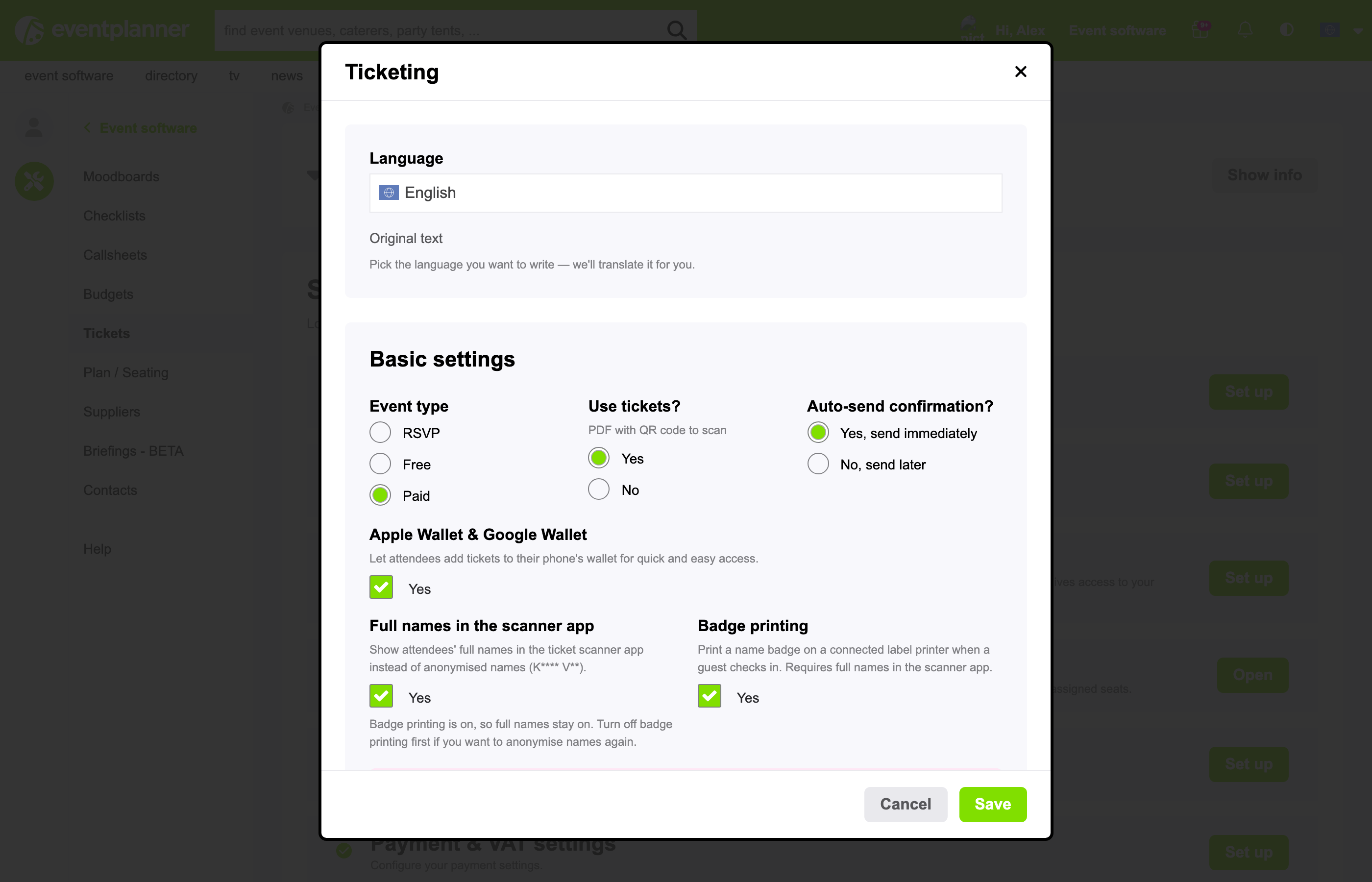
Basic settings
Several of these questions have no answer chosen yet: pick yes or no for each, the form does not save until you do.
- Use tickets? - with yes, every guest gets a PDF ticket with a personal QR code to scan at the door. With no, you only get a guest list, without tickets to scan.
- Auto-send invitations? (RSVP) - Yes, send immediately sends each invitation the moment you add a guest. No, send later keeps them back, so you can send everything at once when your list is ready.
- Auto-send confirmation? (free and paid) - Yes, send immediately, or No, send later if you want to send the confirmations yourself from the guest list.
- Apple Wallet & Google Wallet (.PRO) - guests save their ticket in the wallet app on their phone with one tap, so they always have it with them. Only shown when you use tickets.
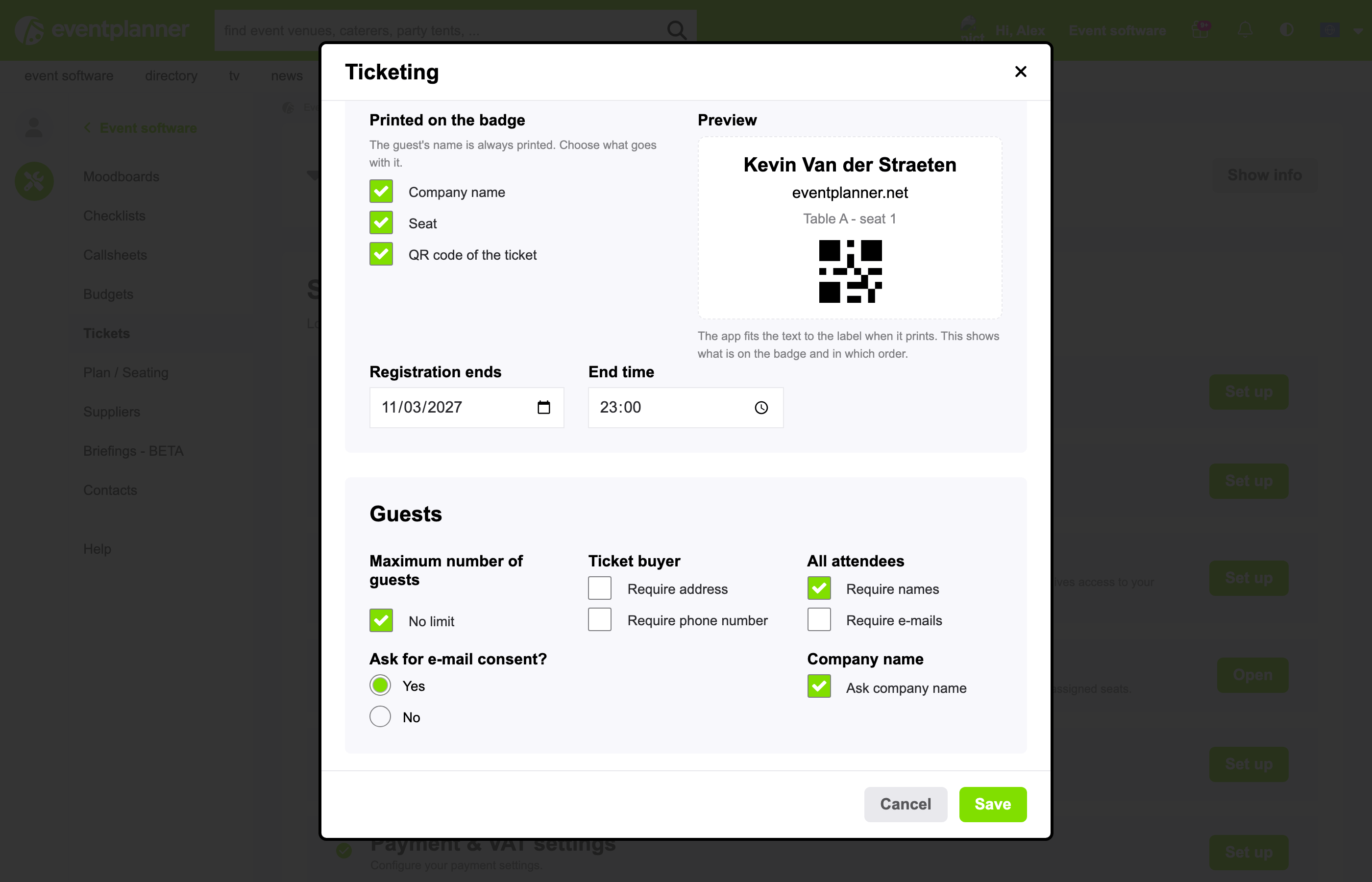
- Registration ends - the date and end time when registration closes for the whole event. Required: every registration closes at some point.
Guests
- Maximum number of guests - a limit for the whole event, or no limit. When it is reached, registration closes automatically.
- Require address and Require phone number - extra required fields for the person who orders (free and paid events).
- Ask company name - an extra company field, handy for business events. It can be printed on name badges.
- All attendees: require names / e-mails - normally only the person who orders leaves their details, however many tickets they take. Switch this on and every ticket holder gets their own name (and e-mail address) at checkout. Do this whenever you need to know who is actually coming - it is also needed for personal name badges.
- Ask for e-mail consent? - adds a checkbox at checkout for guests who want to receive your newsletter. You see who said yes in the guest details.
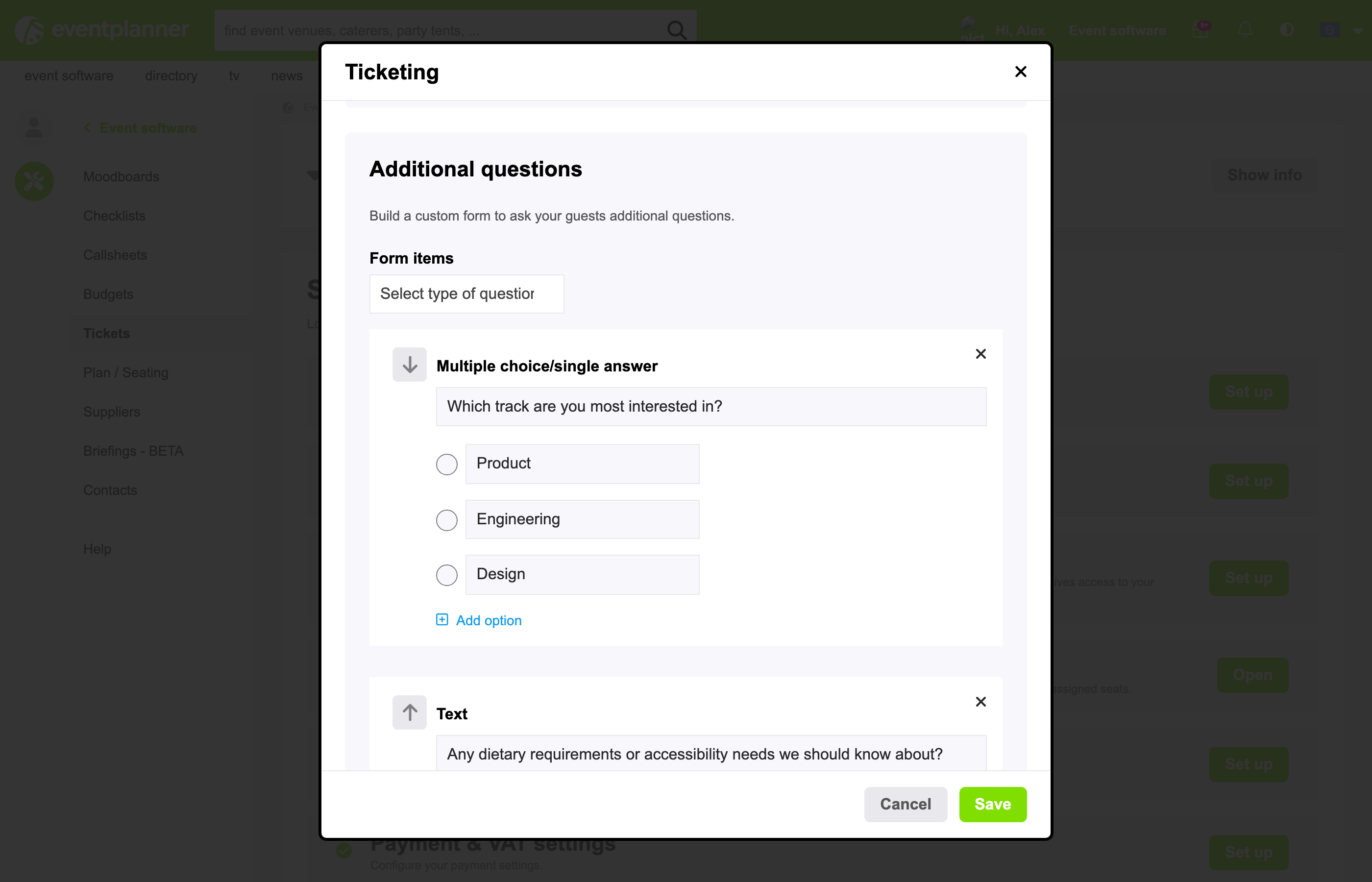
Additional questions
Build a short form that guests fill in while ordering:
- Multiple choice/single answer (2 to 4 options)
- Multiple choice/multiple answer (up to 4 options)
- Text (an open answer)
Think "Which track interests you most?" or "Any dietary requirements?". Every question is required, and it is asked once per order (not per ticket). The answers are in your guest list export. A question cannot be changed anymore once guests have answered it.
The ticket types
For free and paid events, you need at least one ticket type. Create as many as you need with Create new ticket and put them in the order you want with the up and down arrows:
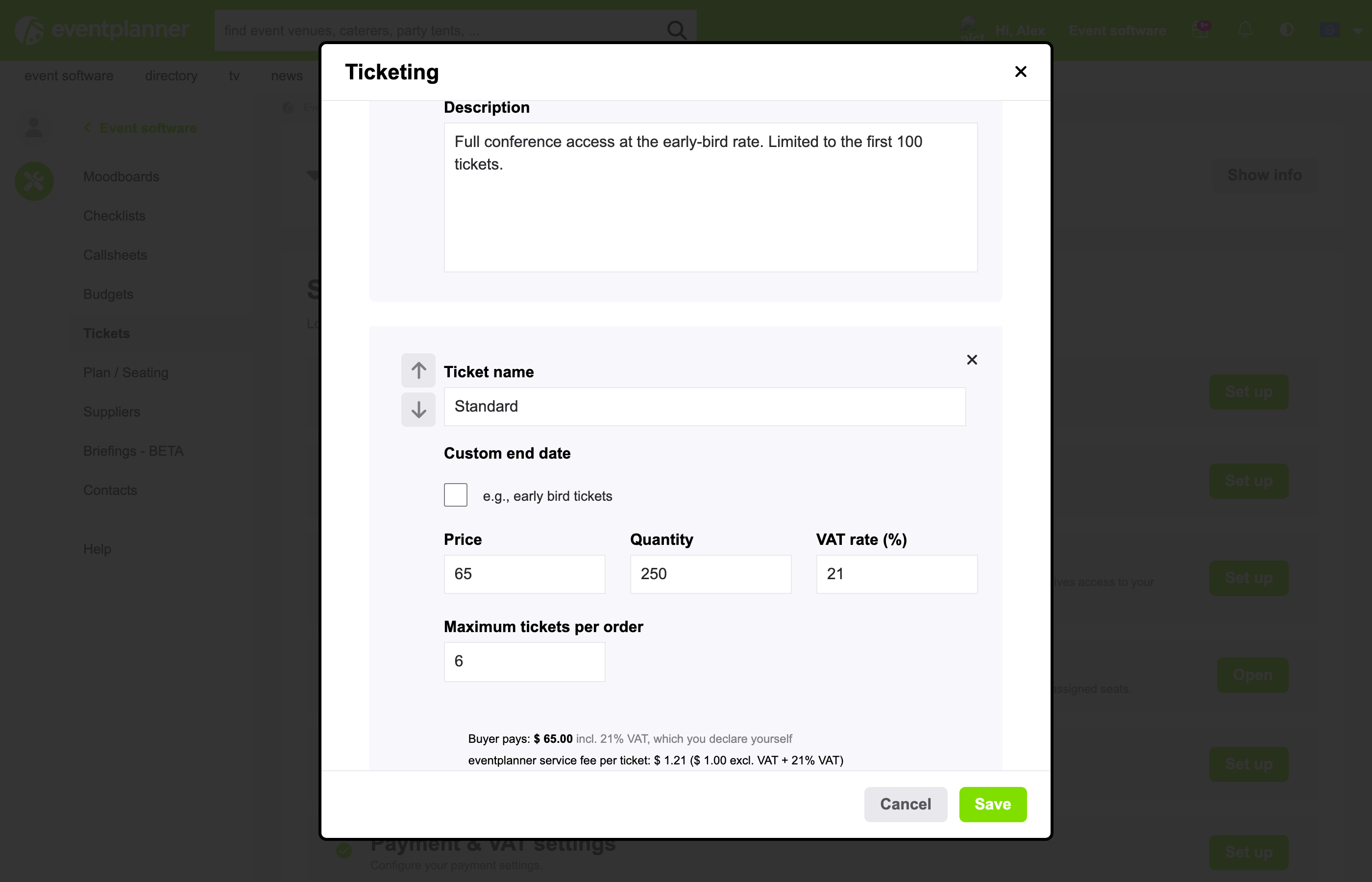
For every ticket type you set:
- Ticket name and Description - "Early bird", "Standard", "VIP + backstage tour"... The description appears under the name when people order.
- Price (paid events) - the price is all-in: it is exactly what the buyer pays, VAT and fees included, so there are no surprises at checkout. The form shows a live calculation of what you receive per ticket. The lowest price for a paid ticket is 6.00 (below that, make the ticket free).
- VAT rate (%) (paid events) - the VAT that applies to your tickets, between 0 and 50 percent. You are the seller, so you decide and declare it.
- Quantity - how many of this type can be sold. Leave it empty for no limit per type (the maximum for the event still applies).
- Maximum tickets per order - how many one buyer can take at once, for example 4. Without a quantity and a maximum, one order can hold up to 20 tickets.
- Custom end date - stop selling this type earlier than the rest, but never later than the end of registration. This is how you make early bird tickets: give "Early bird" an end date and "Standard" takes over.
- Applies to (only when you added sections) - tick the zones and time slots this ticket gives access to. The scanner app only admits the ticket there.
- Seating - Buyers of this ticket pick a seat on the seating plan (only when your plan has seats that can be sold, and your event has no time slots). This makes it a seated ticket: buyers choose their own seats while ordering.
Lock: a ticket type can only be changed or deleted while nothing of it has been ordered - a free registration or an order that was not paid also counts.
At the door: scanner settings
These options decide what happens when guests are checked in at the door (see chapter 7):
- Full names in the scanner app - the scanner normally hides guests' names (it shows K**** V**). This is extra data protection under the GDPR: personal data is not stored on mobile phones when it is not needed there. You can still search guests by their full name in the scanner, as long as the phone has an internet connection. Switch this on to see full names. The names are stored on every phone that scans, until 10 days after the event, so you confirm that you take responsibility for those phones.
- Badge printing (.PRO) - print a name badge on a label printer (a small sticker printer) the moment a guest is checked in. You need a Zebra ZD421 printer with the Wi-Fi and Bluetooth option: the app connects to it over Bluetooth. Want to use badge printing? Contact us first, so we can help you get started. You choose what is on the badge next to the name: the company name (when you ask for it), the seat and the QR code, with a live preview. Needs full names.
- Enforce time slots in the scanner app (only with time slots) - when on, the scanner refuses tickets outside their time slot. When off (the default), it shows the time slot but lets everyone in.
Who needs .PRO? Wallet passes and badge printing are .PRO features, also on free and RSVP events. They follow the membership of the person who changes the setting: a team member without .PRO cannot switch them on or off. This means that not every person or phone that checks guests in needs a .PRO licence: scanning only needs the read right. We recommend .PRO licences for everyone in your core organising team.
3. Paid events: getting paid (early access)
Paid events have one extra step: Payment & VAT settings. It is about how the money from your buyers reaches you. Read more about selling tickets online with eventplanner.net.
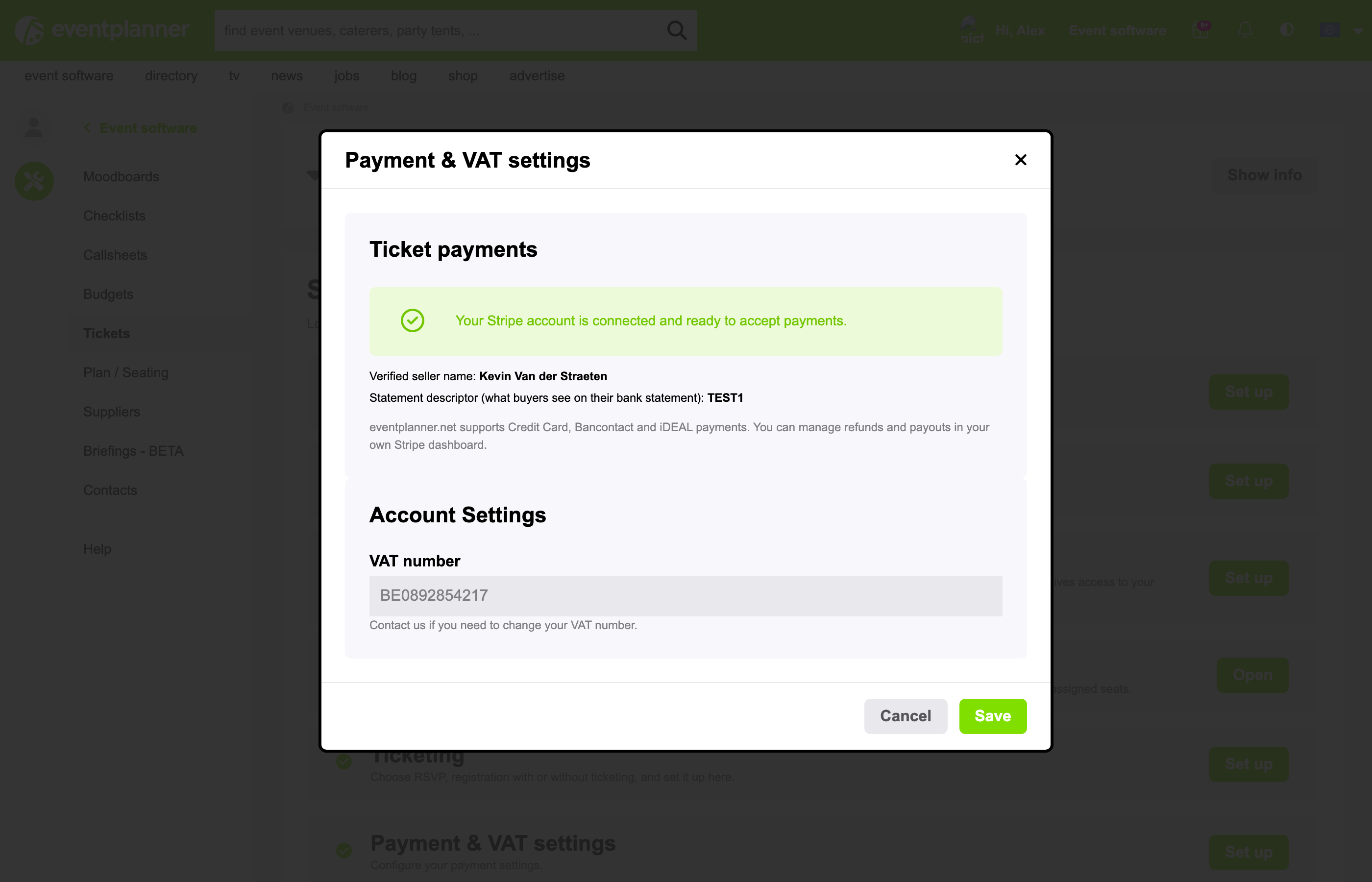
- Connect with Stripe. Stripe is the payment company that takes the money from your buyers and pays it out to your bank account. You need your own Stripe account for this: click Connect with Stripe and fill in Stripe's forms (they check who you are and add your bank account). Only someone from the account that owns the event can do this, and it is done once for all your events.
- Verification takes a while. After the forms, Stripe still checks your account. The payment methods usually become available within a few hours. You can only publish a paid event once they are.
- Your VAT number. eventplanner.net is a Belgian company. If your organisation is in another EU country, add your VAT number so no Belgian VAT is charged on our service fees. Organisations in Belgium always pay Belgian VAT, organisations outside the EU never do. A change to your VAT number is checked by our team before it applies, and the number cannot be changed while you have a paid event that is published and not over yet.
- Payment methods. Your buyers pay by Credit card, Bancontact or iDEAL. They only see the methods Stripe has switched on for your account. Prices and payments are always in euro.
- Payouts. The money never stays with eventplanner.net: every payment goes straight to your Stripe account, and Stripe pays it out to your bank account according to the payout settings of your Stripe account. You follow payments, payouts and refunds in your Stripe dashboard (your own account on Stripe's website).
- Fees. eventplanner.net charges a small fixed service fee per sold ticket (plus VAT where it applies), and Stripe charges its own costs per payment. Both are taken from each payment and shown per ticket type while you set your price, with an estimate of what you receive. Because prices are all-in, your buyers pay exactly the price they see. Every month you get an invoice for our fees, for your bookkeeping. It is already paid, because the fees were taken from the payments.
Good to know: when you refund a ticket, the buyer gets their money back, but the service fee for that ticket stays due.
Why the buyer pays "all-in": nobody likes a checkout where 35 EUR becomes 41.80 EUR at the last step. You set the final price (calculate your pricing including the costs); the fees come from your side, openly.
4. Publish your event
The Publish step puts your registration page online. You can only publish when:
- the organiser, event and ticketing steps are complete,
- for paid events, Stripe is connected, and the payment methods are active,
- and 2-factor authentication (2FA) is switched on for the account that owns the event. 2FA means that logging in needs a code from your phone next to your password. You are handling guest data, so we ask for this extra protection.
Your team needs 2FA too: every team member who works with the tickets - also only to look at the guest list or to scan tickets - needs 2FA on their own account.
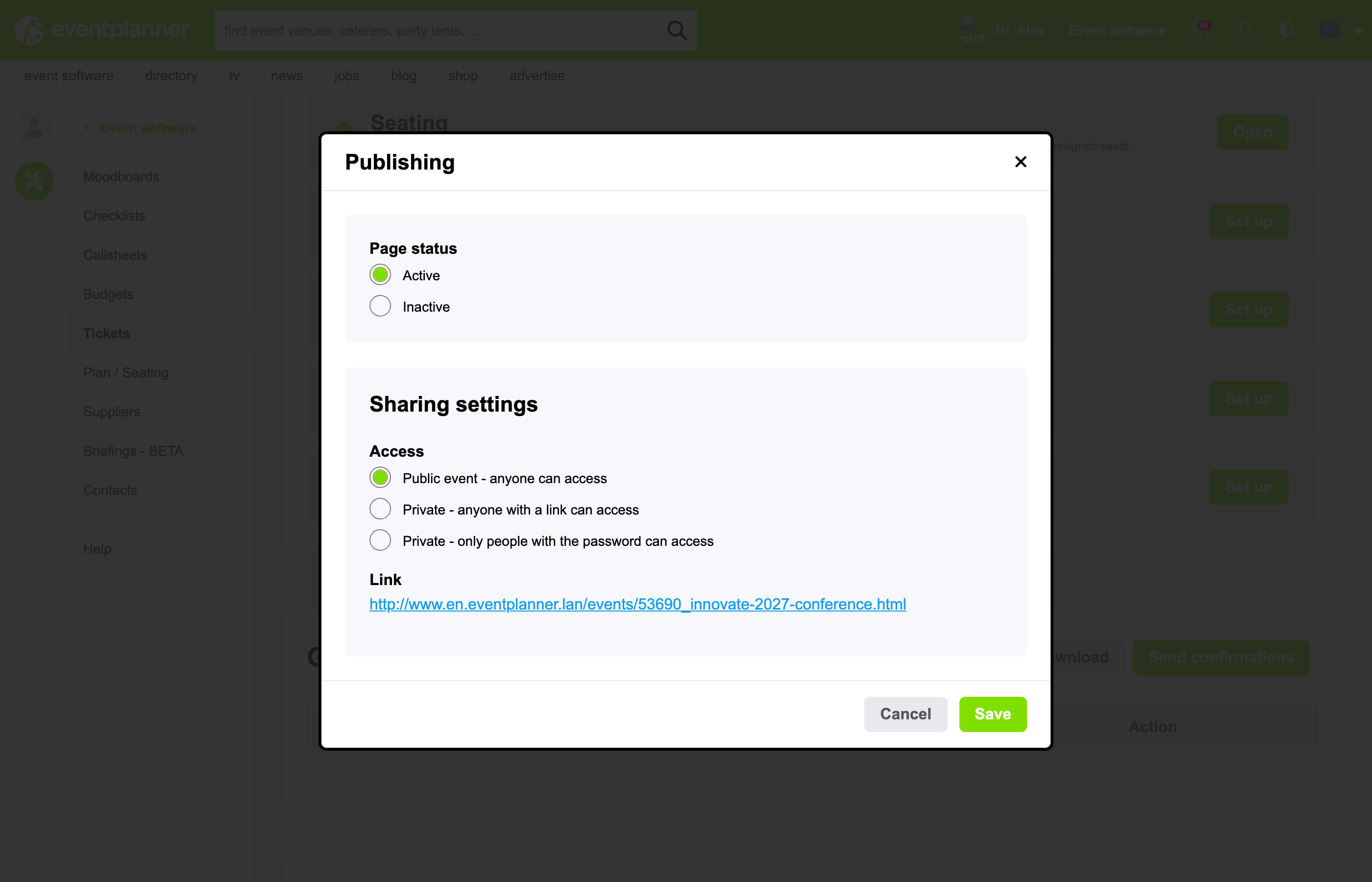
In the Publishing window, you choose who can reach the registration page:
- Public event - anyone can access - anyone can find and open the page. Your event gets its own public event page.
- Private - anyone with a link can access - the page is not listed anywhere; you get a secret link (an address nobody can guess) to share.
- Private - only people with the password can access - visitors need the password you choose (at least 6 characters).
- RSVP events have no choice here: guests always come in through their personal invitation link.
Then set the Page status to Active.
Look before you publish: with a public event, the owner of the event can open the event page before it is published (the link is in the Publishing window). It is only visible to the owner.
Unpublishing. Set the page status to Inactive and the event is offline straight away: visitors and people who are in the middle of ordering see "Event not published yet". Guests who already have tickets keep them. Some things stay locked after unpublishing: your refund policy and terms of sale, the names and times of your sections, seats with a booking, ticket types with orders, your privacy policy and consent setting once someone registered, and the type of event as long as there are guests or orders.
5. What your guests experience
A short tour of the other side, so you know exactly what your guests see.
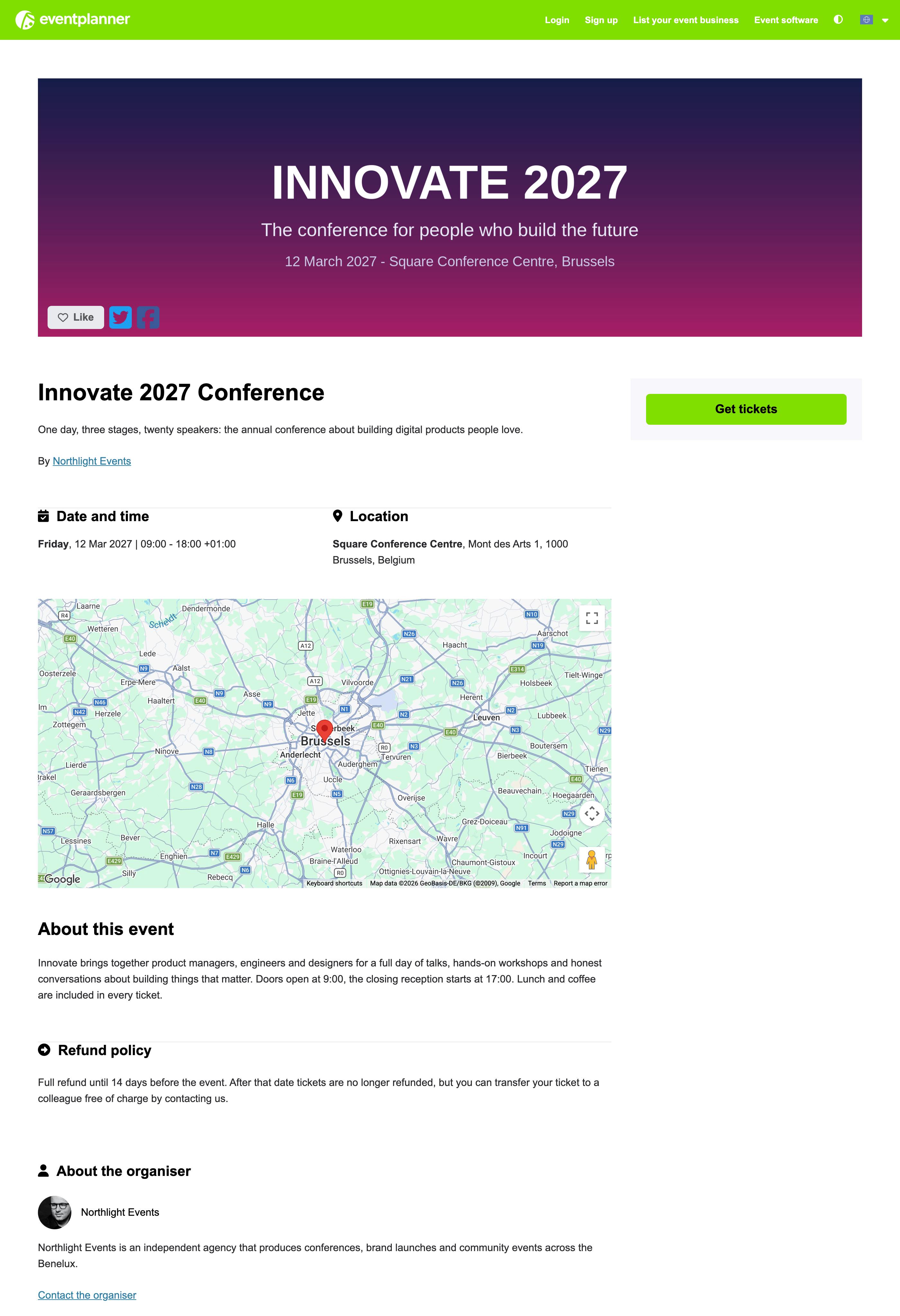
The event page (public events only). Your cover image, dates, the location with a map (for a physical venue), the "about" text, your refund policy, your organiser profile and a big Get tickets button. Visitors can contact you through a form (the message arrives at your contact e-mail address) and share the event. With a private or RSVP event there is no public event page: your guests go straight to ordering through your link or their invitation.
Ordering takes your guest through a few short steps:
-
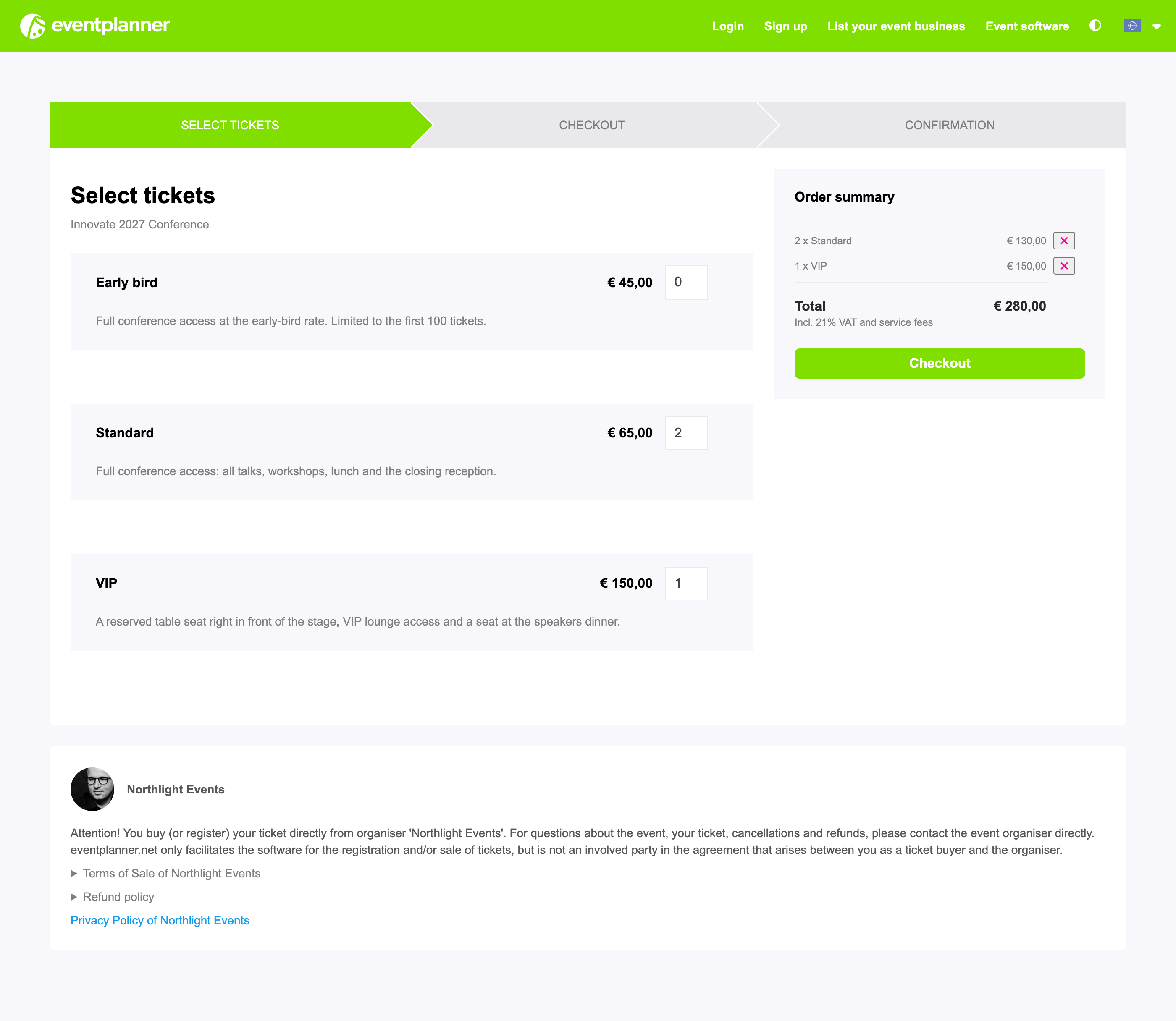
Select tickets - your ticket types with prices, descriptions and a number to choose. Types that are sold out or past their end date show "Sales ended".
-
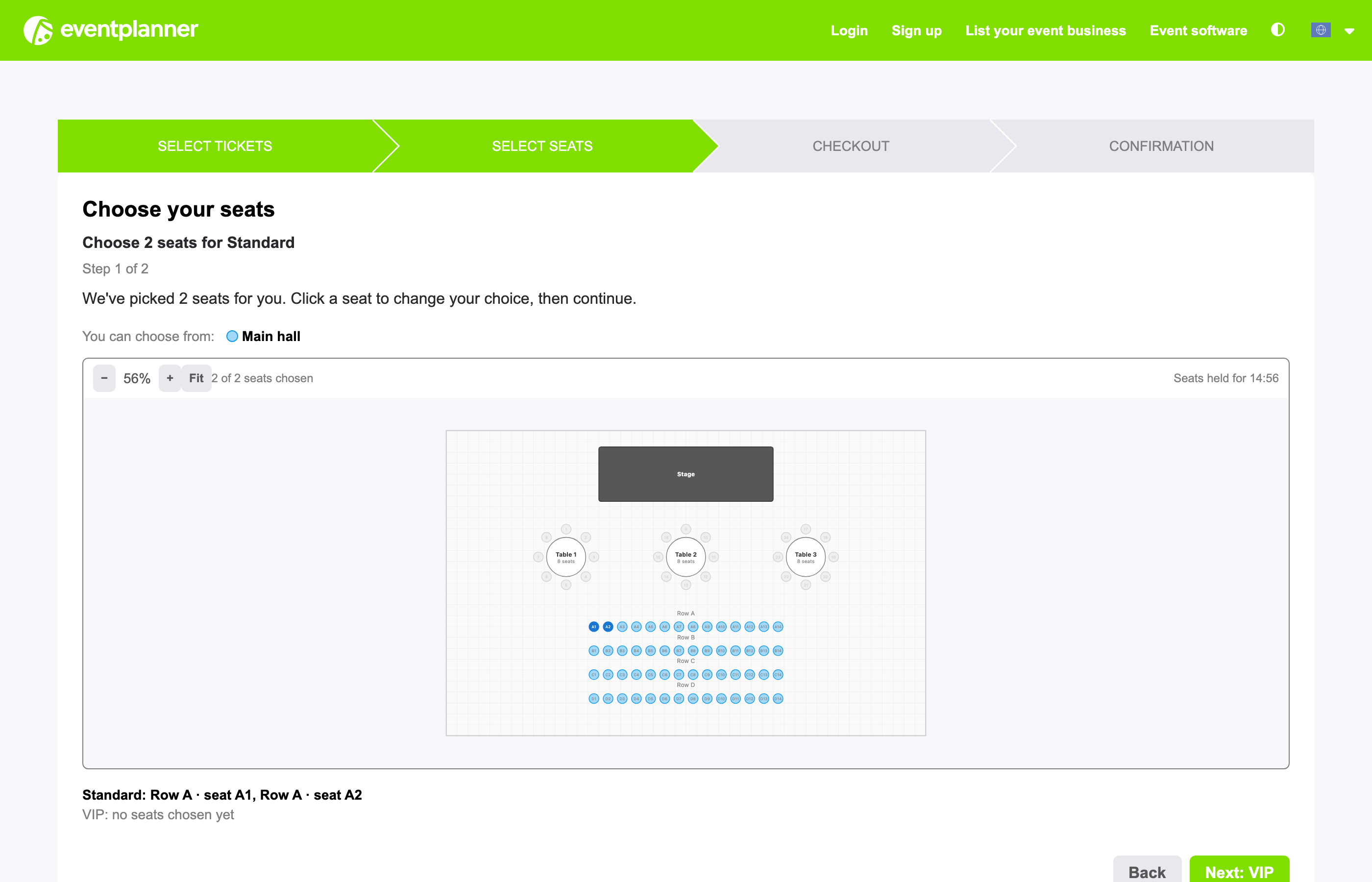
Select seats (seated tickets only) - good seats are proposed automatically; the guest can click to change them. The chosen seats are held for 15 minutes, so nobody else can take them while the guest finishes the order.
-
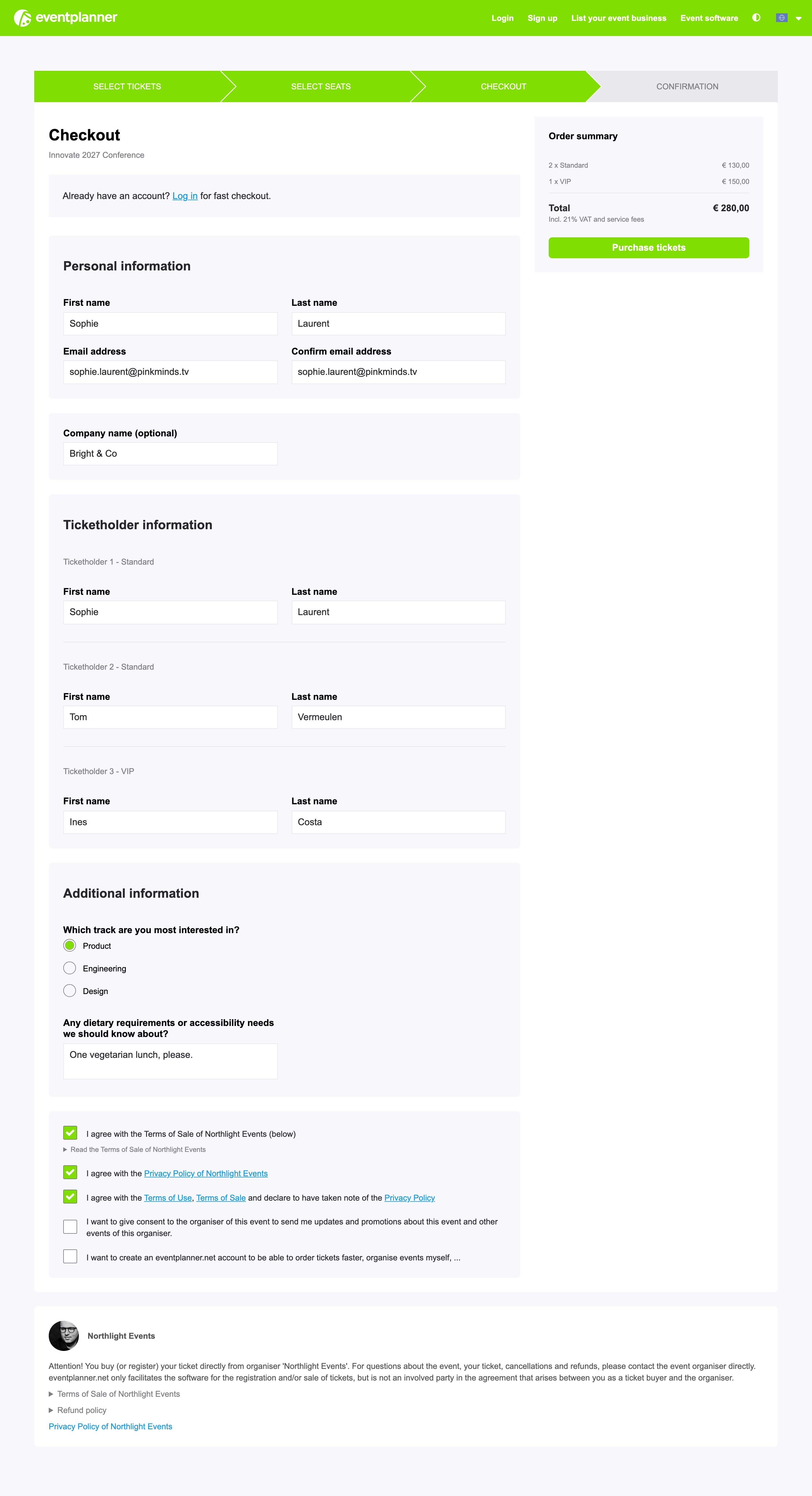
Checkout - contact details, the names of the ticket holders (if you ask for them), the address, phone number and company (if you ask for them), your additional questions and the consent checkboxes. Guests with an eventplanner.net account can log in to fill in their details faster.
-
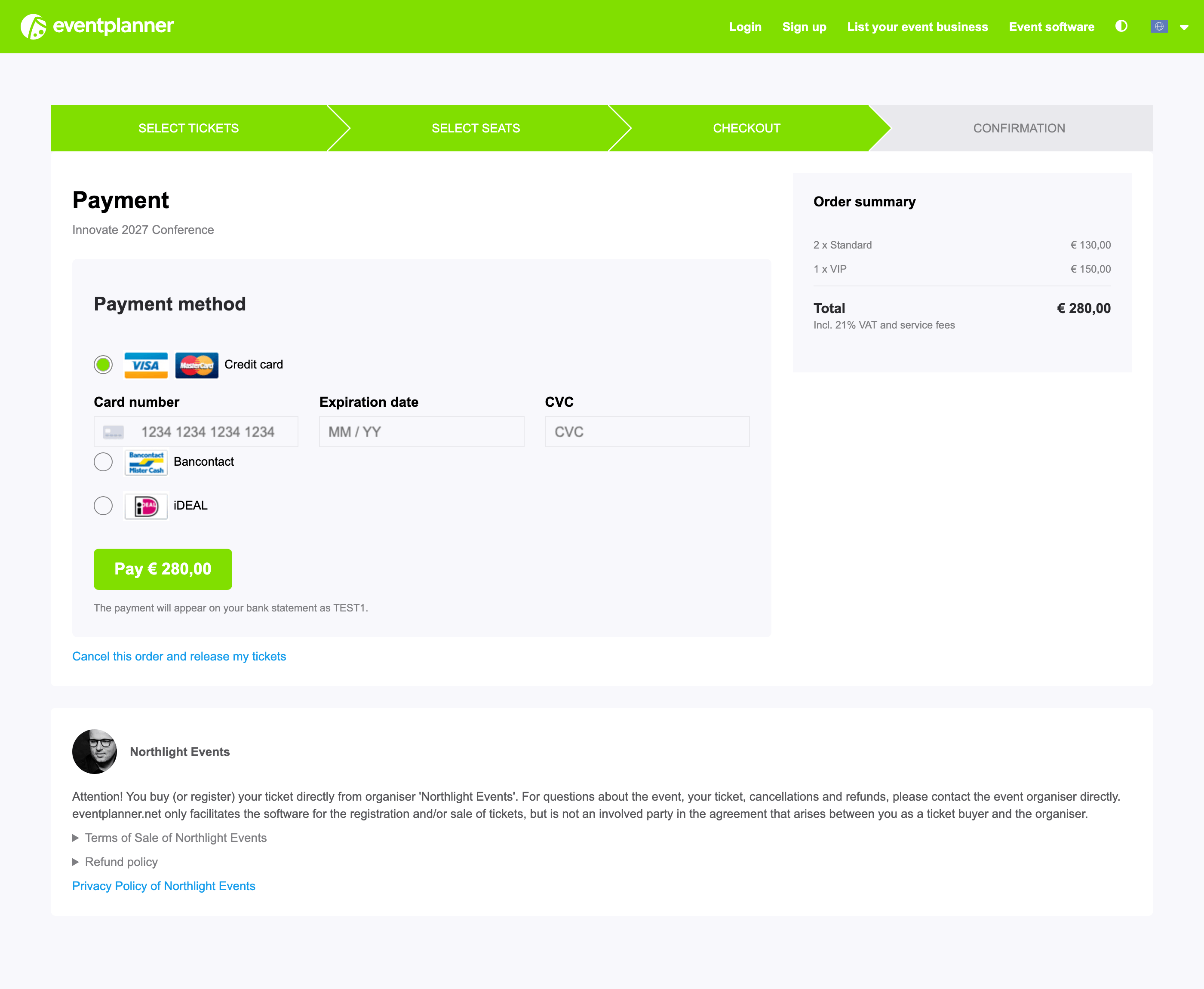
Payment (paid events) - credit card, Bancontact or iDEAL, in Stripe's secure payment form. The buyer also sees your verified seller name. The order and its seats are reserved for 30 minutes. If the payment is not finished in time, the tickets and seats become available again, and the buyer gets an e-mail about it. The buyer can also cancel the order on this step.
-
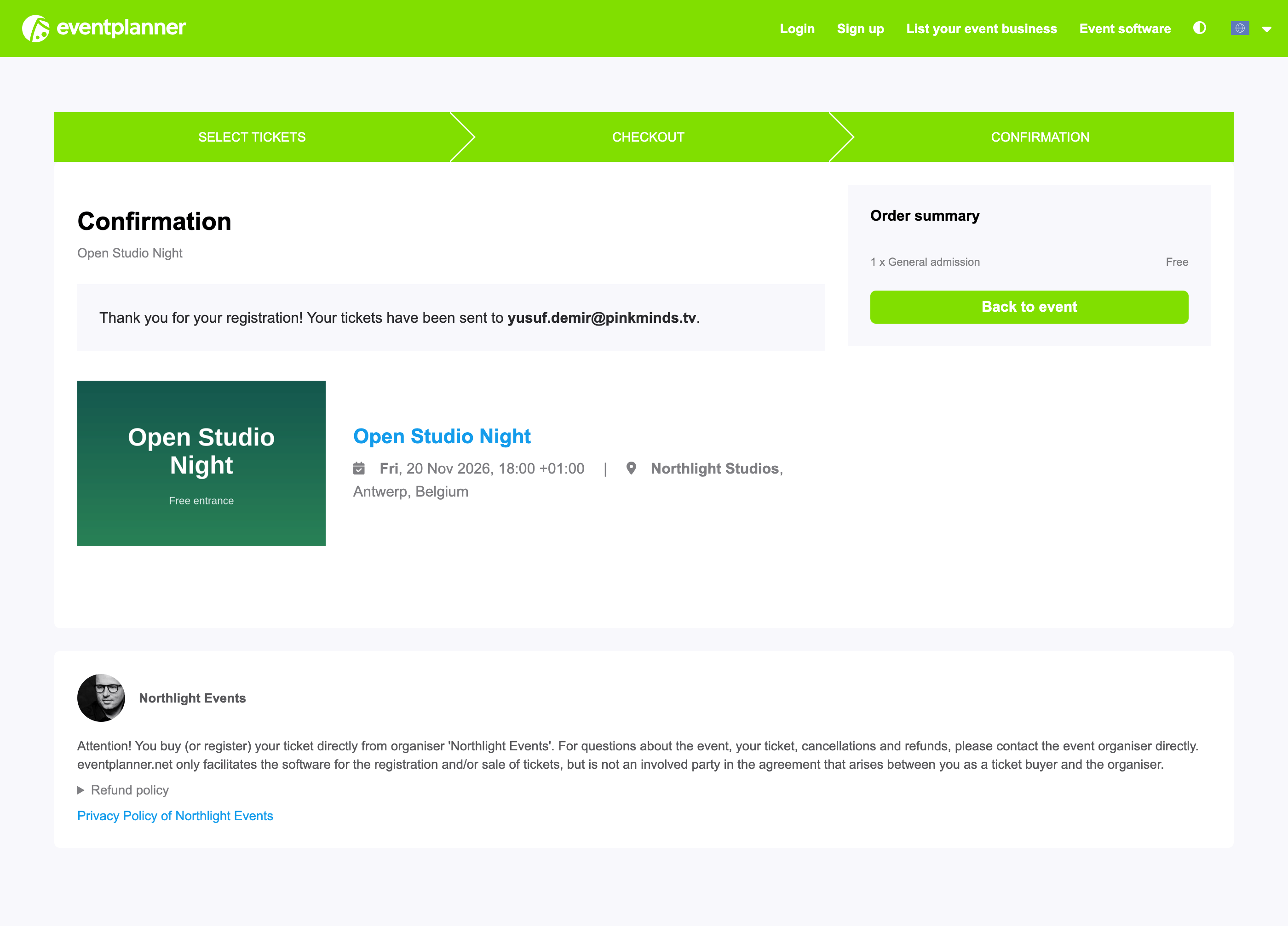
Confirmation - on screen, with an overview of the order, and by e-mail (unless you send the confirmations yourself, see step 5 of the setup).
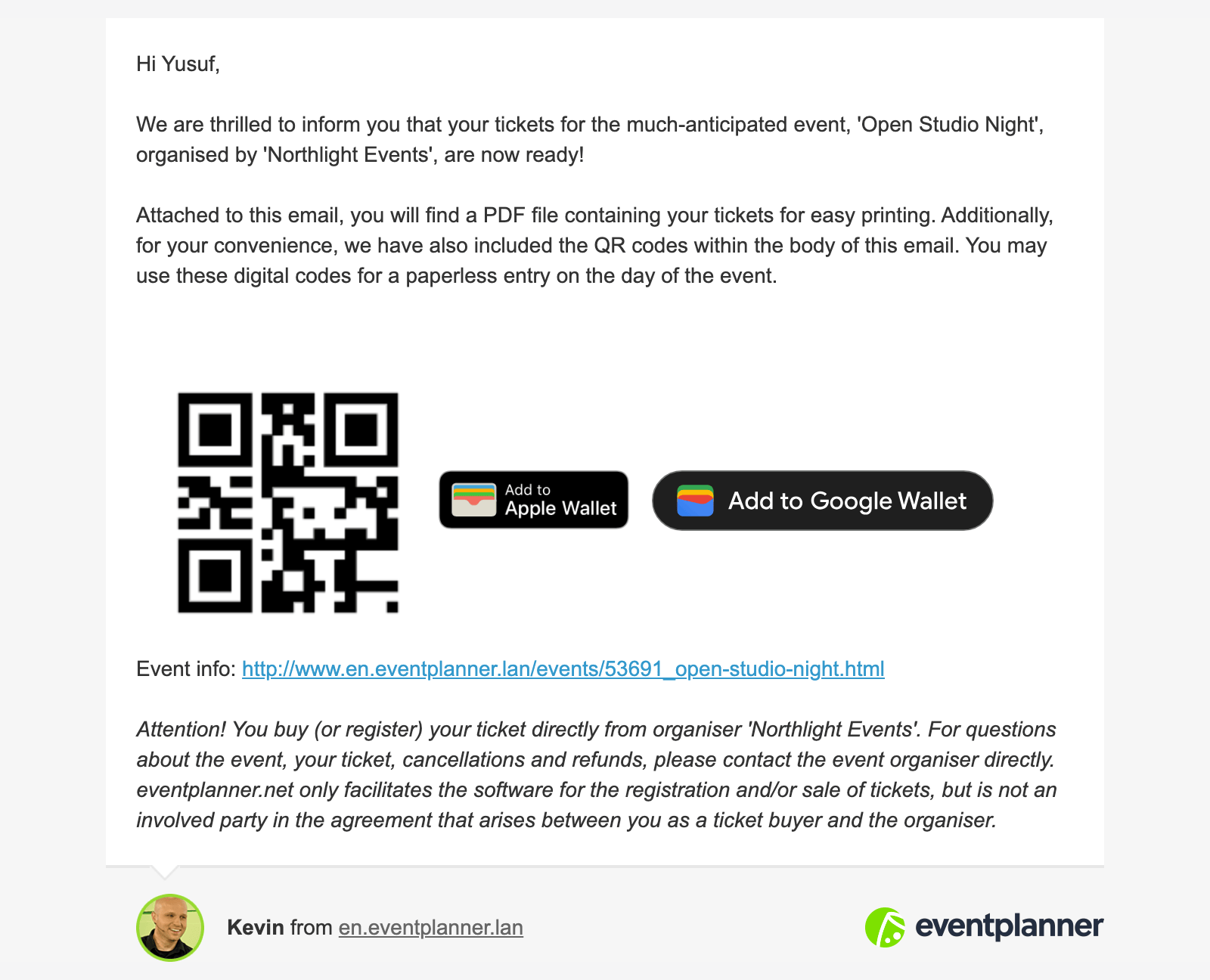
The confirmation e-mail confirms the registration. For paid orders it shows the amount paid, who sold the ticket and the name the buyer will see on their bank statement. When you use tickets, it contains every ticket's QR code (with the seat and, if you ask for names, the holder's name), the Apple Wallet and Google Wallet buttons (.PRO) and a tickets.pdf attachment: one page per ticket with the QR code, the event details, the location, the ticket type and the seat. With Bancontact or iDEAL a payment can take a little longer to be confirmed: the buyer then sees "Your payment is being processed" and gets the tickets by e-mail as soon as the payment is through.
6. Managing your guests
The Tickets page of your event is your control room: the guest list, the statistics and every action per guest in one place.
For RSVP events: the guest list and invitations
-
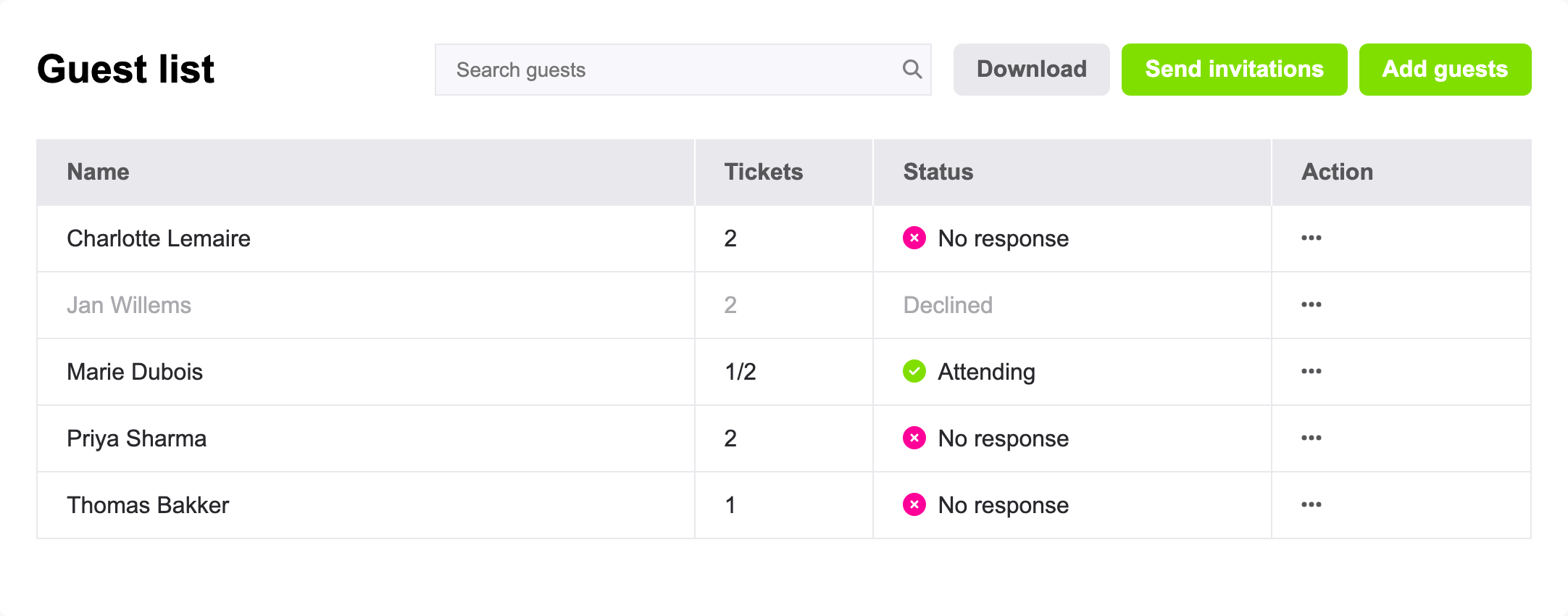
Add guests one by one (name, e-mail address, number of tickets, preferred language), or Import from file: an Excel or CSV file with the columns FirstName, LastName, E-mail, Tickets and Language. First name, last name, e-mail and number of tickets are required for every guest. The language is en, nl, fr, de or es. Rows that cannot be imported can be downloaded as a CSV, fixed and imported again. You can invite guests once your event is published, until registration closes.
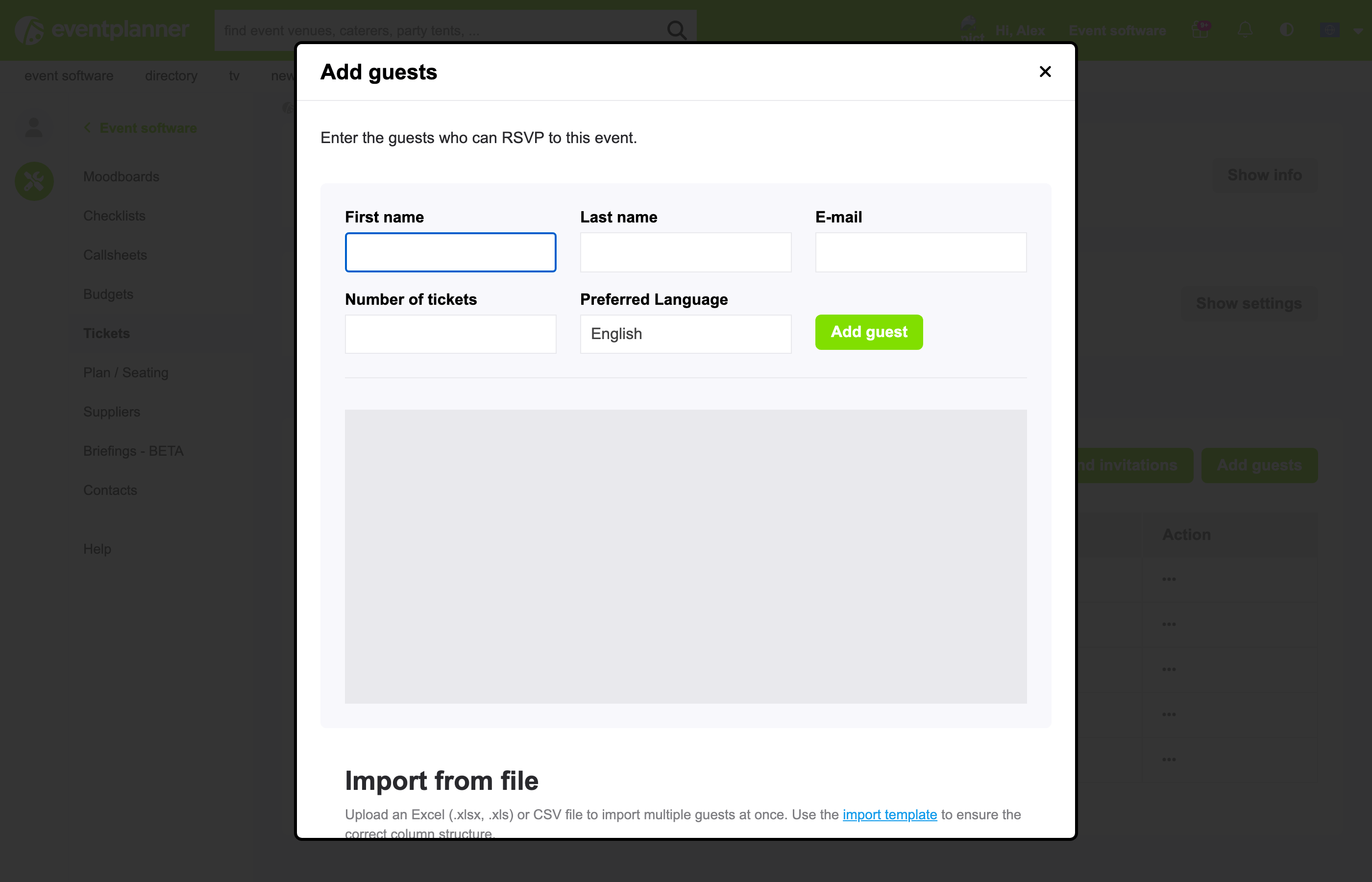
Tip: use the Excel file for importing. A CSV file has to use commas between the columns - the CSV that Excel saves in Dutch or Belgian settings uses semicolons and cannot be read. The file can be up to 5 MB, and every e-mail address can only be on the list once.
-
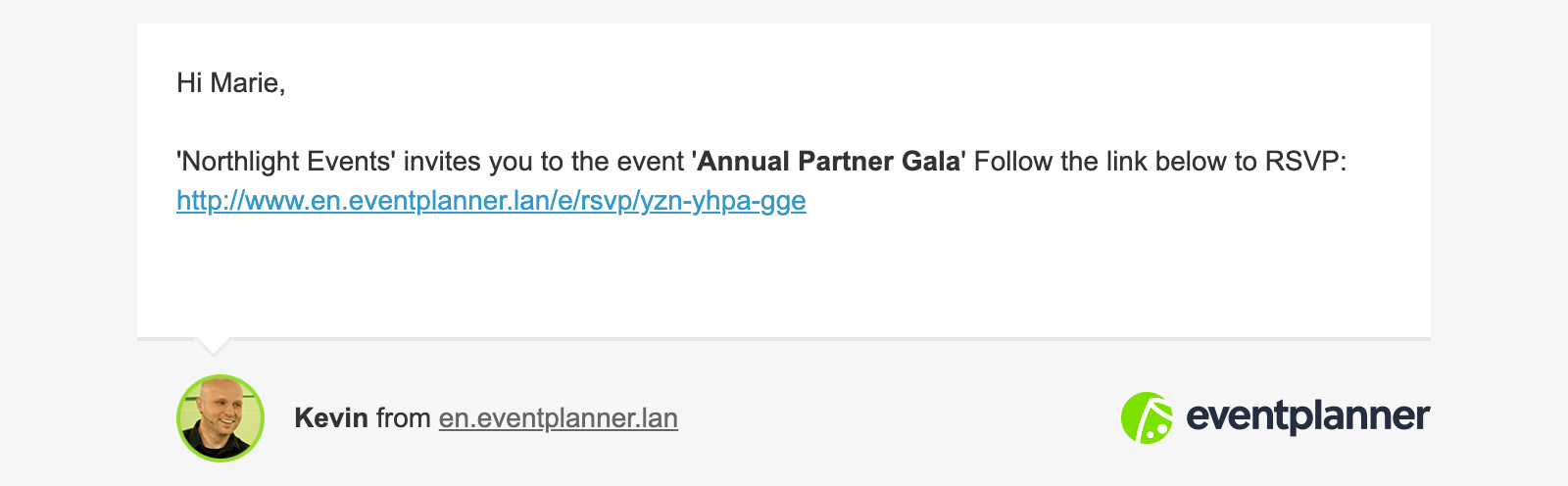
Every guest gets a personal invitation link. The invitation e-mail ("You have been invited to ...") is written in the guest's own language and contains their personal code. When the guest already has an eventplanner.net account, the language of that account is used. With Yes, send immediately, invitations go out the moment you add a guest. Otherwise, use Send invitations to send them in bulk: to everyone who has not been invited yet, or a reminder to everyone who has not answered. Sending in bulk and resending a single invitation are possible once every 5 days, so your guests never get too many mails. Addresses where the mail bounced (could not be delivered) and addresses eventplanner.net no longer sends to are skipped.
-
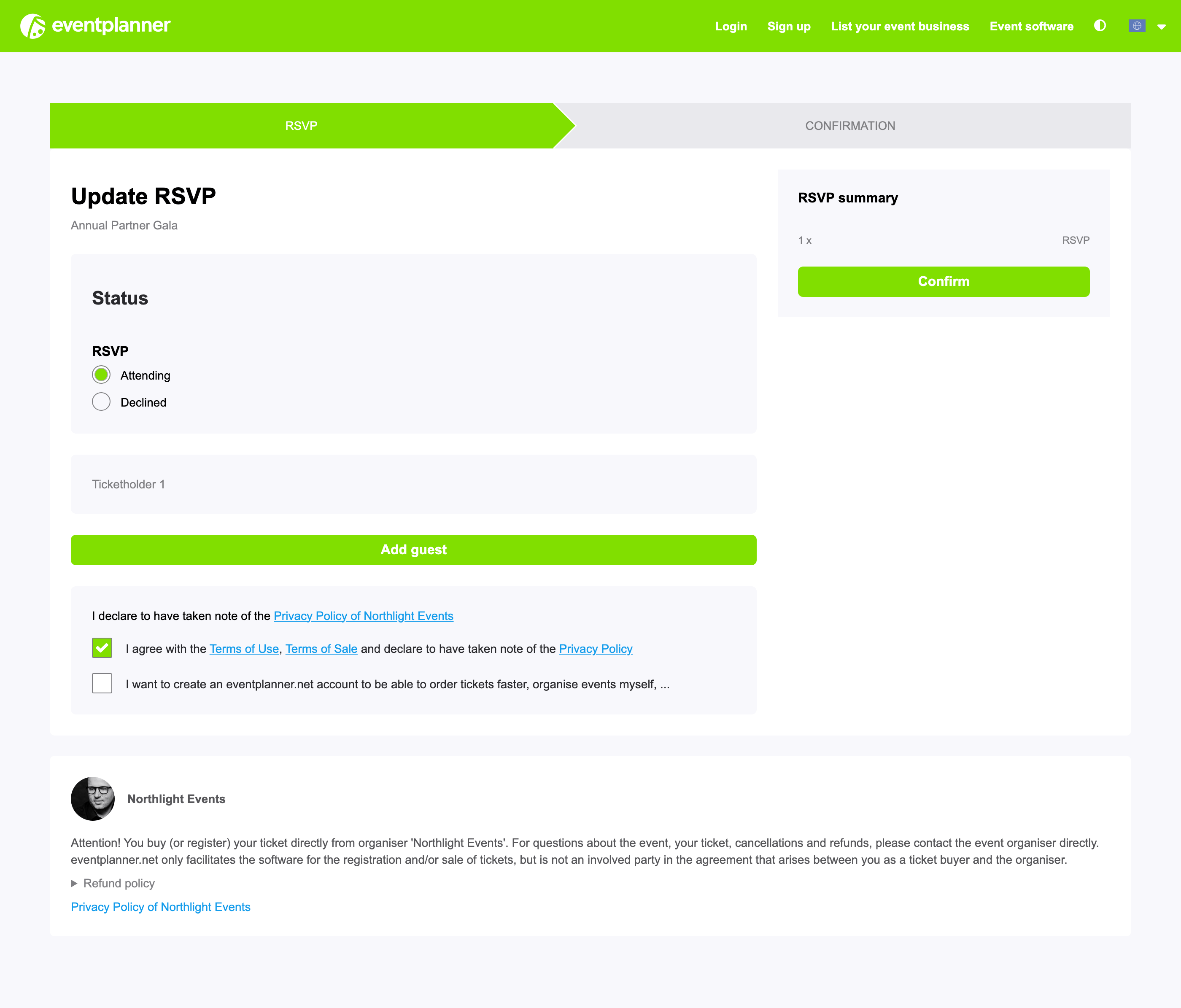
Number of tickets is per guest, and includes the guest themselves: give someone 2 tickets to invite them "+1", up to 50 tickets per guest. Through their personal link, the guest answers Attending or Declined and, when attending, fills in the details of the people they bring. They can come back to the same link later to change their answer, as long as registration is open.
-
The status column shows where you stand: No response, Attending, Declined - or Bounced when the invitation could not be delivered (check the address and send it again). Undeliverable means eventplanner.net no longer sends any mail to that address, because it bounced elsewhere or was blocked: check the address with your guest and enter the right one.
-
You stay in control: open a guest to change their details or number of tickets, resend the invitation or confirmation, download their ticket, set their status yourself (for guests who answer by phone), or delete them.
Careful: setting an attending guest to Declined or No response, or deleting a guest, removes all their tickets - also tickets that were already scanned at the door. Lowering the number of tickets never removes a scanned ticket.
For free and paid events: orders and guests
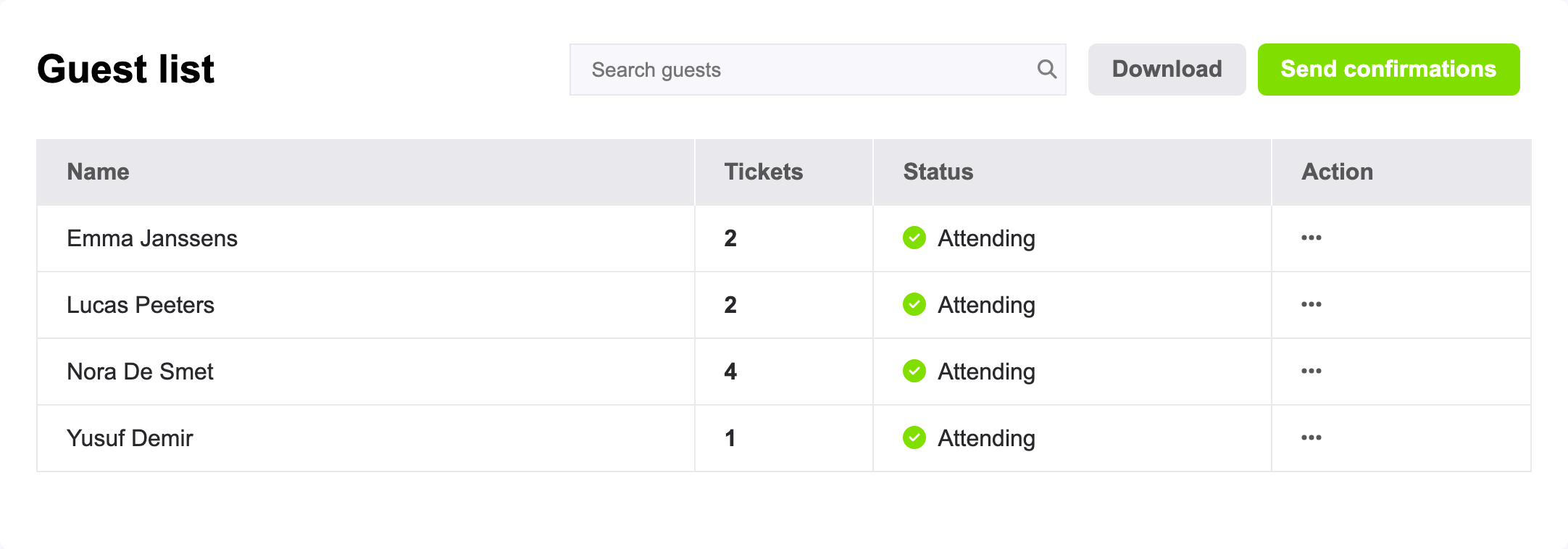
- Every order is a row. Orders with more than one ticket fold open to show the individual ticket holders.
- Search by the name or e-mail address of the person who ordered, and use the menu of each order to View all guest details, Edit guest details, Resend confirmation or Download ticket.
- Download the list as an Excel file, with the answers to your additional questions. It contains the confirmed orders and valid tickets.
- Delete guest (under Edit guest details) removes the order and makes its tickets invalid. The guest does not get a message about it. A paid order can only be deleted once all its tickets are refunded, and an order whose payment is still being processed cannot be deleted.
- Refunds (paid events): every ticket has a Cancel + refund action, for team members with the manage right. It gives the buyer the ticket price back (or what is still left to refund on that payment), makes the QR code and the wallet pass invalid, frees the seat and lets the buyer know by e-mail. It cannot be undone. Want to give part of the money back, or refund as a gesture? Do that in your Stripe dashboard. Those refunds show up in Refunds to review, where you choose Invalidate ticket or Keep tickets valid. Refunds that failed are listed there too.
Statistics
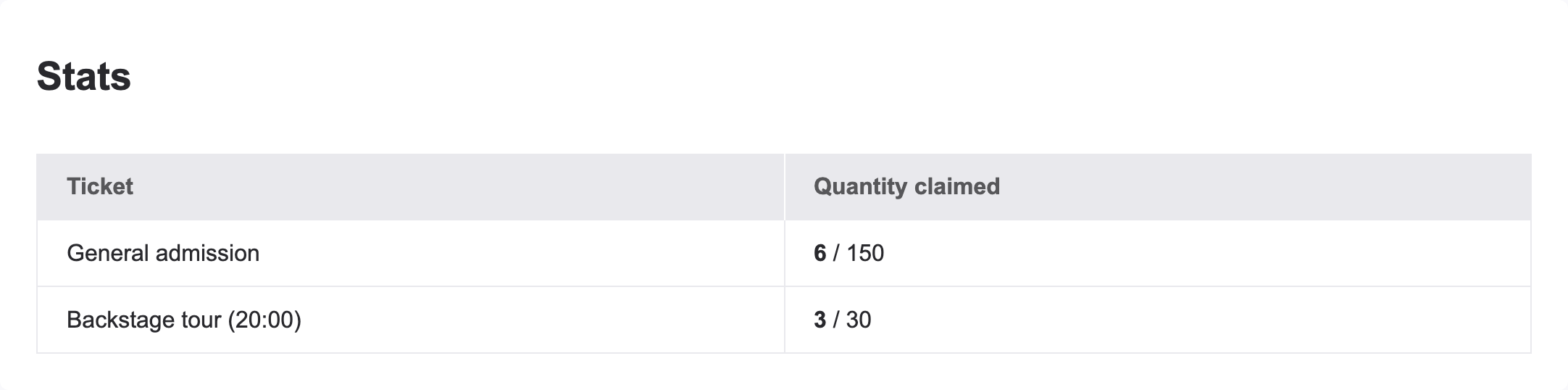
The statistics keep track while you sell: sales or registrations per ticket type, the revenue for paid events, the answers for RSVP events (attending, bringing guests, declined, no response) and, with a seating plan, the seats sold per zone.
Who in your team can do what
Invite your team members as contacts on your event and give them the ticketing right:
- Read - see the guest list and scan tickets.
- Write - also add and edit guests and download the guest list.
- Manage - also change the settings and refund tickets.
Every team member who works with tickets needs 2-factor authentication on their own account (see chapter 4).
7. At the door: the ticket scanner
Scan tickets with the eventplanner.net app on iOS and Android - no extra equipment needed. More about the ticket scanner and check-in. Everyone in your team with at least the read right can open the scanner. Use several phones side by side for a busy entrance: every scan is checked against the same guest list.
The app shows your published events, until 7 days after they end. Checking in means: the guest's ticket is scanned (or marked by hand) as present. Scanning is instant and the colour tells you what to do:
- Green - a valid ticket, the guest is checked in.
- Yellow - this ticket was already checked in before ("Already checked in", or "Already scanned in" a zone).
- Red - not valid: not a ticket for this event, a cancelled or refunded ticket, no access to this zone, or - when you enforce time slots - outside its time slot.
More at the door:
- Works offline. No signal in the basement? The scanner keeps working with the guest list it last downloaded, and catches up as soon as the connection is back. While offline, a ticket that was cancelled in the meantime can still turn green, and two offline phones do not see each other's scans.
- Check-in counter. At the top of the scan screen, next to Check in guests, a counter shows how many guests are checked in, out of the total.
- Search and check in by hand for guests who forgot their ticket: type their name in the Enter a name field and tap Check In next to the right ticket. Guests who are already checked in show Checked in. The search looks for full names, also when the scanner hides them. This needs a connection.
- Zones as gates. With zones, every phone chooses the entrance it scans at: the main entrance or a specific zone. A standard ticket scanned at the VIP zone turns red. To choose the entrance, open your event in the scanner and tap the button with the location pin at the top right of the scan screen. It shows the current entrance: Main entrance or the name of a zone. Pick the entrance in the list (zones with a time slot show their times under the name). The phone remembers this choice for the event, so you only set it once per phone. The counter at the top then counts the check-ins of that zone, and a guest who comes into a zone without having been through the main entrance gets the note Not checked in at main entrance (for your information only, the guest is still let in). The button only shows when your event has zones.
- Names. The scanner hides names (the first letter and asterisks), unless you switched on Full names in the scanner app. Team members with the write or manage right do see full names when they search.
- Badge printing (.PRO): connect a Zebra label printer over Bluetooth and every first check-in prints a name badge, the way you set it up. A guest who is scanned again does not get a second badge. To print a badge again, for example after a typo or a jammed label, tap Print badge on the scan result, or search the guest and tap Print badge in the search results. Without "require names", every badge of an order carries the name of the person who ordered.
Setting up the badge printer
The printer is set up once per phone, in the app:
- Switch the printer on and hold its FEED button for 5 seconds, until its light blinks. The printer can now be found for 2 minutes.
- In the app, open the settings and tap Set up printer in the Printer row.
- On Android, tap Scan for printers and choose your printer (Android asks to pair it the first time). On an iPhone, first pair the printer in Settings > Bluetooth of the iPhone (its name is the serial number on the label under the printer), then come back to the app.
- Tap your printer in the list.
- Check the Label size (100 x 50 mm by default) and tap Print test label.
Good to know: only one phone can use a printer at a time, and the phone only connects to it while the scanner is open. During scanning, a printer icon at the top of the scan screen shows whether the printer is connected (green dot) or not (pink dot). Badges only print when badge printing is switched on for the event as well (see chapter 2).
8. After the event (and before the next one)
- Export. Download your final guest list as an Excel file (with the write right), as long as the guest data has not been anonymised yet. Keeping the personal data in that export for longer than 13 months needs a valid reason, documented in your own GDPR documentation as organiser. We use 13 months because many events come back every year: that way you still have the data for your next edition.
- Privacy by design. Guest data does not stay forever: 13 months after your event ends, the names and e-mail addresses of your guests are anonymised automatically - replaced so that nobody can be recognised anymore. This cannot be undone. The owner of the event gets a reminder one month and two weeks before, so you can export what you need first. You can also anonymise earlier yourself with Anonymise now (manage right).
- Next edition? Start your new event as a copy of the old one. The copy wizard takes over your ticket types (names, prices, quantities - they start as drafts), your ticketing settings, your zones and the seating plan, and moves the dates along with the new event date. Not copied: sales, guests and seat bookings, your event page details, and your additional questions. Full names in the scanner app and badge printing start switched off again. An RSVP event has no ticket types, so only its seating plan is copied.
Frequently asked questions
Can I change the type of event after publishing? Set the page to inactive first, then change it - but only while there are no guests or orders yet. Changing the type resets the settings of the old type (switching to RSVP removes the ticket types and zones).
Can I add tickets or raise the maximum while sales are running? Yes. The quantities, the maximum number of guests and the end of registration stay editable, and you can add new ticket types at any time. Only ticket types that already have orders are locked.
Why can't I publish? Check the settings board: every required step needs its check mark. The most common misses are the images in the event details, the refund policy, the privacy policy URL, and 2-factor authentication on the account that owns the event. Paid events also need Stripe connected and the payment methods active.
A guest lost their ticket. Open the guest in your list and choose Resend confirmation, or Download ticket and send it yourself. With wallet passes this rarely happens: the ticket is in their phone.
Someone bought a ticket but can't come (paid event). Use Cancel + refund on their ticket, or - if your refund policy says no refunds - change the ticket holder's name so a colleague can come instead.
How do my team members get access? Invite them as contacts on your event and give them the ticketing right: Read, Write or Manage (see chapter 6). Everyone who works with tickets needs 2-factor authentication.
Does registration close automatically? Yes - at the end of registration you set, or earlier when the maximum number of guests is reached. Single ticket types close at their own end date or when they are sold out. You can also close everything at once by setting the page to inactive.
What does it cost? RSVP and free events: free of charge (wallet passes and badge printing need .PRO). Paid events: a small fixed service fee per sold ticket plus Stripe's payment costs, always shown while you set your prices - your buyer pays exactly the price you advertise.
Is this GDPR-proof? Yes. GDPR is the European privacy law. You stay responsible for your guests' data (the "data controller"), and eventplanner.net processes it for you under the processing agreement you accept when you start using Tickets. Checkboxes for your own privacy policy and your newsletter are built into the checkout, and guest data is anonymised automatically 13 months after the event.
Read also
- Master eventplanner.net: Complete guide and training to our event software
- How to set up an event in the eventplanner.net event software
- How to use Moodboards?
- How to use Checklists?
- How to use Callsheets?
- How to use Budgets?
- How to use Supplier Management?
- How to use Briefings?
- How to use Floor plans?
- How to manage users in the eventplanner.net event software?
- eventplanner.net certification
