


Event software training
How to use Checklists?
Even a small event comes with a long list of things to do. Checklists keeps all of them on one board, so you always know what still needs doing, who is on it and what is already done. It is part of the event software of eventplanner.net, and every event gets its own checklist.
The board works like a kanban board: a board with columns, where every task is a card that you move from left to right as the work moves on. There are three columns: To do, In progress and Done.
Want to see what Checklists can do for you before you start? Have a look at the overview page first.
Where to find it: log in, choose event software in the main menu and open Checklists in the menu of your event.
1. Start with an event
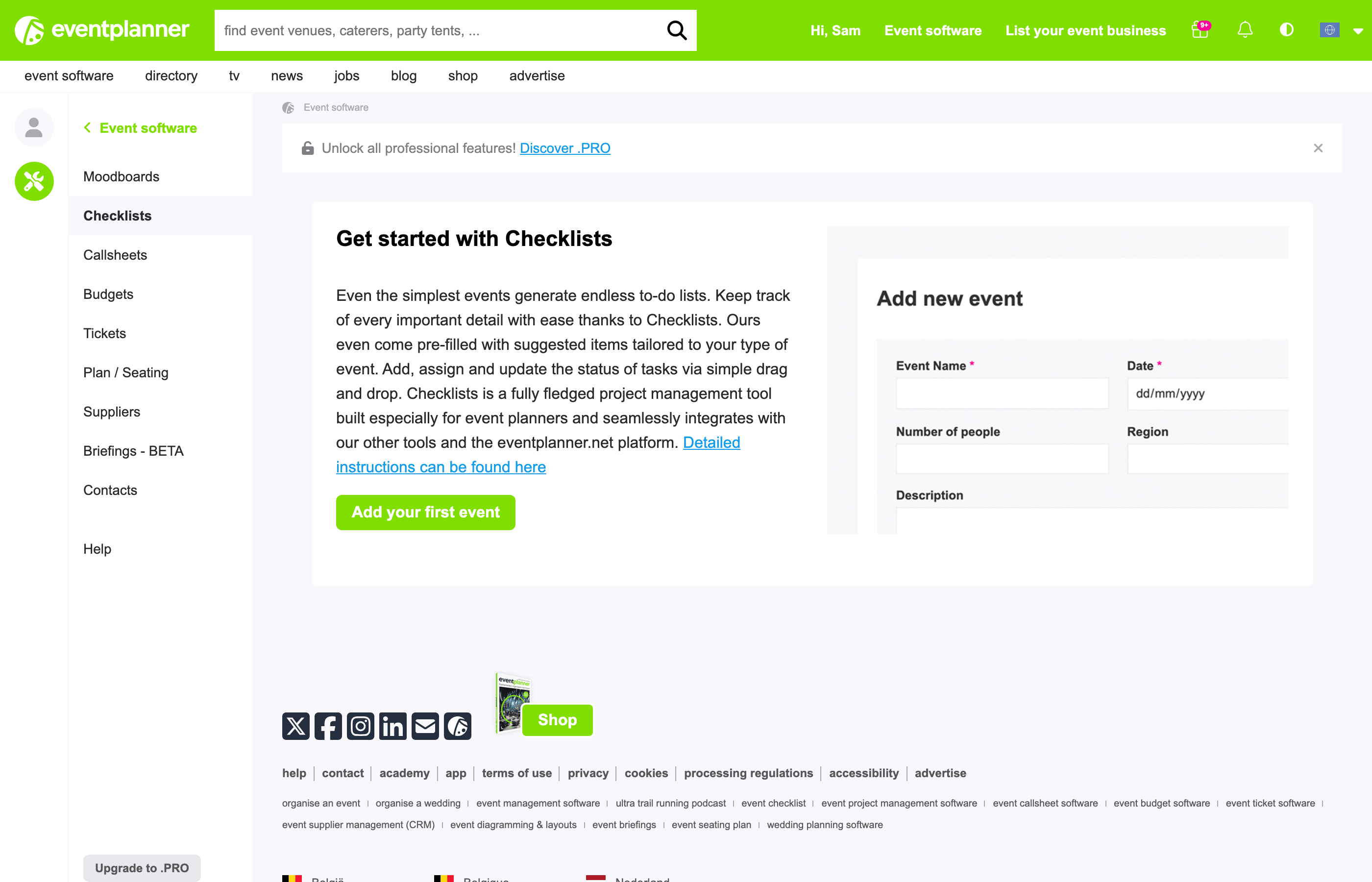
A checklist always belongs to an event, so the first time you open Checklists you are asked to create one. Click Add your first event, fill in a name, a date and the type of event, and save.
A checklist that is already filled in
You do not have to start from an empty board. When you create an event, eventplanner.net fills its checklist with suggested tasks for that type of event: a wedding gets different tasks than a conference or a team building. Many suggested tasks already have a date, set at a sensible time before the date of your event, and some have a button that takes you to an article, a video or a search on eventplanner.net to help you with that task.
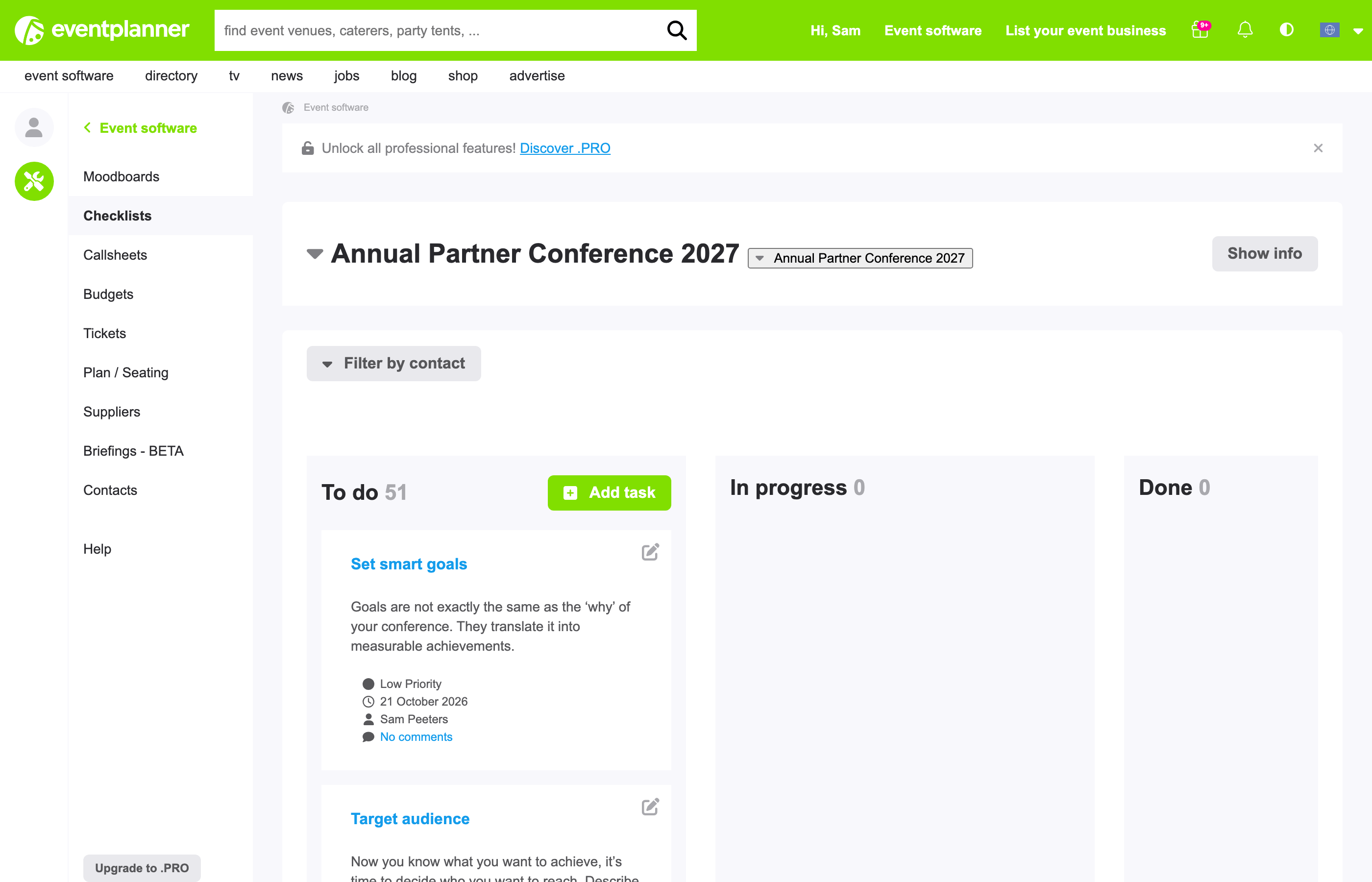
The suggested tasks are a starting point. Change them, move them or delete the ones you do not need, exactly like the tasks you add yourself.
Tip: prefer to start with an empty board? When you create the event, tick Start with a blank template and don't pre-fill my event with a checklist. This option is only there when you create the event, not afterwards. Already have an event with suggestions you do not want? Use Delete all tasks (see section 4).
Good to know: when you create a new event as a copy of an earlier one, its checklist is copied too. All copied tasks start again in To do, and their dates move along with the date of the new event.
2. Add a task
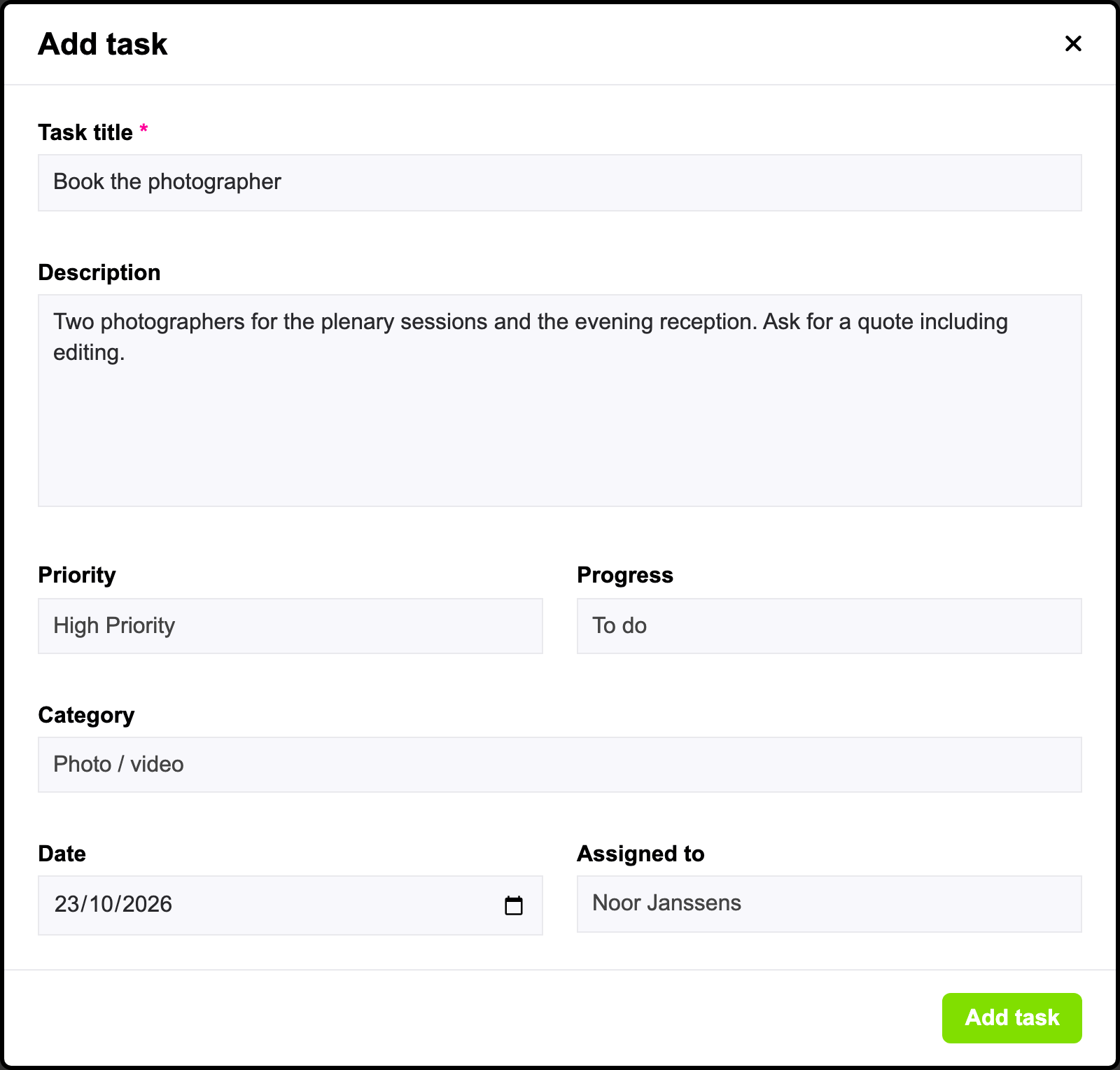
Click Add task at the top of the To do column. A window opens with these fields:
| Field | What to fill in |
|---|---|
| Task title | A short name for the task, such as "Book the photographer". This is the only required field. |
| Description | Any details, agreements or notes about the task. |
| Priority | Low, medium or high. On the card, a red dot marks a high priority. A new task starts on low. |
| Progress | The column the task goes in: To do, In progress or Done. |
| Category | The subject of the task, such as catering, venue, budget, marketing or transport. The category shows on the card with its own icon. |
| Date | The date the task needs to be done by. |
| Assigned to | The person responsible for the task. You can choose yourself or one of the contacts of your event (see section 6). A new task is assigned to you. |
Click Add task at the bottom of the window to save it. The task appears on the board straight away.
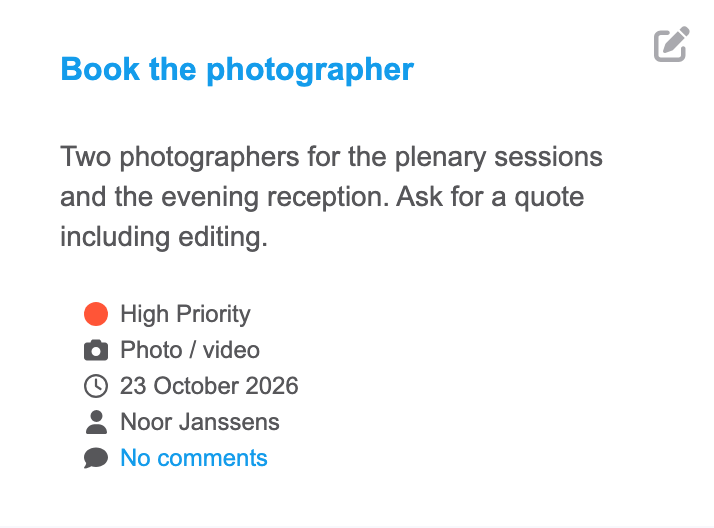
What a card shows
Every card shows the title and description of the task, followed by its priority, category, date, the person it is assigned to and the number of comments.
The date changes colour when it needs your attention: orange when the task is due today or tomorrow, red when the date has passed. Tasks in Done never turn orange or red.
Good to know: working with the Suppliers tool? On the page of a supplier, you can also add a task that is linked to that supplier. It shows up on your checklist like any other task, with the supplier in its details.
3. Move tasks across the board
When you start working on a task, drag its card to In progress. When it is finished, drag it to Done. You can also drag a card up or down within a column to put the most important tasks at the top. Dragging works with a mouse and on a touchscreen.
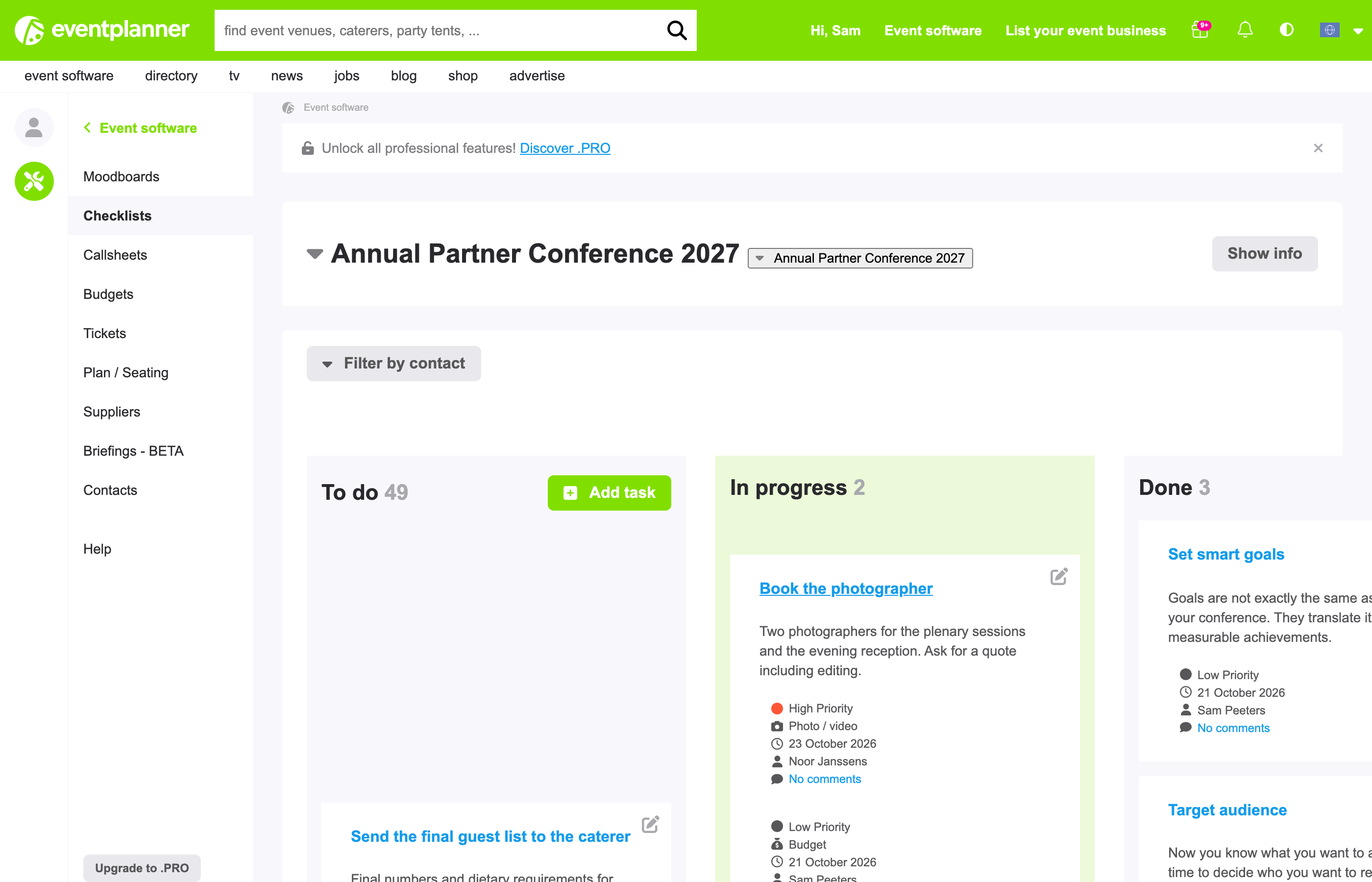
The number next to each column title tells you how many tasks it holds.
4. Edit and delete tasks
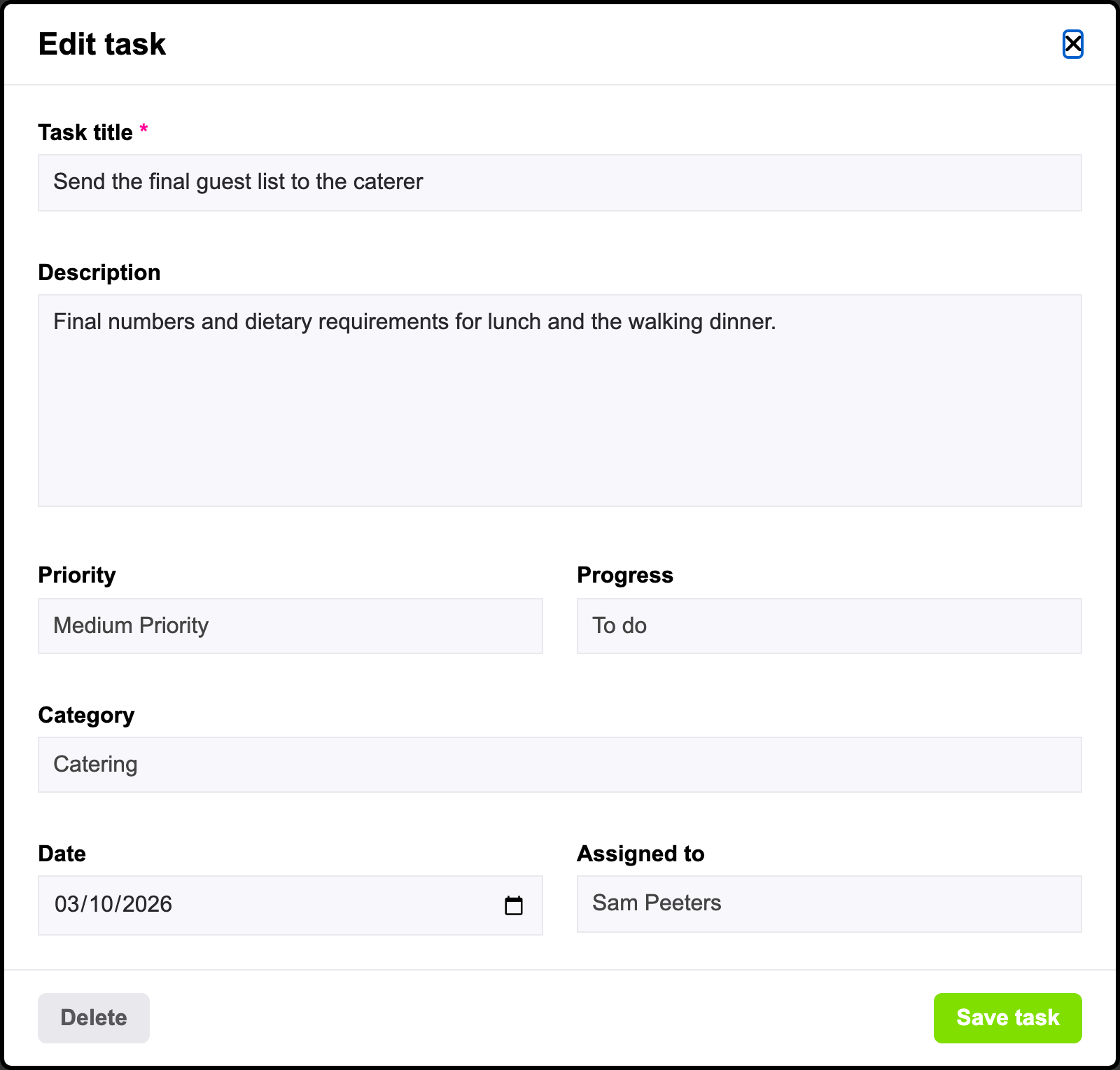
To change a task, click the pencil icon in the top corner of its card. The Edit task window opens with the same fields as when you added it. Change what you need and click Save task.
To delete a task, open it with the pencil icon, click Delete at the bottom of the window and confirm. Its comments and files are deleted with it.
Deleting all tasks at once
Want to start over, for example because you do not need the suggested tasks? Click Delete all tasks under the board. To make sure you do not do this by accident, you type delete in the field and click Delete to confirm.
Watch out: deleting all tasks also deletes their comments and files, and cannot be undone.
5. Comments, files and watchers
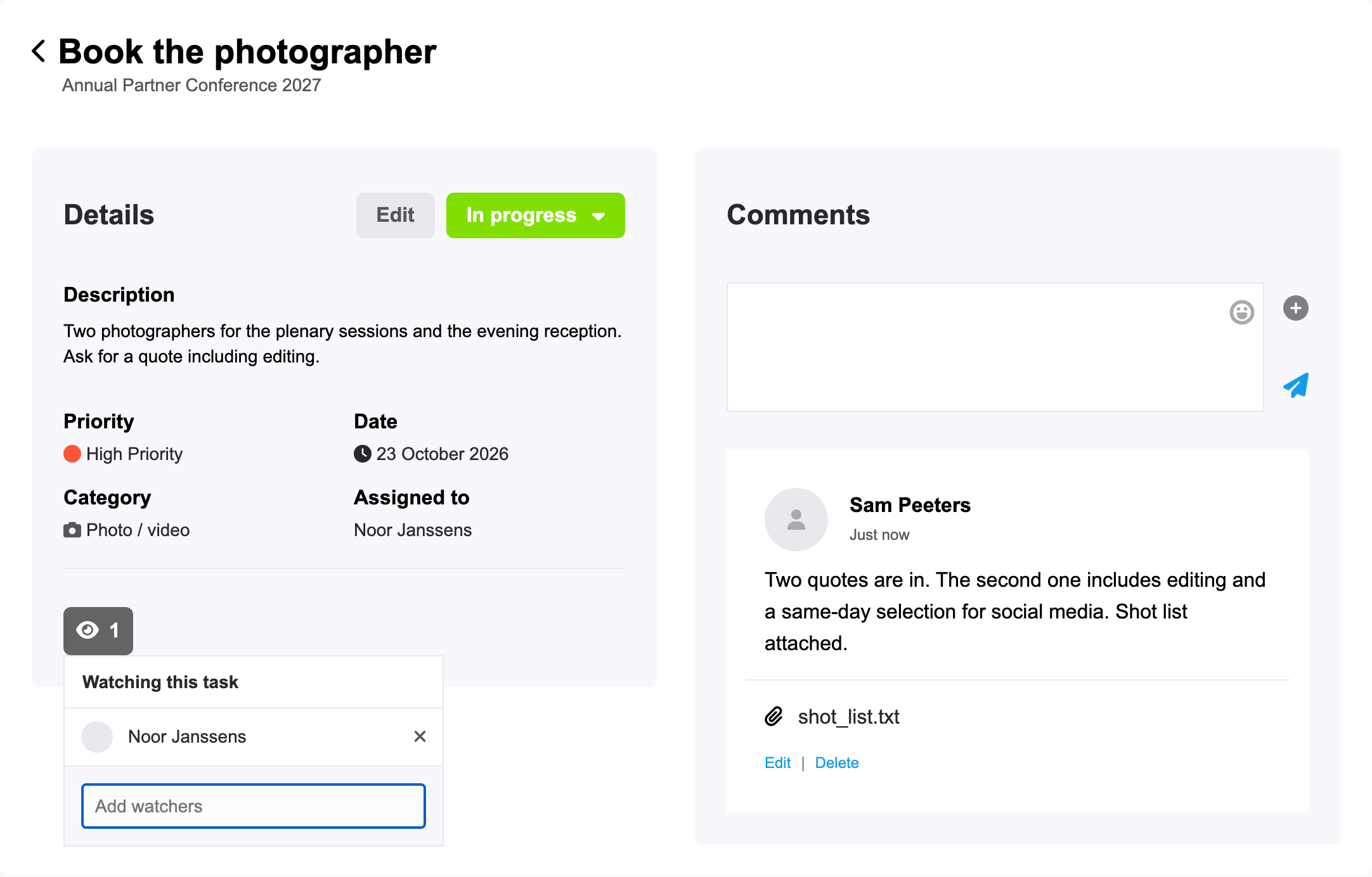
Click the title of a task to open its own page. On the left you see the Details of the task. The Edit button, and the button with the current progress next to it, open the same window as the pencil icon on the board. On the right is the conversation about it, under Comments.
Comments
Type your message in the Type a reply field and click the paper plane to send it. The newest comment is always at the top. You can Edit or Delete your own comments afterwards.
Want someone to read along? Type @ followed by the first letters of their name, and pick the contact from the list. The person you mention becomes a watcher of the task (see below), so they hear about new comments.
Files
Click the plus icon next to the reply field to attach files to your comment: a quote, a floor plan, a contract or a photo. You can add up to 4 files to a comment, of up to 25 MB each. PDF, Word, Excel, PowerPoint, JPG, PNG and plain text files are accepted. Everyone who can see the task can open the files.
Tip: a comment also works well as a list of smaller steps within a task: write them down one per line and update the list as you go.
Watchers
A watcher is someone who follows a task without being responsible for it, such as a colleague who needs to know when the menu is final. Watchers get a notification when the task changes or when someone adds a comment.
Click the eye icon in the details of the task to see who is Watching this task. Search for a contact in the Add watchers field to add them, or click the cross next to a name to remove them.
6. Work on it together
Checklists is useful when you plan alone, and even more when you plan with a team, a client or your suppliers. Everyone you add to the event can work on the same board, with exactly the access you give them.
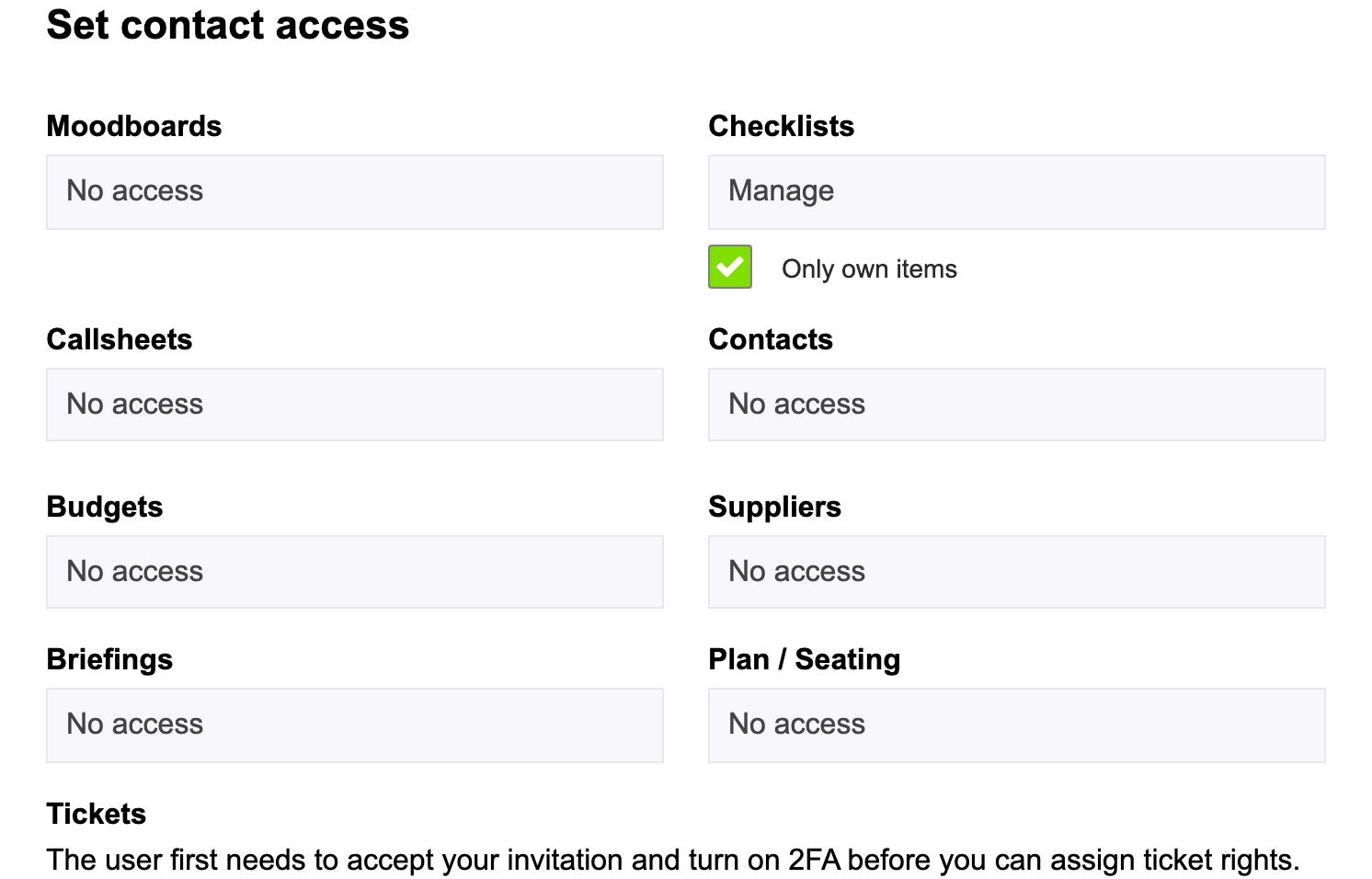
Add the people you work with in the Contacts tool of your event. Under Set contact access, choose what each of them may do in Checklists:
| Access | What they can do |
|---|---|
| No access | They do not see the checklist. This is the default for a new contact. |
| Read | They see the board and every task, but cannot change anything. |
| Comment | Like Read, and they can add comments and files to tasks. |
| Manage | They can add, change, move and delete tasks, and comment on them. |
Tick Only own items to limit a contact to the tasks that are assigned to them. You can combine it with Read, Comment and Manage. They do not see the other tasks on the board. With Manage, they can still add new tasks, but only for themselves. This is useful when a supplier or freelancer helps with part of the event, or when some tasks hold information that not everyone on the team should see.
A contact gets an invitation by e-mail and logs in with their own eventplanner.net account. Once they have access, you can assign tasks to them in the Assigned to field. Read more in how to manage users in the event software.
Filter by contact
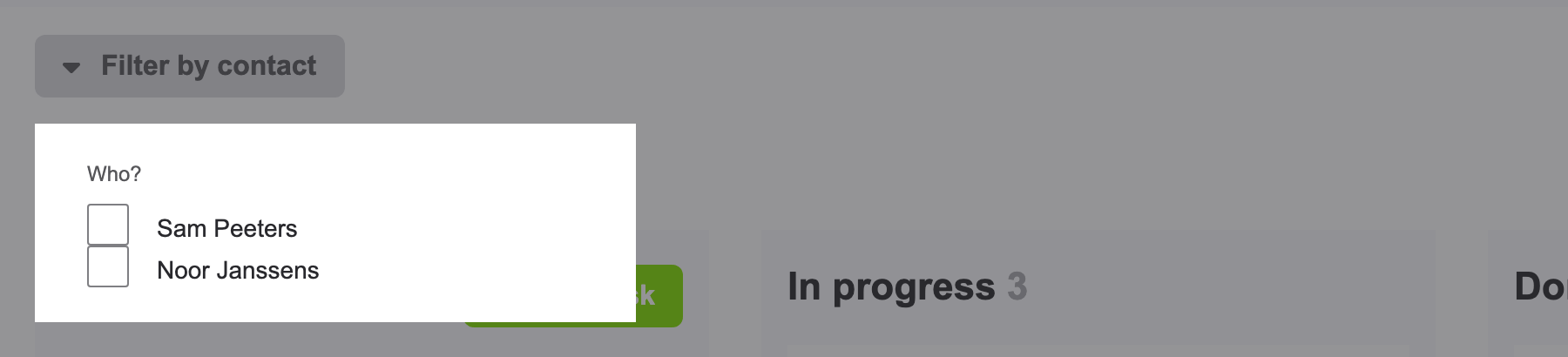
When several people work on the board, click Filter by contact at the top and tick a name under Who? to only see the tasks assigned to that person. Tick more names to see the tasks of several people at once. Click the cross next to a name to take it out of the filter again.
7. Notifications
Checklists keeps everyone up to date with notifications on eventplanner.net and, depending on their notification settings, by e-mail:
- When a task is assigned to someone, they get a notification.
- When someone adds a comment, the person the task is assigned to and the watchers get a notification.
- When a task changes, its watchers get a notification.
- The day before the date of a task, the person it is assigned to gets a reminder, as long as the task is not done yet.
When you are logged in, the homepage of eventplanner.net also shows a Checklist block with the tasks assigned to you for today and the coming days.
Good to know: do you see the message Notifications are disabled for this checklist. above your board? Then no reminders are sent for this event. Click Click here to enable notifications to turn them on.
Tip: install the eventplanner.net app on your phone. You then also get these notifications as push notifications, and you can open your tasks on the go.
Frequently asked questions
Can I use Checklists for free? Yes. Checklists is part of the free event software. In the free version, a checklist holds up to 100 tasks per event, suggested tasks included. With .PRO, you can add up to 400 tasks per event.
What happens when I reach the maximum number of tasks? In the free version, Add task then opens a window that invites you to upgrade to .PRO. Delete tasks you no longer need to make room, or upgrade.
Can I get rid of the suggested tasks? Yes. Delete the ones you do not need, or click Delete all tasks under the board to empty it in one go. For your next event, tick Start with a blank template and don't pre-fill my event with a checklist. when you create it.
Do my contacts need an eventplanner.net account? Yes. To see the checklist, a contact logs in with their own eventplanner.net account. They get access once you add them to your event in Contacts.
Can I change the columns of the board? No. Every checklist has the same three columns: To do, In progress and Done. Use the categories and the filter to organise your tasks further.
Why can't I drag tasks or see the pencil icon? You only have Read or Comment access to this checklist. Ask the owner of the event to give you Manage access in Contacts.
Why don't I see all the tasks of the event? Your access is limited to Only own items, so you only see the tasks assigned to you. The owner of the event can change this in Contacts.
Are the tasks copied when I copy an event? Yes. When you create a new event from an earlier one, its tasks are copied to the new event. They all start again in To do, and their dates move along with the date of the new event.
Read also
- Master eventplanner.net: Complete guide and training to our event software
- How to set up an event in the eventplanner.net event software
- How to use Moodboards?
- How to use Callsheets?
- How to use Budgets?
- How to use Supplier Management?
- How to use Briefings?
- How to use Tickets?
- How to use Floor plans?
- How to manage users in the eventplanner.net event software?
- eventplanner.net certification
