


Event software training
How to use Moodboards?
A moodboard is an idea board for your event. While you browse eventplanner.net, you pin everything that inspires you: venues you are considering, caterers and other suppliers, articles with useful tips and even pages from other websites. Everything lands on one board, neatly sorted, so you never lose that one venue you saw last week. Moodboards are part of the event software of eventplanner.net, and every event gets its own board.
Want to see what Moodboards can do for you before you start? Have a look at the overview page first.
Where to find it: log in and choose event software in the main menu. Moodboards is the first tool in the menu of your event, and the page the event software opens on.
1. Start with an event
A moodboard always belongs to an event, so the first time you open Moodboards you are asked to create one. Click Add your first event, fill in a name, a date and the type of event, and save.
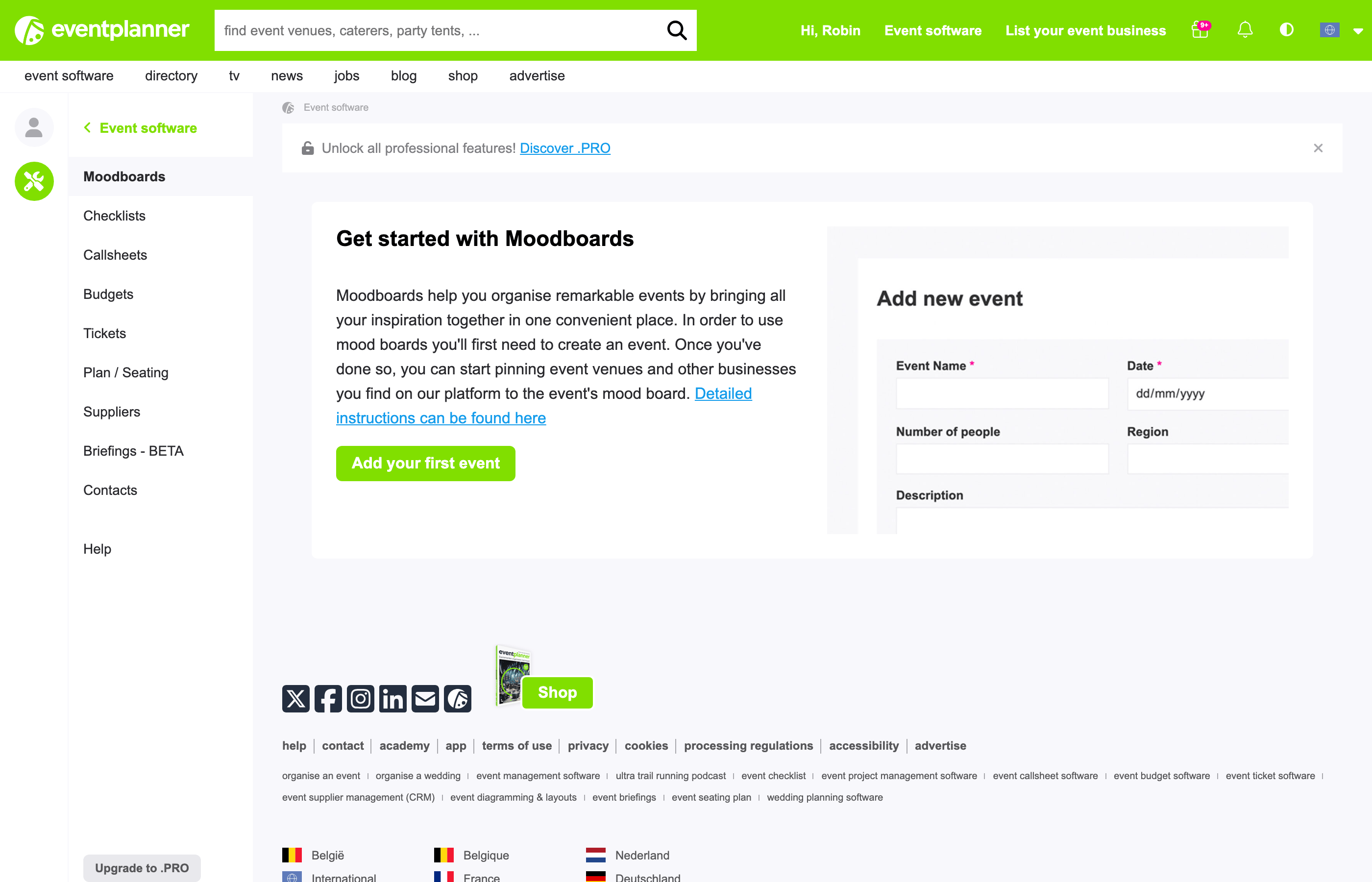
Your new event opens on its own, empty moodboard. Until you pin something, you see Add your first pin.
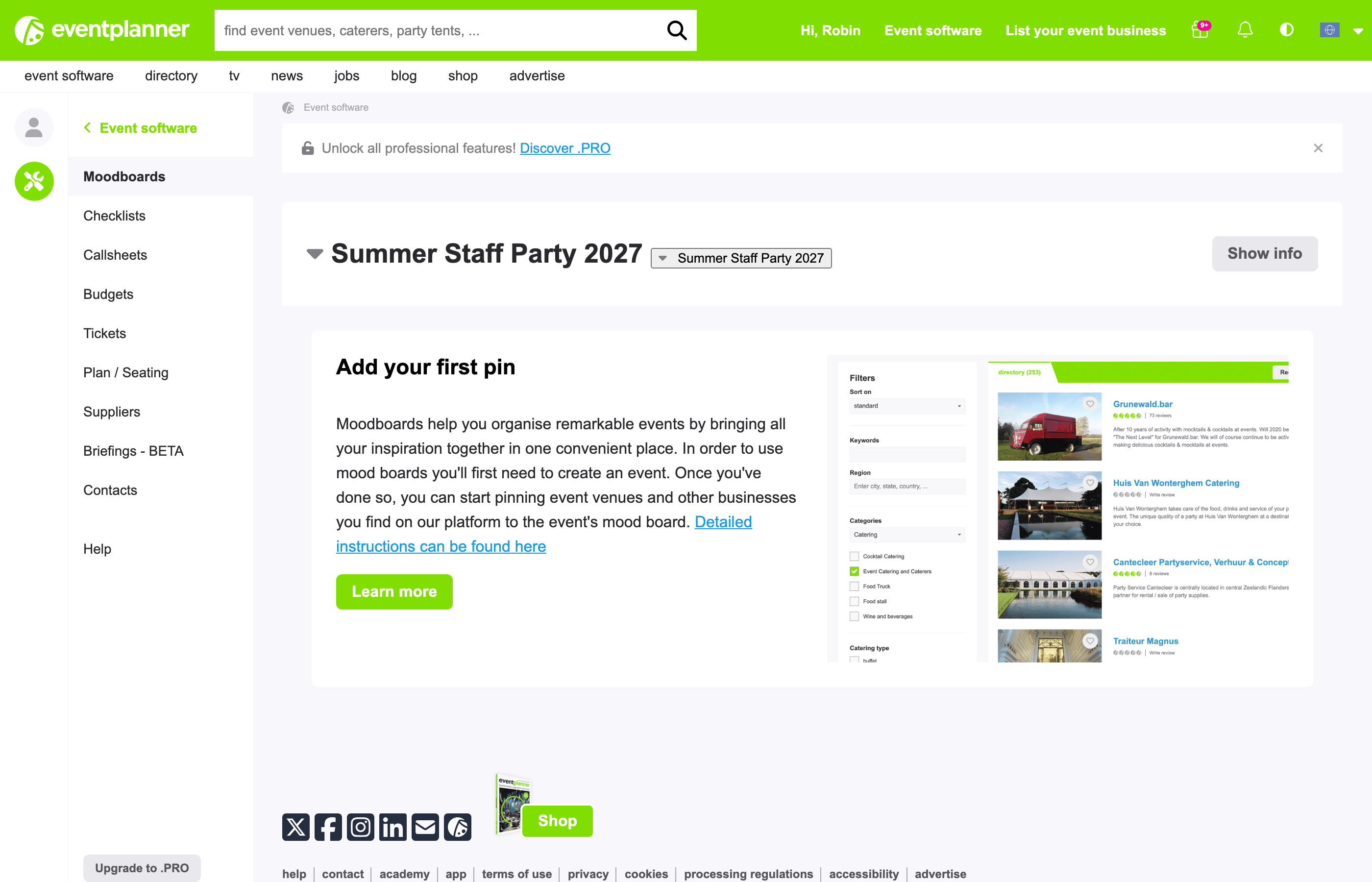
Tip: organising more than one event? Each event has its own board. Use the event switcher at the top of the event software to move between them.
2. Pin what inspires you
A pin is anything you save to a moodboard. You do not add pins from the moodboard itself: you add them while you browse eventplanner.net, from the page you are looking at. You need to be logged in to see the pin options.
Venues and suppliers
On a business page (a venue, caterer, photographer, ...), click follow at the top of the page. In search results and in lists of businesses, you click the heart on the photo instead. A small window opens:
- Under Pin to Moodboard, you see all your events. Tick the event (or events) you want to pin this business to. Untick an event to take the pin off that board again.
- Pin to new event creates a new event and pins the business to it straight away.
- Like at the top of the window follows the business for yourself, without pinning it to an event.
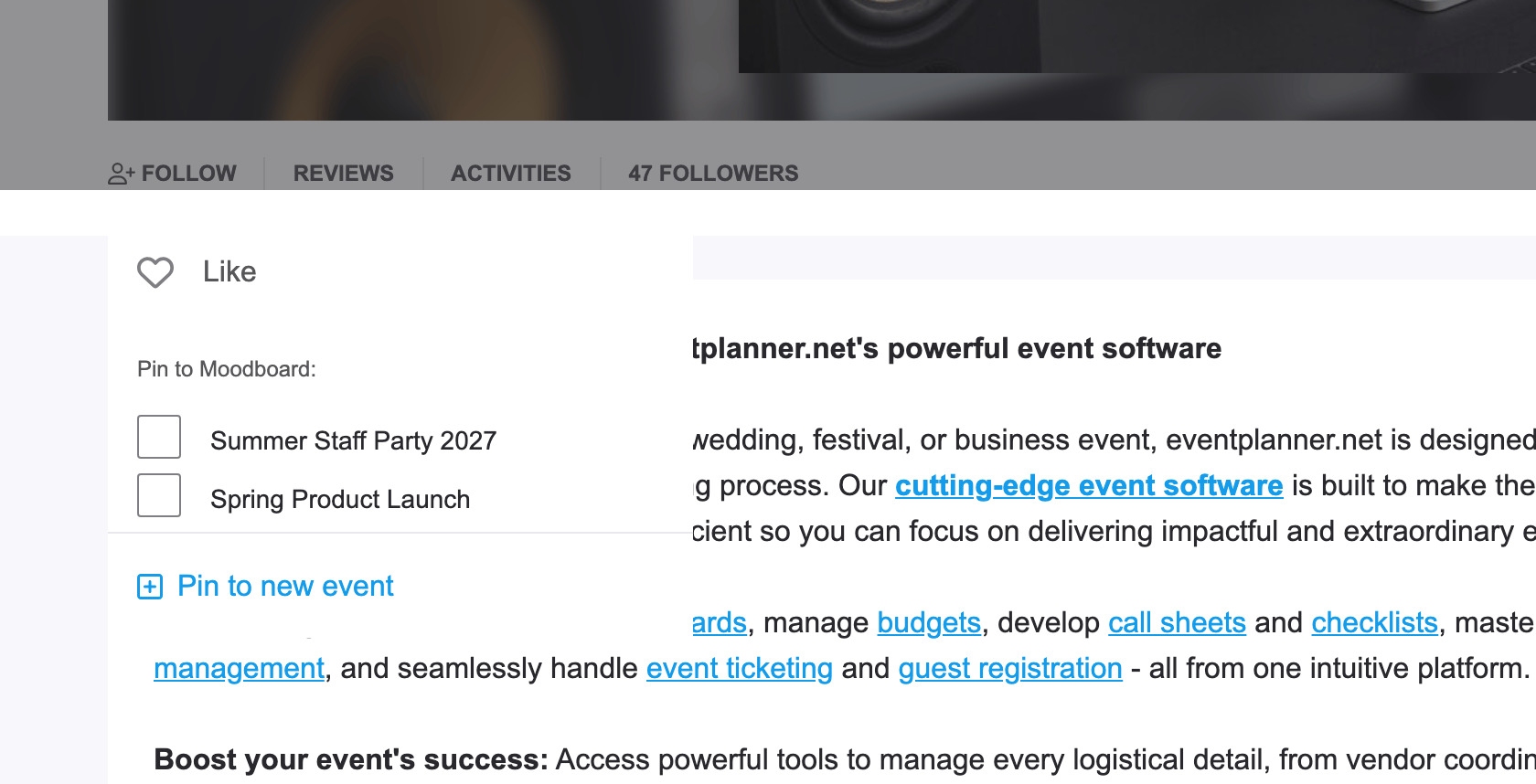
Good to know: a business you pin through this window is also added to that event's Suppliers list, so you can compare and select it there later. Removing the pin from the moodboard does not remove it from Suppliers.
Articles and posts
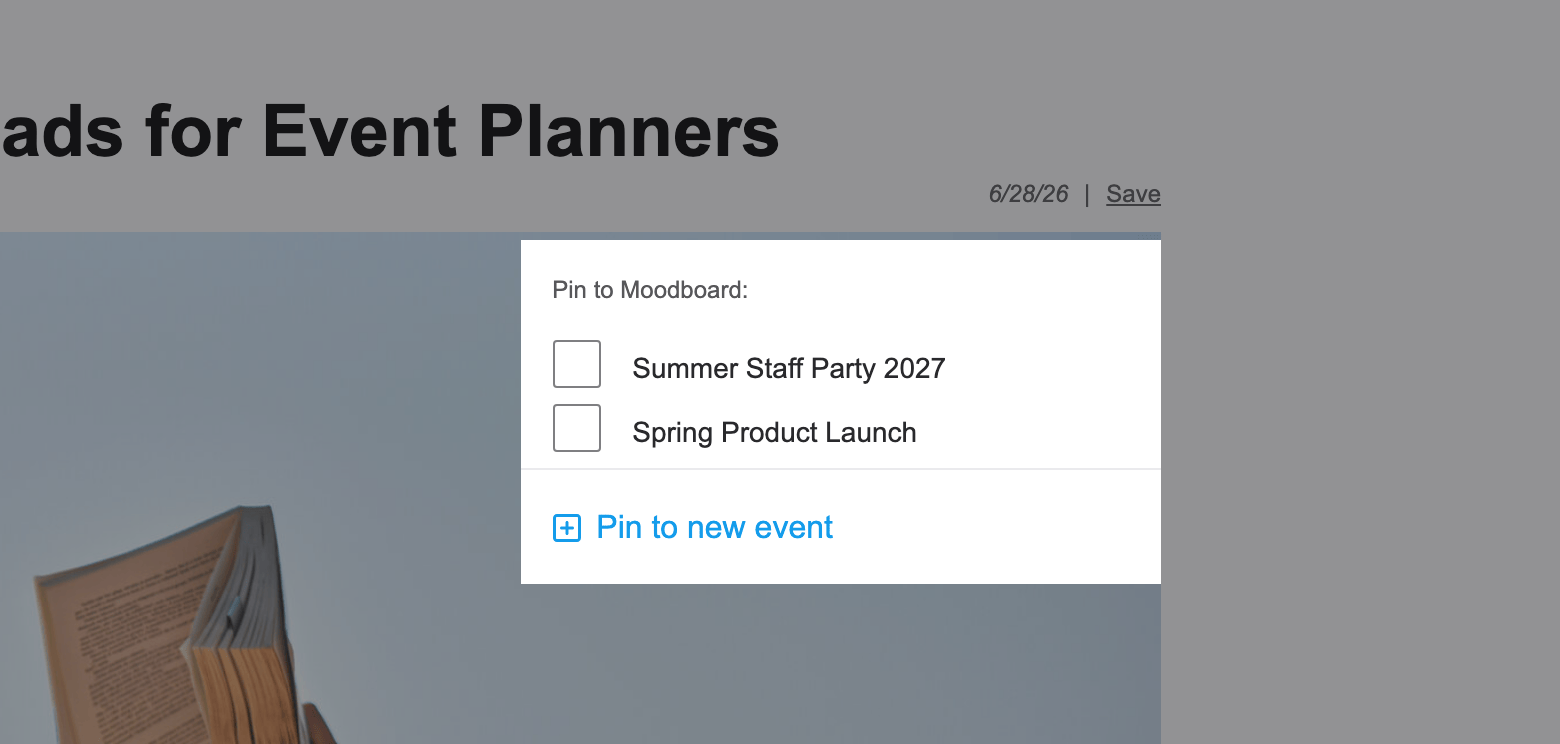
Found an inspiring article in the magazine, or a post by a business? Click Save next to the date of the article or under the post. The same window opens: tick the event you want to save it to, or choose Pin to new event.
Links to other websites
Not everything that inspires you is on eventplanner.net. At the top of the Links block on your moodboard, paste the address of any web page in the Paste link here field and click Add link. eventplanner.net fetches the page title, a short description and an image, and shows the link as a card on your board.
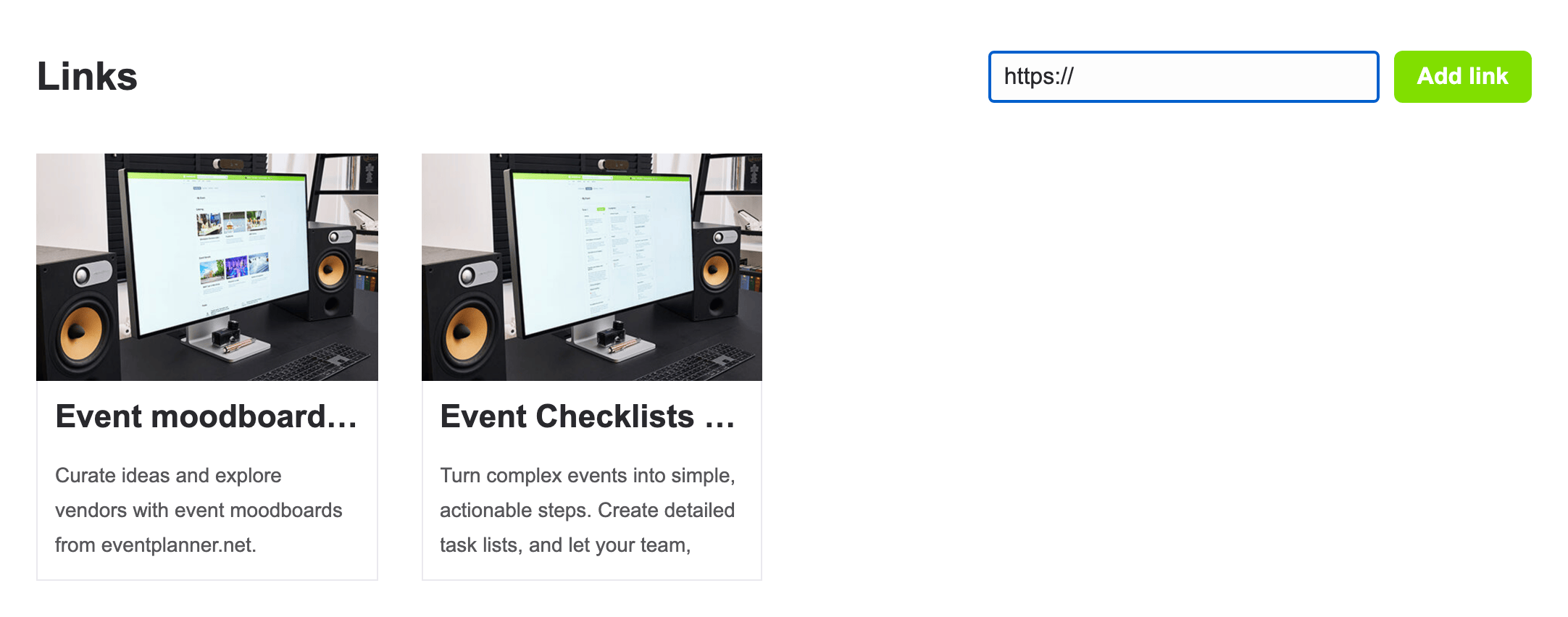
Note: the Paste link here field only appears once your moodboard holds at least one pin from eventplanner.net (a business, an article or a post). Links you added before stay on the board, even when you remove that pin later.
Tip: paste the complete address, including https://. Did you paste a link to a business page, article or post on eventplanner.net? Then it is pinned as that business, article or post, not as a link.
3. Your moodboard
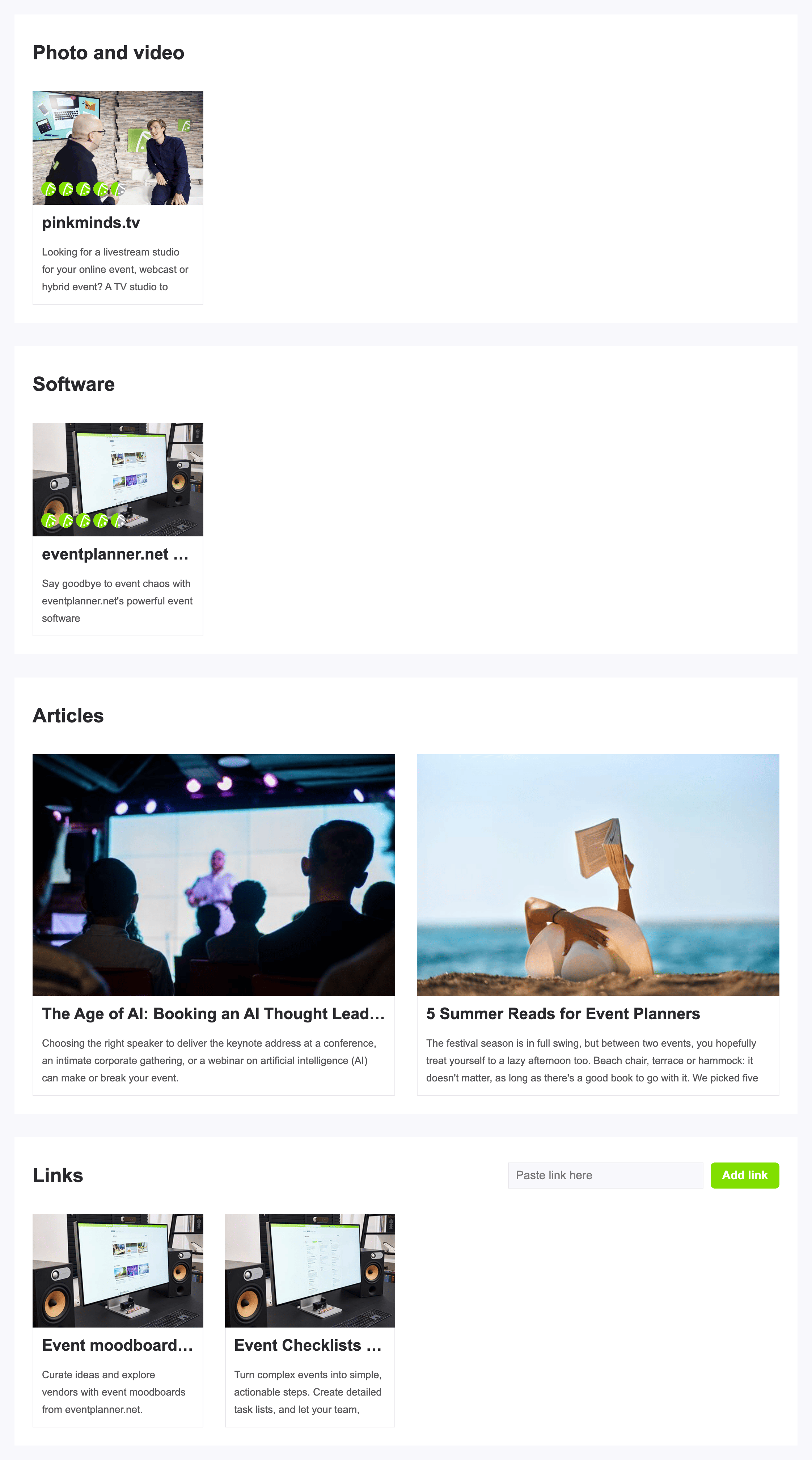
Your pins are grouped by type, so the board stays easy to scan:
- Businesses, in one block per category: all venues together, all caterers together, and so on.
- Posts you saved from businesses.
- Articles from the magazine.
- Links to other websites.
Click a card to open the business page, article or website. Links to other websites open in a new tab.
Removing a pin
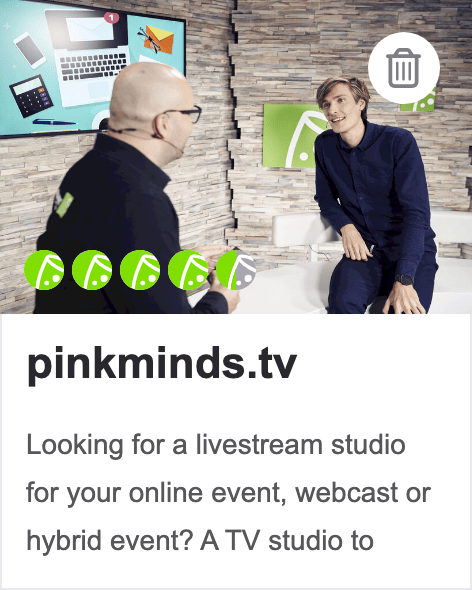
Move your mouse over a card and click the bin icon in its corner. Confirm, and the pin disappears from this board. It stays on the moodboards of your other events, and it is not deleted from eventplanner.net.
Good to know: a moodboard holds up to 400 pins per event. When a board is full, its event is greyed out in the pin window, with the message that you have reached the maximum number of pins. Remove a few pins to make room.
4. Work on it together
Moodboards are useful when you plan alone, and even more when you plan with a team, a client or a partner. Everyone you add to the event can look at the same board, and the people who are allowed to edit it can add their own ideas.
Add the people you work with in the Contacts tool of your event, and set what each of them may do with the moodboard under Set contact access:
| Access | What they can do |
|---|---|
| No access | They do not see the moodboard. This is the default for a new contact. |
| Read | They see the moodboard and can open every pin, but cannot add or remove anything. |
| Manage | They can pin businesses, articles, posts and links to this event, and remove pins. |
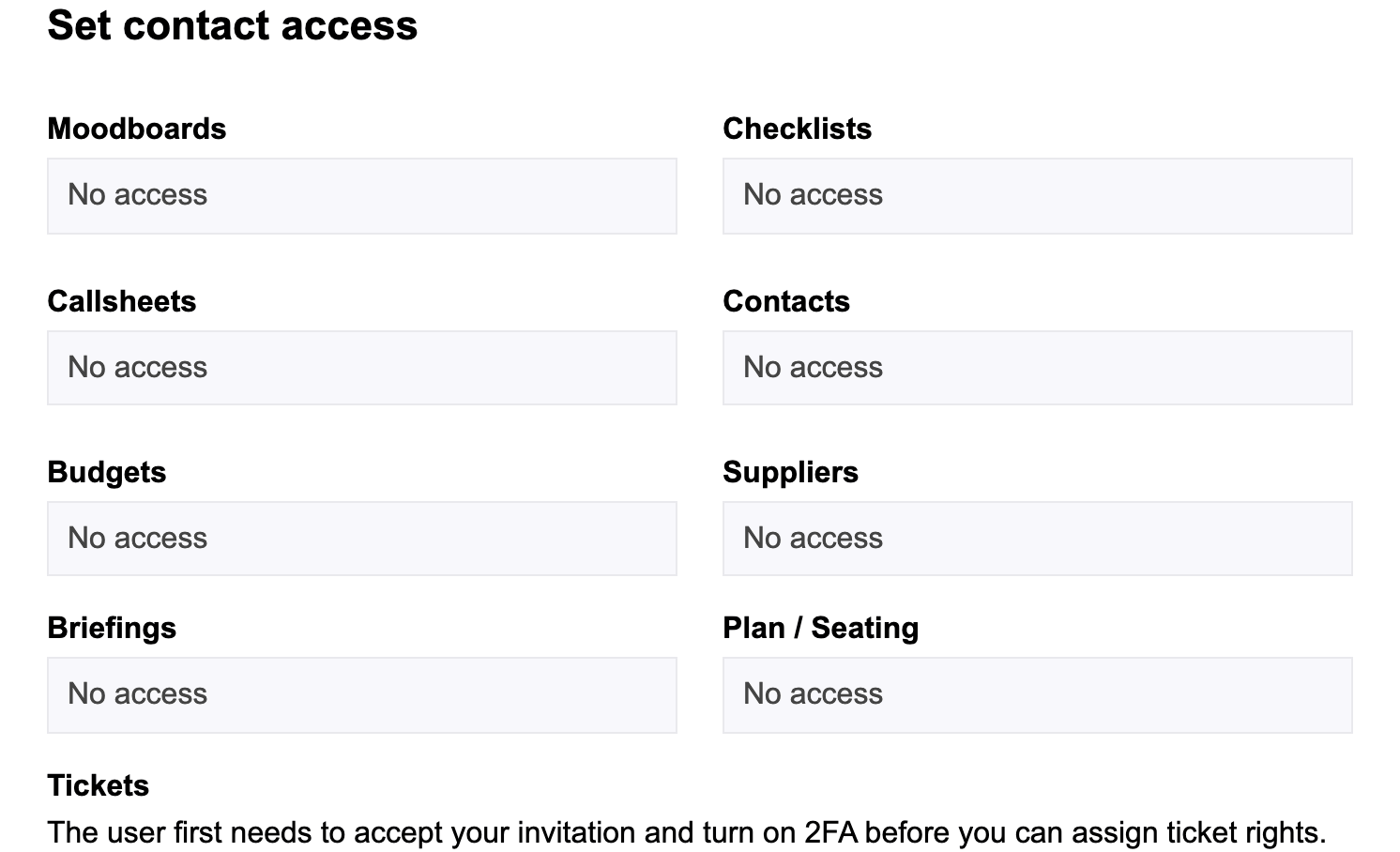
The access is set per tool, so you decide for every tool separately: a client can look at your moodboard without seeing your budget, for example. Read more in how to manage users in the event software.
When someone pins something new to the board, the other people with access to the moodboard get a notification: "name added a new pin to the event mood board".
Frequently asked questions
Can I use Moodboards for free? Yes. Moodboards are part of the free event software. You only need an eventplanner.net account.
Do my contacts need an eventplanner.net account? Yes. To see a moodboard, a contact logs in with their own eventplanner.net account. They get access once you add them to your event in Contacts.
Can the businesses I pin see my moodboard? No. Your moodboard is only visible to you and the contacts you give access. A business does not see your event or your board. It does see in its statistics how often its business page was saved to moodboards, without your name.
I don't see my event in the pin window. Why not? The window only lists the events whose moodboard you may manage. If someone else owns the event, ask them to give you Manage access to Moodboards.
Can I add my own photos or files to a moodboard? Not directly. You can pin any web page as a link, for example a photo album or a shared folder, as long as it is publicly reachable.
Are my pins copied when I copy an event? No. When you start a new event from a previous one, the new event starts with an empty moodboard.
Why did my link not get added? Check that you pasted the complete address, starting with https://. Some pages refuse to be read by other websites, and addresses that look unsafe are refused. In that case, try a different page of the same website.
Read also
- Master eventplanner.net: Complete guide and training to our event software
- How to set up an event in the eventplanner.net event software
- How to use Checklists?
- How to use Callsheets?
- How to use Budgets?
- How to use Supplier Management?
- How to use Briefings?
- How to use Tickets?
- How to use Floor plans?
- How to manage users in the eventplanner.net event software?
- eventplanner.net certification
