


Event software training
How to use Budgets?
Every event has costs, and many also have income: ticket sales, sponsorship, a contribution from the client. Budgets puts all of them on one page, so you always know what your event will cost, what it brings in and what is left at the end. It is part of the event software of eventplanner.net, and every event gets its own budget.
You build the budget line by line. A budget line is one cost or one source of income, such as "Walking dinner" or "Ticket sales". Lines that belong together are grouped per category (catering, venue, staff, ...), and the totals at the top add up everything for you.
Want to see what Budgets can do for you before you start? Have a look at the overview page first.
Where to find it: log in, choose event software in the main menu and open Budgets in the menu of your event.
1. Start with an event
A budget always belongs to an event, so the first time you open Budgets you are asked to create one. Click Add your first event, fill in a name, a date and the type of event, and save.
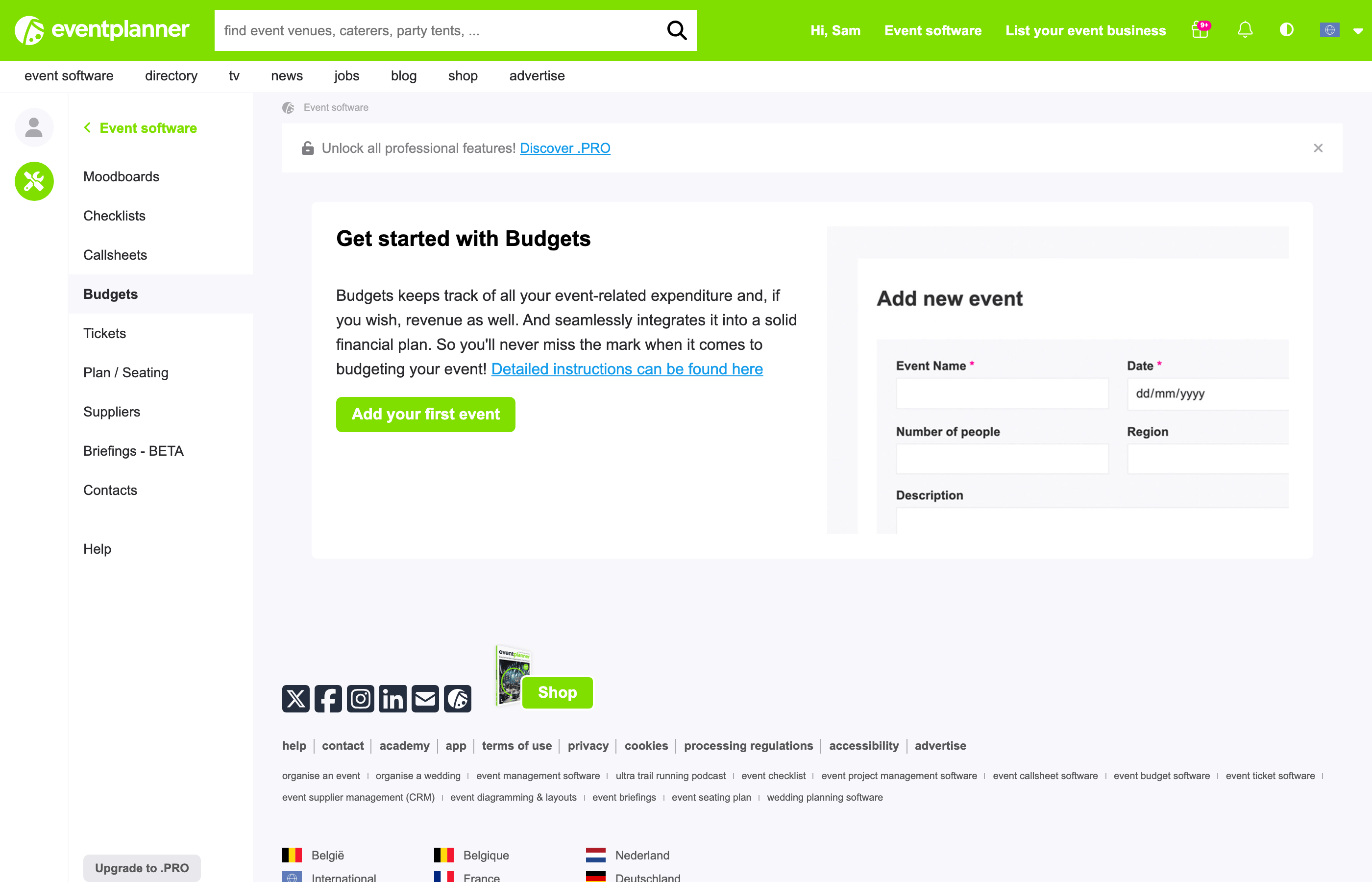
Three settings of your event matter for its budget, so check them before you add your first line:
- Number of people - the number of guests you expect. Budgets uses it to calculate every price per person (see section 2).
- Currency - the currency all amounts of the budget are in.
- Work with prices ex VAT in Budgets (advanced mode splitting up VAT for business events) - leave it off to work with prices including VAT, tick it to work with prices excluding VAT. Read section 6 before you decide: once it is on, you cannot turn it off again.
You find these settings when you create the event. To change them later, click Show info at the top of any page of your event and then Edit.
2. Add a budget line
Click Add budget line. A window opens with these fields:
| Field | What to fill in |
|---|---|
| Category | The subject of the line, such as catering, venue, staff, marketing or transport. Lines are grouped per category on the board. Required. |
| Description | A short, recognisable name, such as "Walking dinner" or "Sound and light". Required. |
| Cost or Revenue | Whether this line is money going out (a cost) or coming in (revenue, such as ticket sales or sponsorship). Required. |
| Supplier | Who you pay or who pays you. Start typing a name to pick a company from eventplanner.net or one of the suppliers of your events. A name that is not in the list is fine too: just type it. Optional. |
| Fixed price | An amount that does not depend on the number of guests, such as the rent of a venue. |
| Unit price | A price per person or per unit, such as the price of a menu. |
| # units (default: # people) | How many times the unit price counts. By default, this is the number of people of your event. |
| Manually edit # units | Tick this to enter your own number of units, for example 4 staff members instead of 250 guests. |
Click Add budget line at the bottom of the window to save it. The line appears in its category straight away.
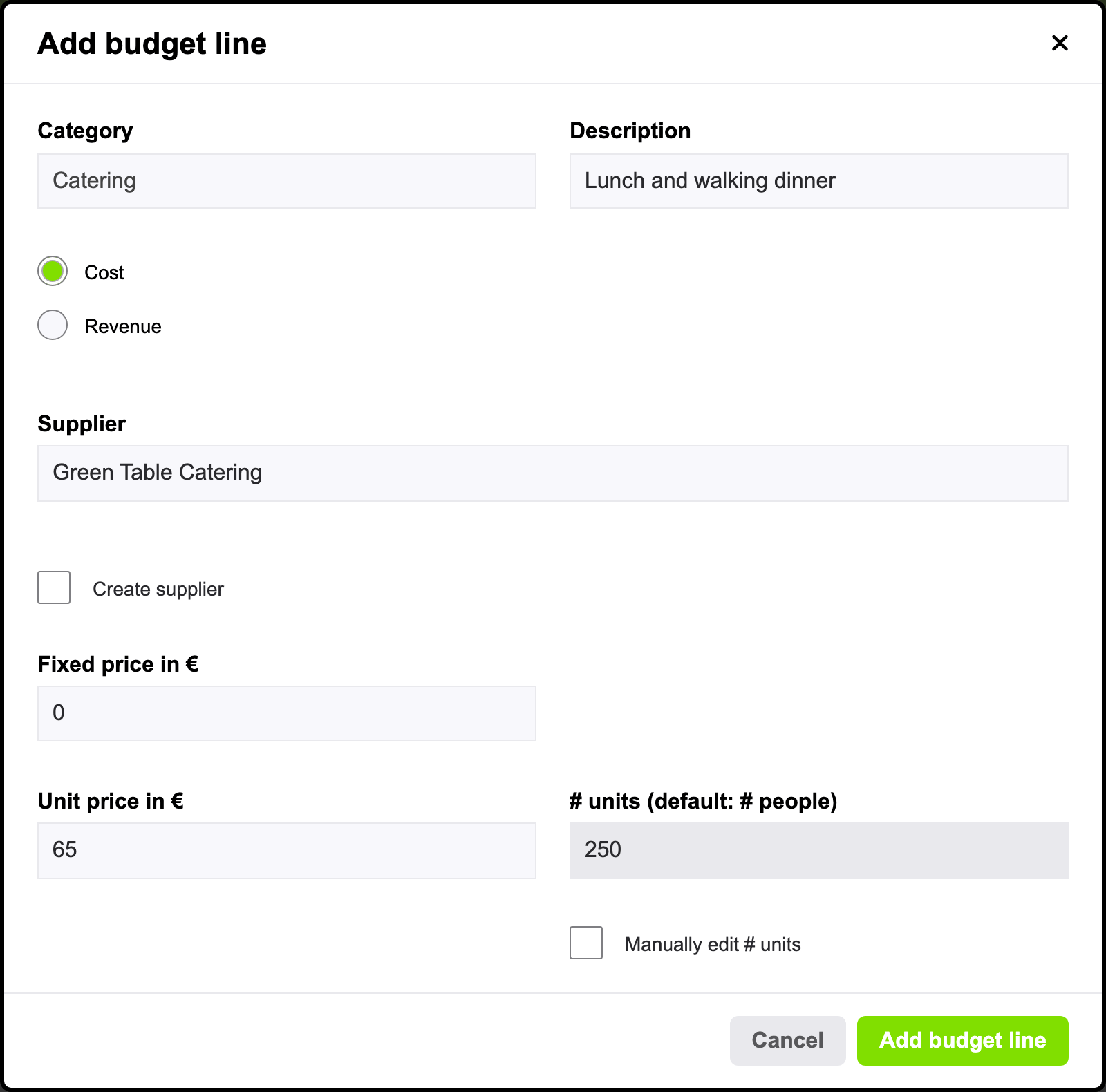
How the total of a line is calculated
The total of a line is its fixed price plus its unit price times the number of units. You can use either price or both: a band that charges 1,500 for the evening plus 10 per guest for the extra sound system gets a fixed price of 1,500 and a unit price of 10.
Good to know: a line that uses the default number of units follows your event. If the number of guests changes, update Number of people in the settings of your event (Show info > Edit) and every line that is calculated per person changes with it. Lines where you ticked Manually edit # units keep their own number.
Add the supplier to your supplier list
Working with the Suppliers tool? Tick Create supplier under the supplier field to add the supplier to the supplier list of your event at the same time. Lines that are linked to a supplier also show up in the budget block on the page of that supplier, so you see at a glance what you have planned with them.
3. Read your budget
At the top of the page is the summary of the budget, with everything you have added below it, one block per category.
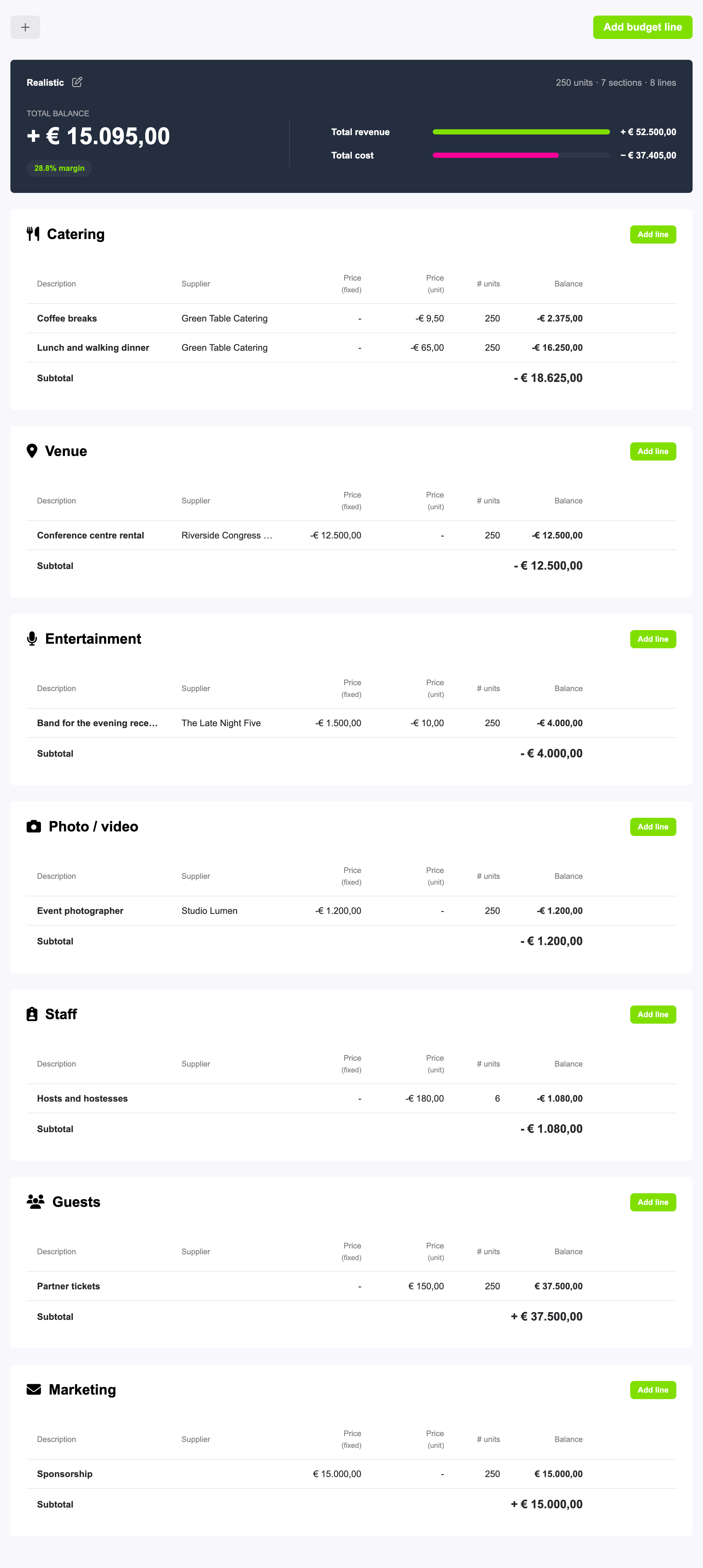
- The summary shows the Total cost of your event. As soon as you add revenue, it shows the Total balance instead: your revenue minus your costs. Next to the version name, you see the number of people of your event (units), the number of categories (sections) and the number of lines. With revenue in the budget, it also shows your margin: the balance as a percentage of your revenue, in green when you make a profit and in pink when you make a loss. Below that, a bar for Total revenue and one for Total cost let you compare them at a glance.
- Every category has its own block with a table of its lines and a Subtotal in its last row. Costs are shown with a minus sign. Click Add line in a category to add a line that is already in that category.
- To change or delete a line, move your mouse over it: the pencil (Edit) and the bin (Delete) appear at the end of the row. Deleting a line asks for confirmation first, because it cannot be undone.
Tip: on your phone, every line is shown as a small card with its actions in the top corner. The version switcher and the Add budget line button move to a bar at the bottom of the screen.
4. Compare scenarios with budget versions
A budget version is a complete budget of its own for the same event. Use versions to compare scenarios side by side: a realistic and a worst-case budget, a version with and one without the evening programme, or the budget you sent to your client next to the one you are working on now. You can also save a copy now and then to keep track of how your budget changed.
Your first budget version is created automatically with your first line, and is called Budget v1. To add another one, click the + (Create new version) next to the version name at the top of the page:
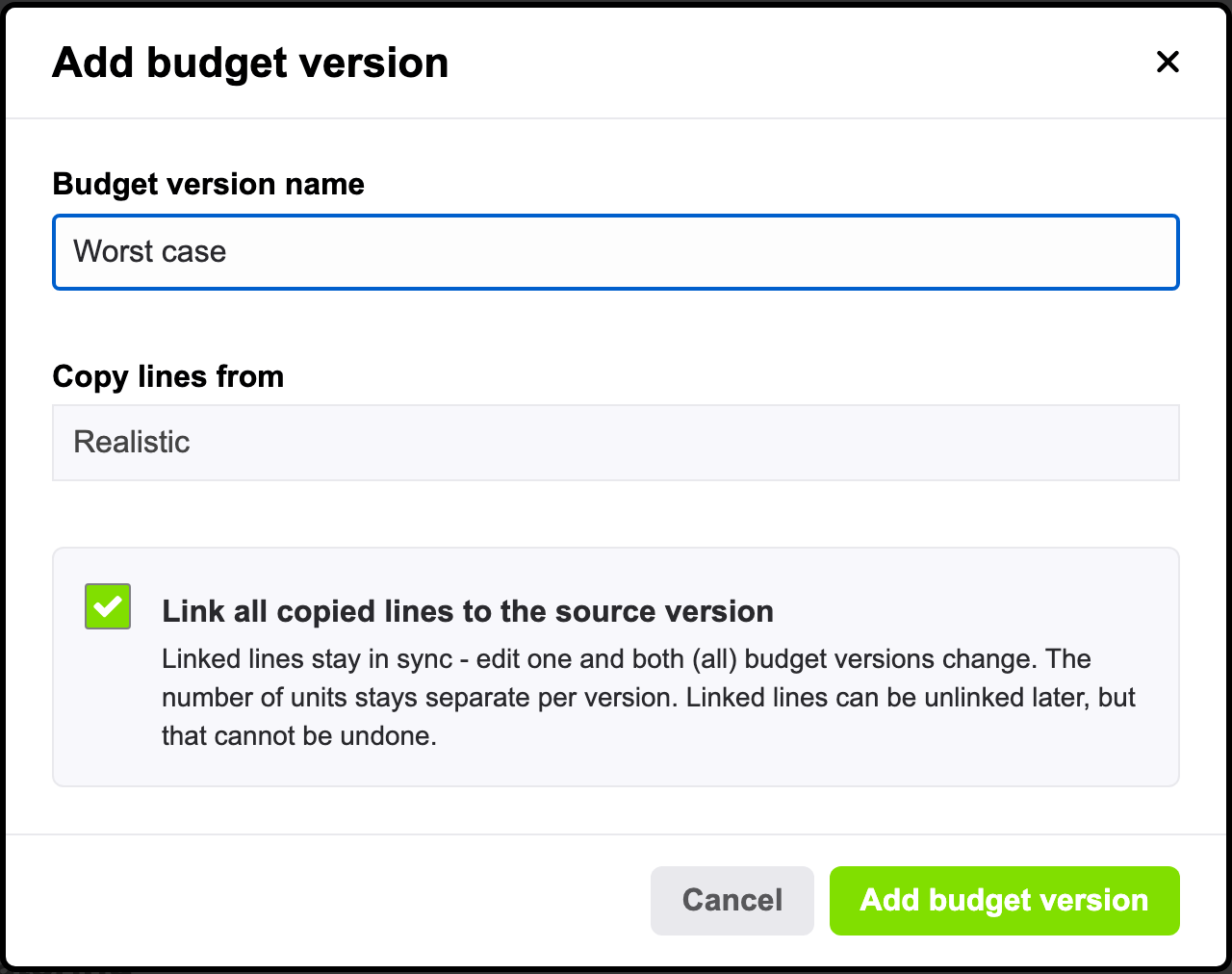
- Give the version a name under Budget version name, such as "Worst case".
- Under Copy lines from, choose Start with an empty version or pick the version whose lines you want to copy.
- When you copy lines, Link all copied lines to the source version is ticked. Leave it on to keep the copies in sync with the originals (see section 5), or untick it to make an independent copy.
- Click Add budget version.
Once an event has more than one version, their names appear above the summary. Click a name to switch to that version. Every version has its own lines and totals.
To rename a version, click the pencil next to its name. In the same window you find Delete, but only for a version without lines: delete its lines first.
Good to know: an event can have up to 10 budget versions, and up to 1000 budget lines in all its versions together.
5. Linked lines: change once, update every version
Most lines are the same in every scenario: the rent of the venue does not change because you make a worst-case budget. A linked line is one line that is in several budget versions at the same time. When you change it in one version, it changes in all of them, so you never have to update the same price twice.
A linked line shows a chain icon next to its description, with the number of versions it is in. Move your mouse over it to see which versions they are.
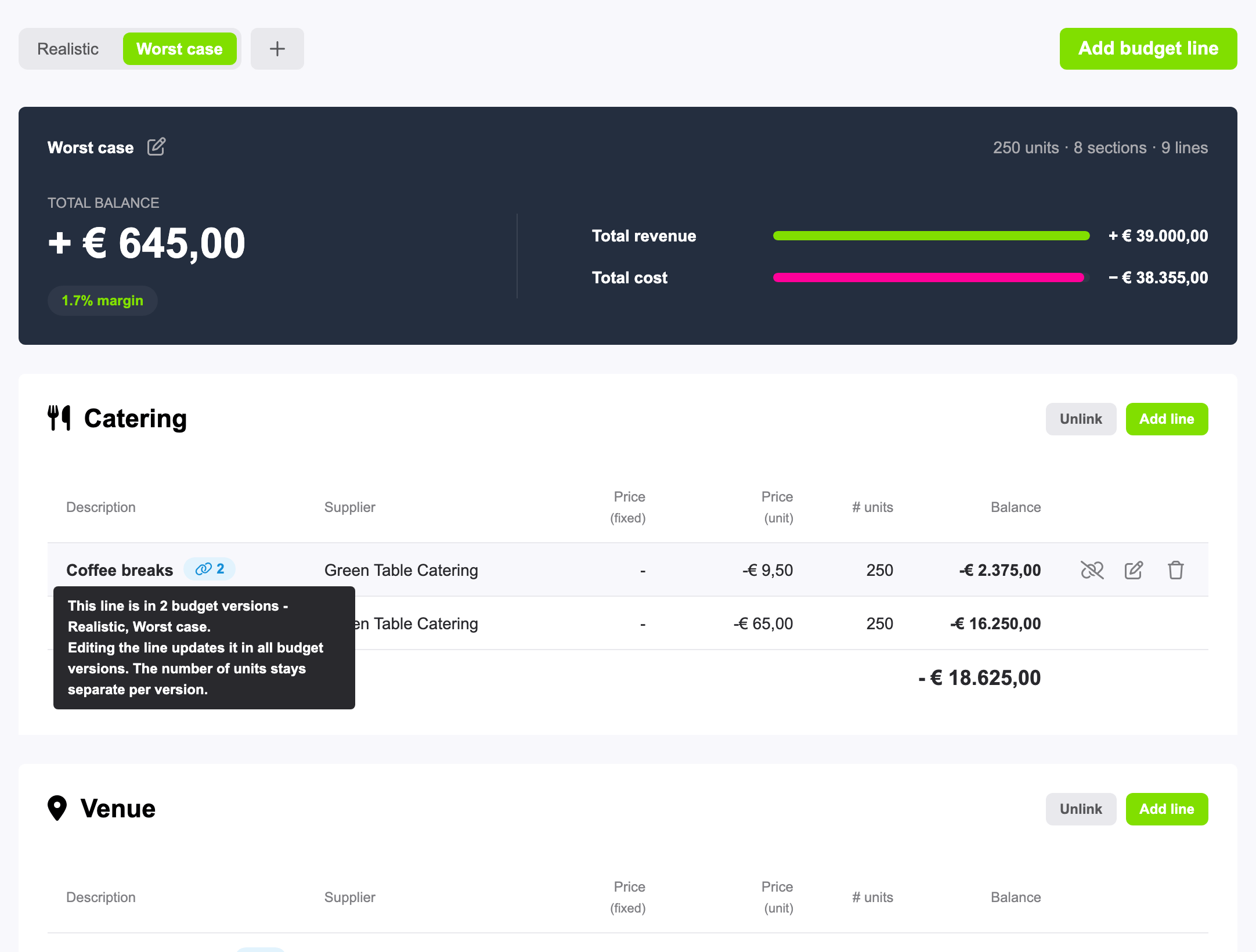
What stays the same and what does not
Everything you fill in for a linked line is shared: category, description, cost or revenue, supplier, prices and VAT percentage. Only the number of units stays separate per version, because every scenario can count a different number of guests. When you edit a linked line, a message at the top of the window reminds you that your changes apply to all its versions.
Add a new line to several versions
As soon as your event has more than one version, the window to add a line asks Add this line to, with a checkbox per version. Only the version you are looking at is ticked, so you never change another version without noticing. Tick more versions to add the line to all of them at once. Keep these lines linked then appears, ticked: leave it on for linked lines, or untick it to add independent copies.
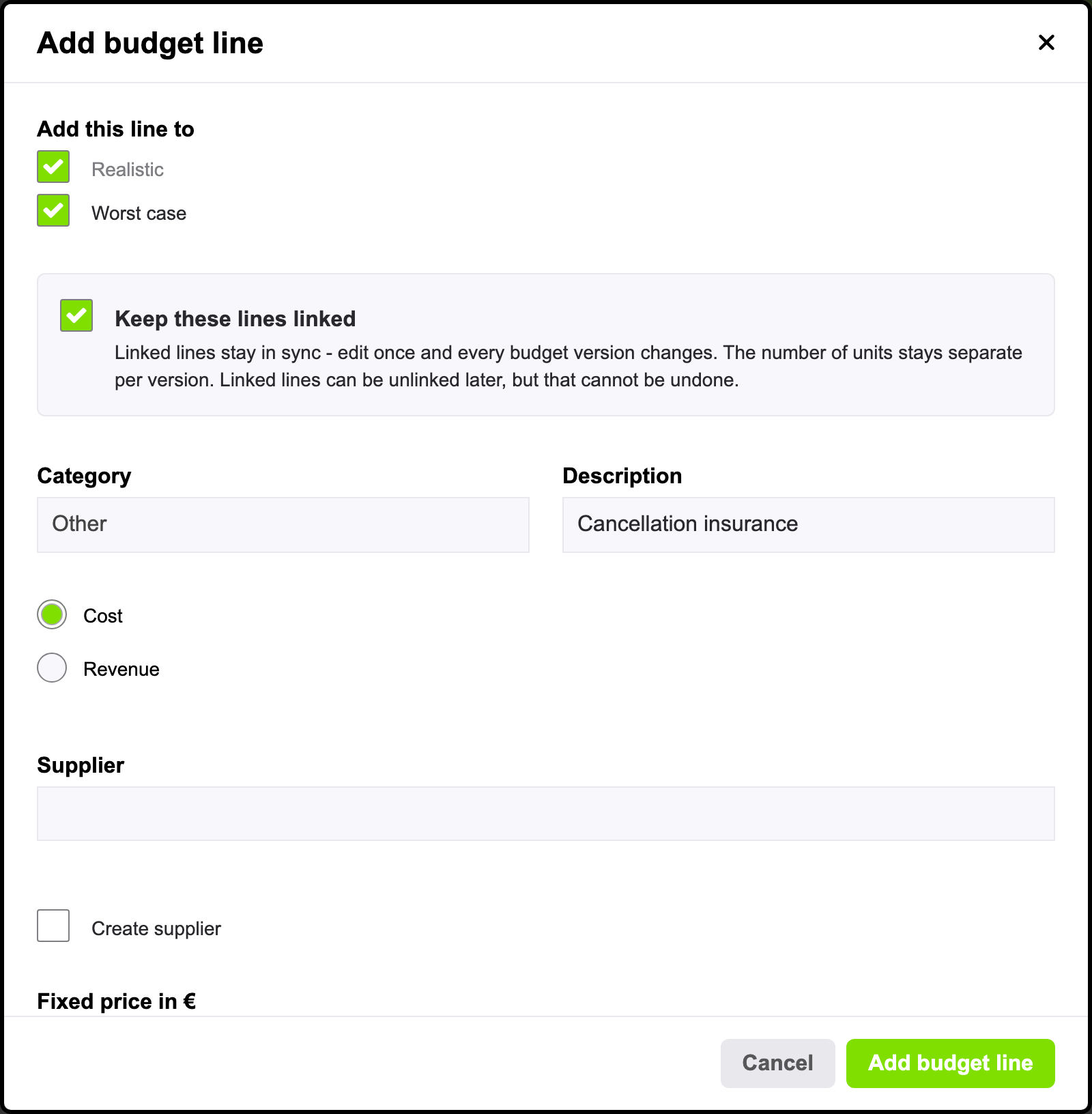
Unlink a line
Need a line to be different in one version? Unlink it there first. Move your mouse over the line and click Unlink (the icon with the broken chain), then Unlink this version. The line is then independent in this version, and the other versions stay linked to each other. To unlink every linked line of a category in one go, click Unlink at the top of that category and confirm with Unlink all lines.
Watch out: unlinking cannot be undone. Once a line is unlinked, you cannot link it again.
Delete a linked line
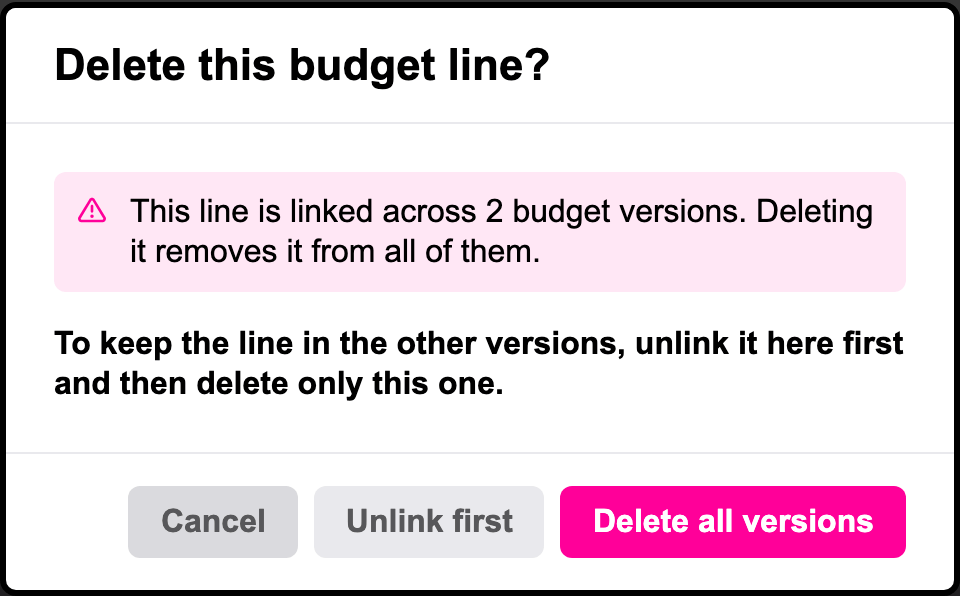
Deleting a linked line removes it from every version it is linked to. The confirmation tells you how many versions that is. Want to remove it from this version only? Click Unlink first in that same window: the line is unlinked, and you can then delete it here while the other versions keep it.
6. Work with or without VAT
By default, Budgets works with prices including VAT: you enter the prices you actually pay or receive, and every total is a total including VAT. That is the easiest way for most private events, such as a wedding or a party.
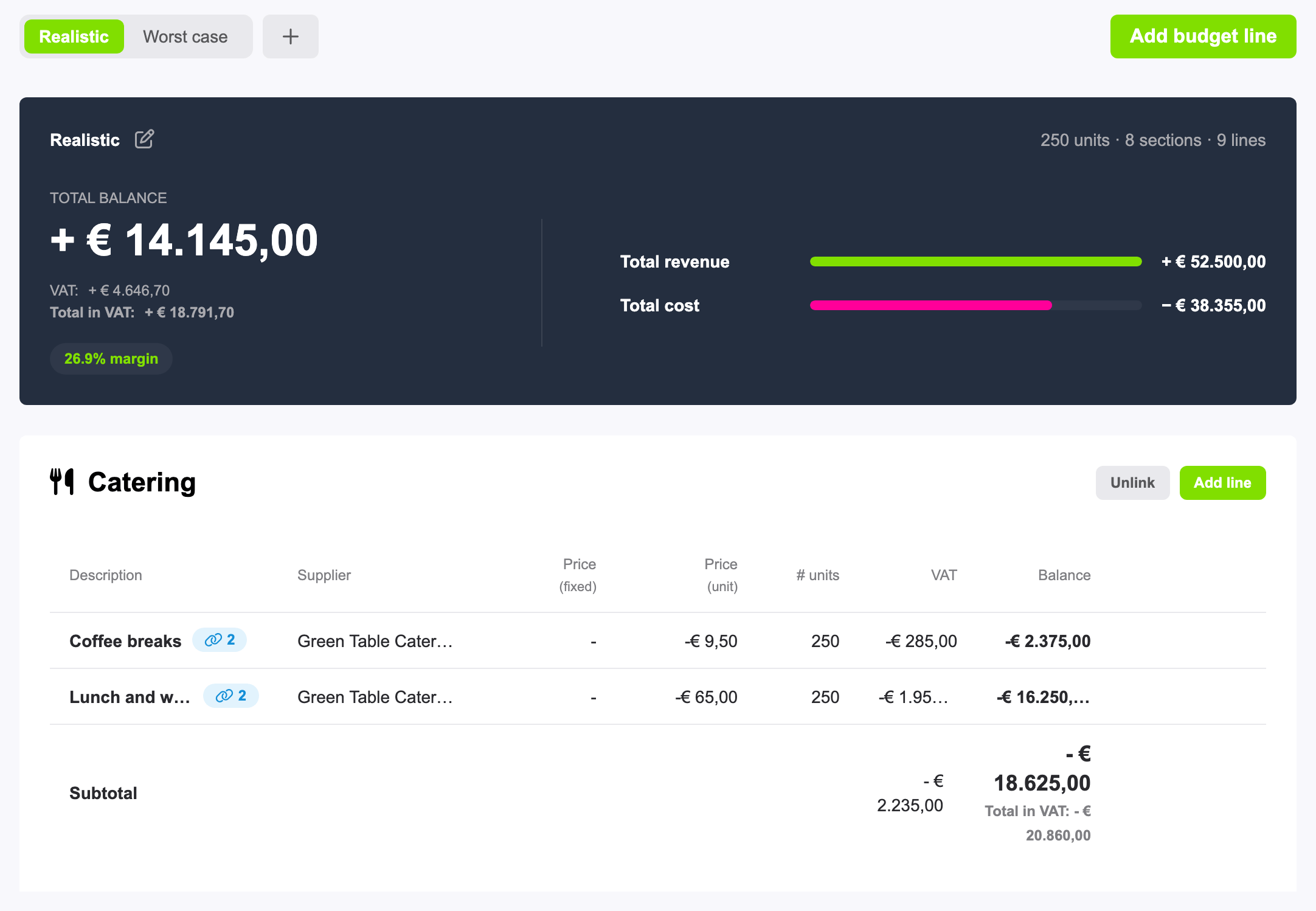
For business events, where VAT is usually recovered, it is often more useful to see prices excluding VAT. Tick Work with prices ex VAT in Budgets (advanced mode splitting up VAT for business events) in the settings of your event. Budgets then:
- adds a VAT percentage field to every budget line, where you fill in the VAT rate that applies to it,
- adds a VAT column to every category,
- shows every total excluding VAT, with the VAT and the Total incl. VAT below it, in the summary and in every subtotal.
Watch out: once you work with prices excluding VAT, you cannot switch back to prices including VAT for that event. The best moment to decide is when you create the event.
Already have budget lines when you switch? Their VAT percentage starts at 0, so open each line and fill in its rate. Do this in every budget version: a linked line only needs it once, but lines that are not linked have to be updated in each version separately.
7. Work on it together
Budgets is useful when you plan alone, and even more when you plan with a team or a client. Add the people you work with in the Contacts tool of your event. Under Set contact access, choose what each of them may do in Budgets:
| Access | What they can do |
|---|---|
| No access | They do not see the budget. This is the default for a new contact. |
| Read | They see every budget version and its lines and totals, but cannot change anything. Useful for a client who wants to follow the budget. |
| Manage | They can add, change and delete lines and budget versions. |
A contact gets an invitation by e-mail and logs in with their own eventplanner.net account. Read more in how to manage users in the event software.
Tip: a budget holds sensitive information, such as your margin and the prices of your suppliers. Give Manage access only to the people who really work on the budget, and think twice before you give a supplier access.
Frequently asked questions
Can I use Budgets for free? Yes. Budgets is part of the free event software, with all its features: budget versions, linked lines and the VAT mode.
What happens to my budget when the number of guests changes? Change Number of people in the settings of your event (Show info > Edit). Every line that uses the default number of units is recalculated straight away, in every budget version. Lines with Manually edit # units keep their own number.
Can I change a linked line in one version only? Only the number of units. For anything else, unlink the line in that version first (section 5). Keep in mind that you cannot link it again afterwards.
Why can't I delete a budget version? A version can only be deleted when it has no lines left. Delete its lines first, then open the version with the pencil next to its name and click Delete.
Can I turn off the prices excluding VAT again? No. Once an event works with prices excluding VAT, it stays that way. If you need a budget including VAT, create a new event without that setting.
Is my budget copied when I copy an event? Yes. When you create a new event from an earlier one, all its budget versions and lines are copied to the new event, with the link to their supplier when you copy that supplier too. The copied lines are not linked to the lines of the original event. In the copy wizard, you can choose again whether the new event works with prices excluding VAT.
Why can't I add more budget lines? An event holds up to 1000 budget lines, counted over all its budget versions together. Delete the lines you no longer need to make room. Adding one line to several versions at once counts as one line per version.
Why don't I see the buttons to add or change lines? You have Read access to this budget. Ask the owner of the event to give you Manage access in Contacts.
Read also
- Master eventplanner.net: Complete guide and training to our event software
- How to set up an event in the eventplanner.net event software
- How to use Moodboards?
- How to use Checklists?
- How to use Callsheets?
- How to use Supplier Management?
- How to use Briefings?
- How to use Tickets?
- How to use Floor plans?
- How to manage users in the eventplanner.net event software?
- eventplanner.net certification
